
Quick answer
Many people assume any photo can become a great coloring page.
For photos meant specifically for the tile grid of a mosaic page, the best photos for mosaic coloring pages guide covers what a mosaic asks for that other formats do not.
That's not true.
Some photos produce clean, beautiful results — coloring pages where the shapes are clear, the regions are satisfying to fill in, and the finished page actually resembles the original image. Others create confusing grids that look like static, where the subject is unrecognizable and the coloring experience is frustrating before a single pencil touches the page.
The difference almost never comes down to the conversion tool. It comes down to the photo.
If you're building a coloring book for Amazon KDP, creating a color-by-number page as a gift, or producing a class activity sheet, your photo choice determines the outcome more than any setting or tool decision you'll make afterward. A great source photo in, a great coloring page out. A poor source photo in, no amount of tweaking will save it.
This guide covers exactly which photos work, which ones don't, and how to evaluate any photo before you convert it. If you're ready to start converting and want a walkthrough of the full process, see the complete photo conversion tutorial.
How This Guide Is Organized
Mosaci Studio converts a photo into one of two page styles — Color-by-Number or Mark-Based (Square Mark, Hexagon Mark, Dot Mark) — and photo selection works differently for each. To keep things clear, this guide is split into two complete, self-contained parts:
- Part 1 — Color-by-Number: Complete Photo Guide — everything you need if you're making a traditional numbered color-by-number page.
- Part 2 — Mark-Based (Monochrome): Complete Photo Guide — everything you need if you're making a Square Mark or Hexagon Mark page.
Not sure which style fits your photo? Read the section right below first — it takes five seconds to decide.
Two Ways to Convert: Color-by-Number vs. Mark-Based Styles
Color-by-Number is the classic style: the photo is broken into numbered regions, each mapped to a color in a palette, and the finished page looks like the original photo once colored in. This style depends on distinct color regions, so photos with clear, saturated colors and enough contrast between hues convert best.
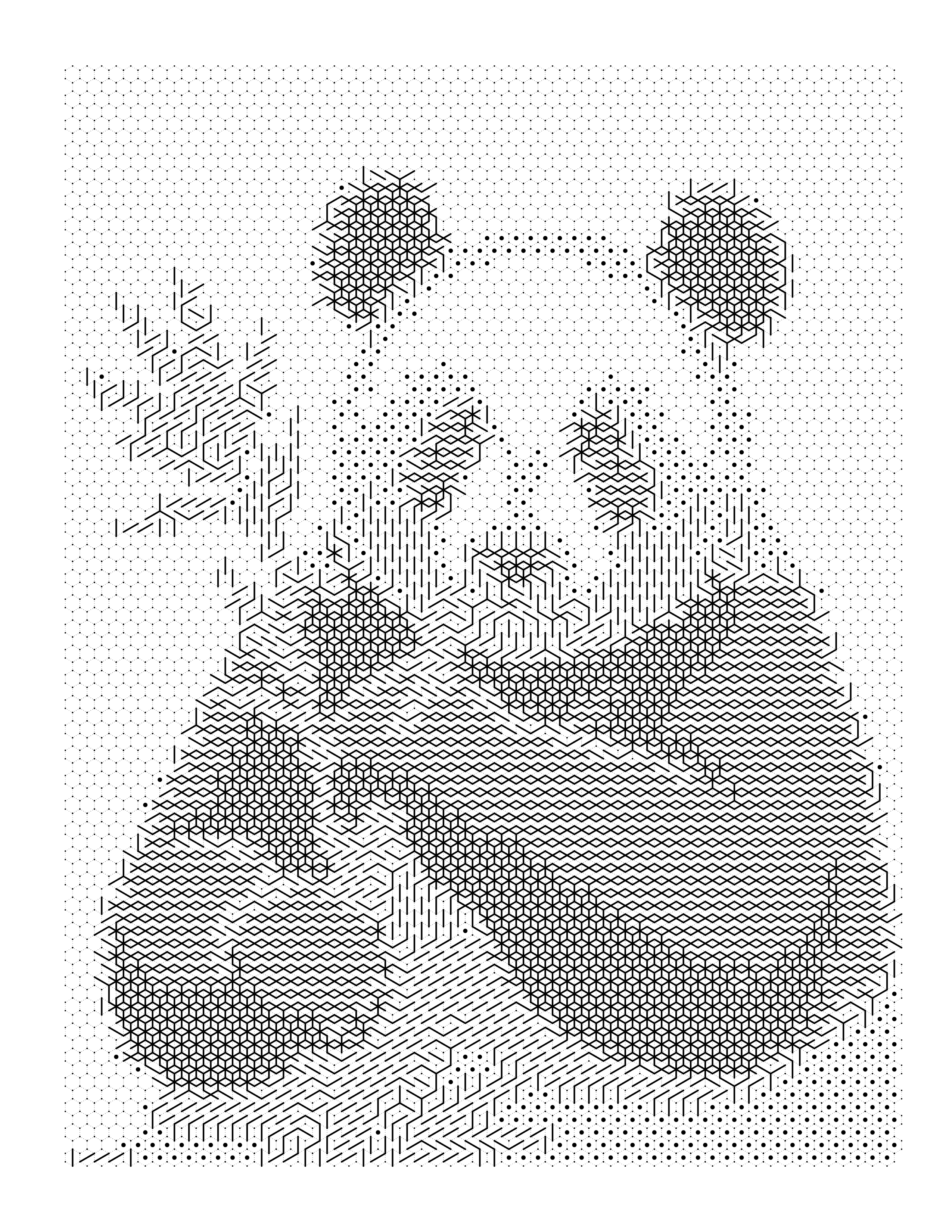
Mark-Based styles (Square Mark and Hexagon Mark) are monochrome — each cell is filled with a symbol (a shape or mark) instead of a number, and the density/pattern of marks recreates the image's tonal (light-to-dark) structure rather than its color. This style depends on tonal contrast rather than color.
Color-by-Number — full color, numbered regions
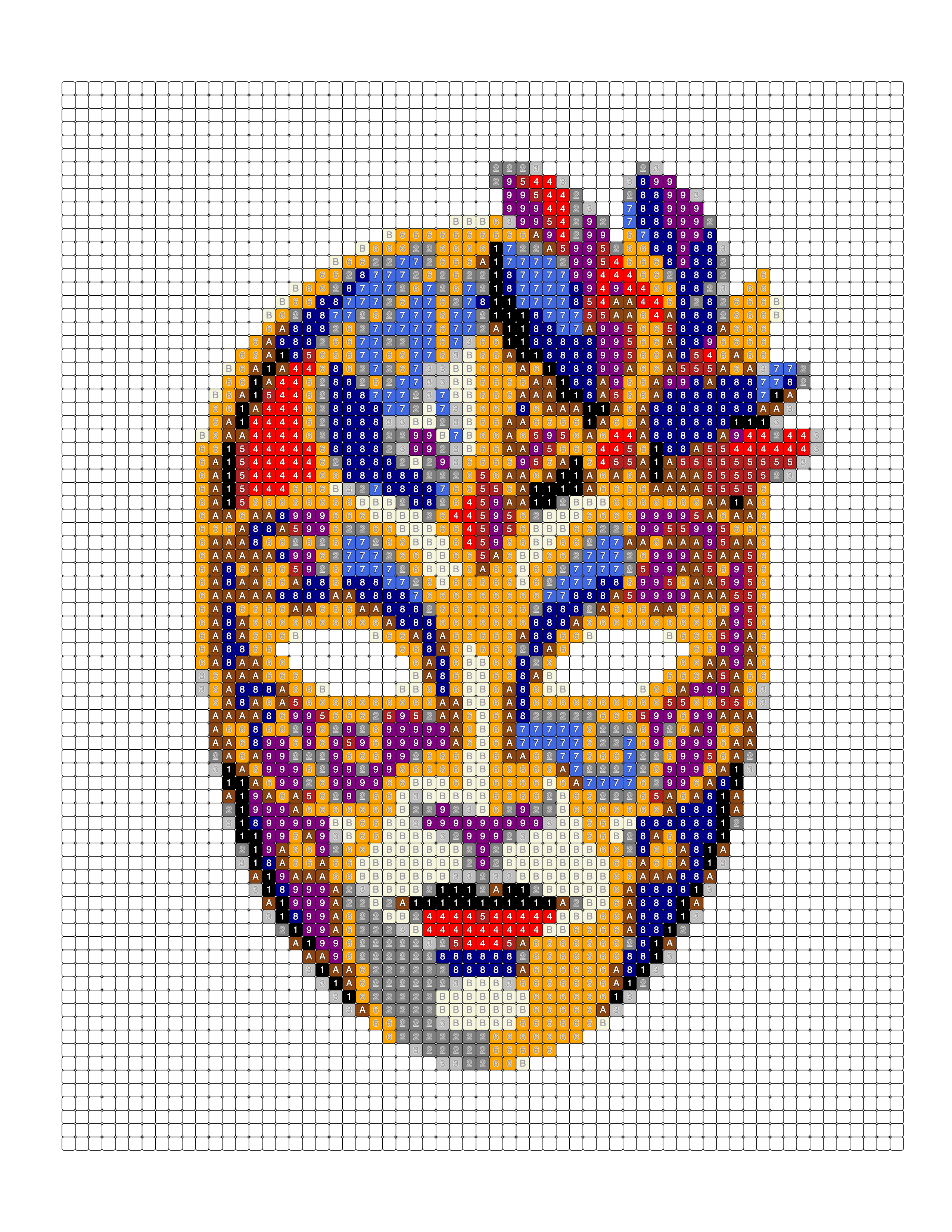 Square
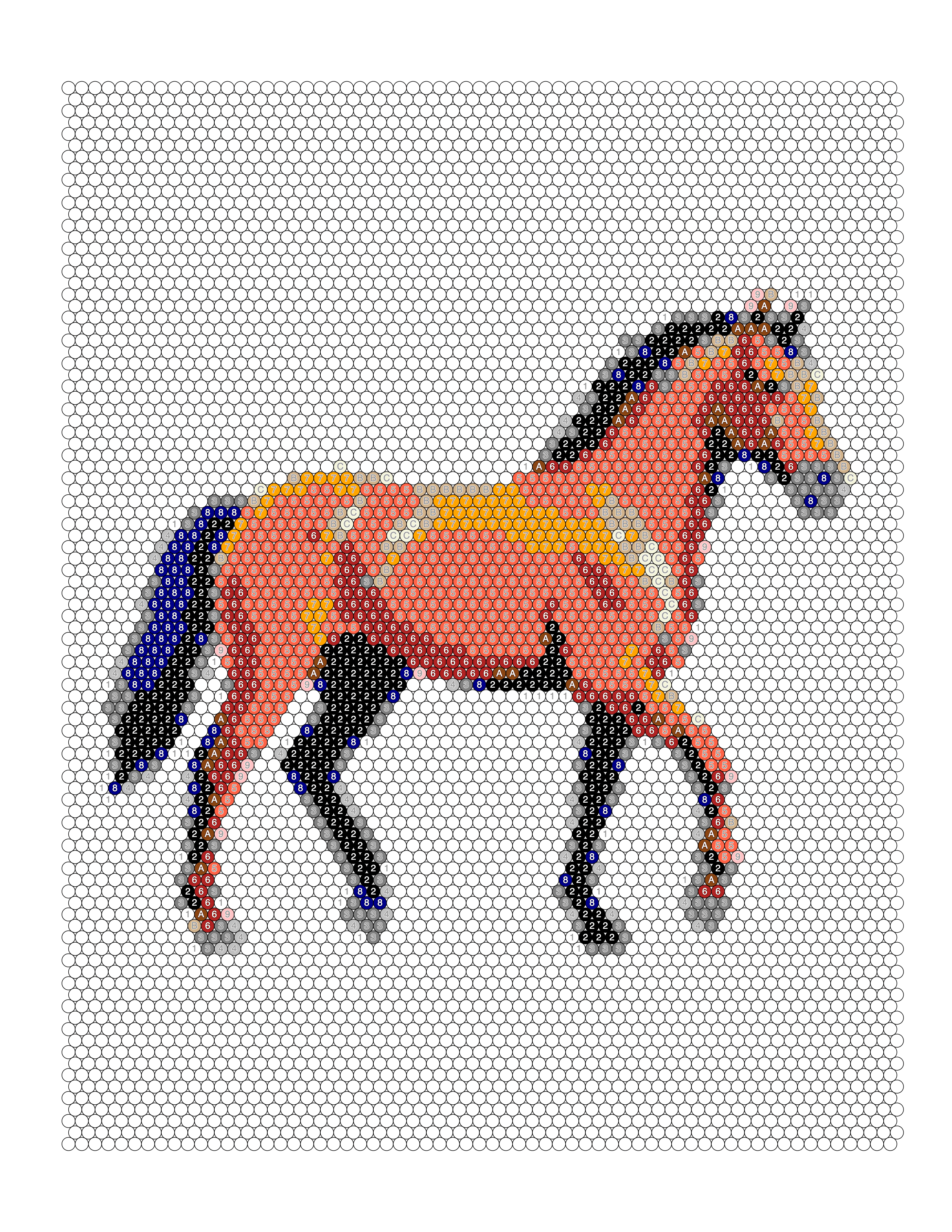 Circle
Mark-Based — monochrome, symbol density
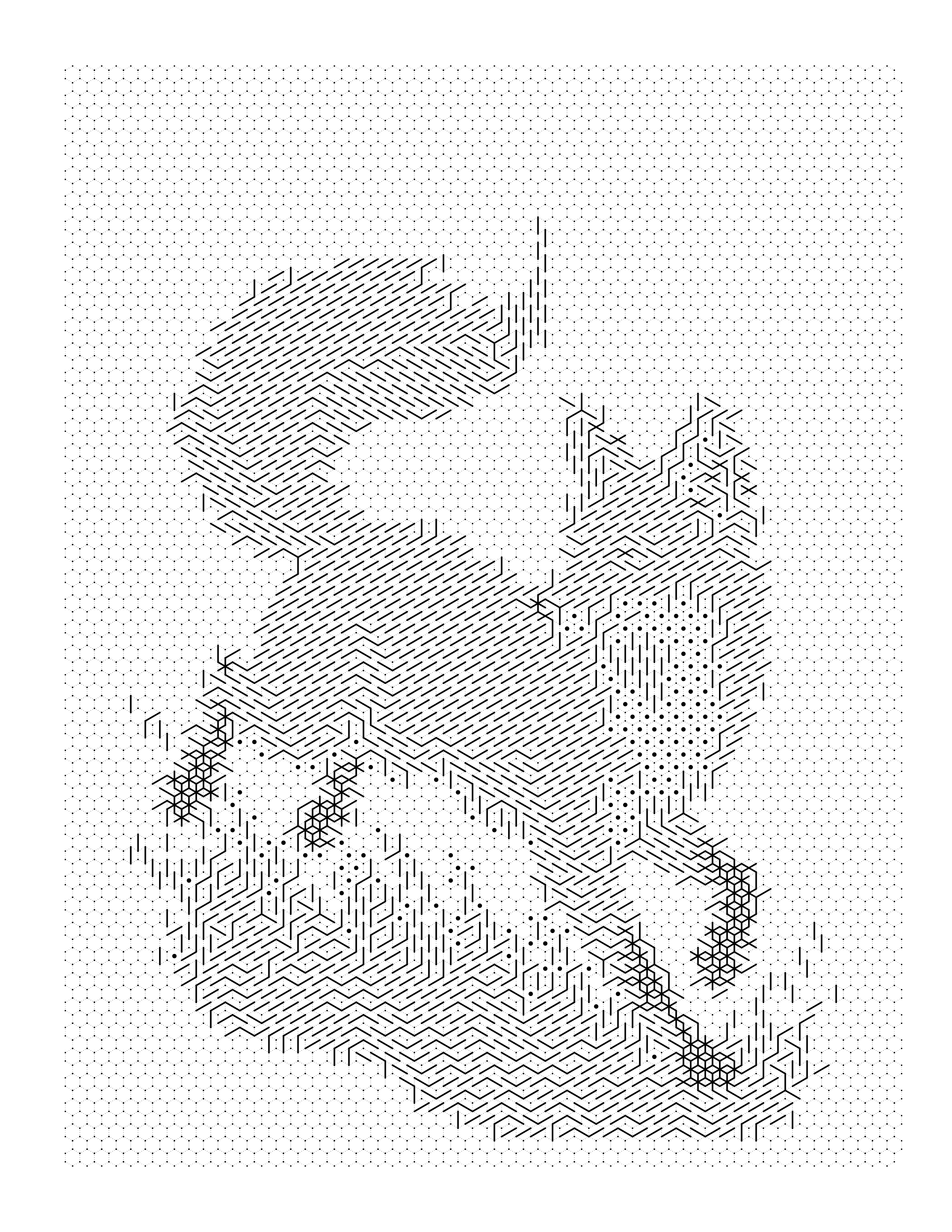 Hexagon Mark
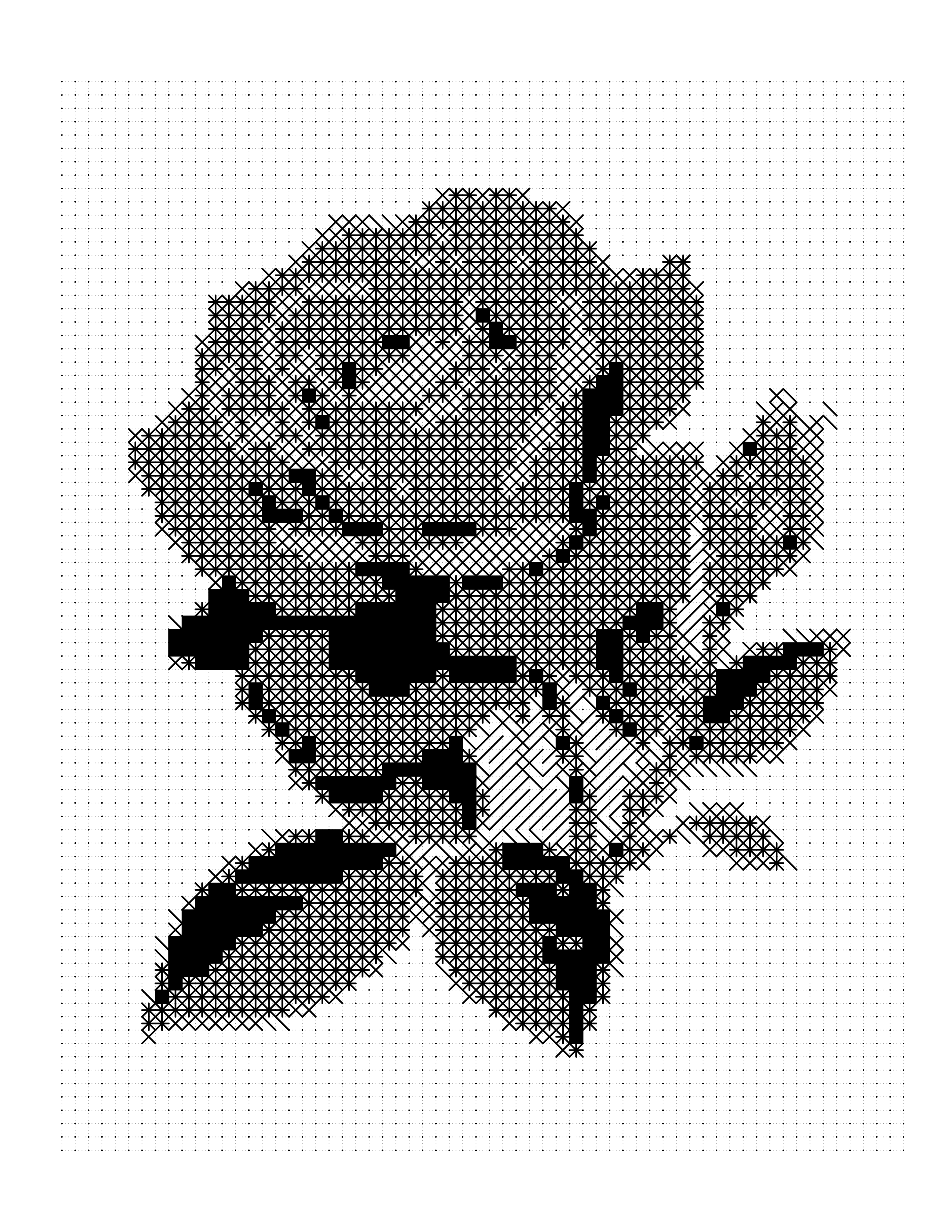 Square Mark
Both styles are built on the same underlying idea — the Garbage In, Garbage Out principle. A coloring page conversion takes the continuous, infinite detail of a photograph and simplifies it into a finite number of discrete cells. The cleaner the source information — clearer edges, stronger contrast, simpler regions — the cleaner the output. No converter can create detail that wasn't in the original photo. Both parts below use the same CLEAR Framework to evaluate a photo, but which criterion matters most differs by style — each part explains exactly how.
Part 1 — Color-by-Number: Complete Photo Guide
New to the format itself? See What Is Color by Number? A Complete Beginner's Guide for the full definition before diving into photo selection.
Why Photo Selection Matters for Color-by-Number
A Color-by-Number conversion analyzes the photo's colors, decides which nearby colors are close enough to be treated as the same one, then assigns each region to one of those simplified colors and divides the image into a numbered grid.
The cleaner the source information — clearer edges, stronger color contrast, simpler color regions — the cleaner the output grid. The noisier the source, the more the algorithm has to make judgment calls, and the more likely those judgment calls result in cells that look like noise rather than meaningful shapes.
The good news: once you know what to look for, evaluating a photo takes about five seconds.
The CLEAR Framework for Color-by-Number
After testing hundreds of photos through conversion, we developed the CLEAR Framework — a five-point check that predicts conversion quality before you upload a single file. Run any photo through these five criteria. If it passes all five, it will almost certainly produce a clean, beautiful color-by-number page.
C — Clear Subject
The most important factor in a good coloring page is a single, obvious subject that the eye immediately identifies. The algorithm allocates its cell budget across the entire image — when there's one dominant subject, most of the detail budget goes toward it. When the image has several competing subjects, the detail budget gets split and nothing reads clearly.
Passes: a dog sitting in a field, a single rose with a blurred background, a portrait of one person, a hawk on a branch, a lighthouse at sunset.
Fails: a group photo of seven people, a landscape where sky/trees/grass/water compete equally, a cluttered desk or busy street scene.
The quick test: cover the photo and ask what it's a photo of. If you can answer in two words, the subject is clear enough.
L — Lighting
Lighting determines how much natural depth and contrast exists in a photo. Good lighting creates shadows that define edges and highlights that separate the subject from the background.
Works well: natural daylight, open shade, golden hour, window light indoors.
Causes problems: direct flash (flat light, hard shadows), dim indoor lighting (low overall brightness, muddy cells), harsh noon sun (unflattering hard shadows).
E — Enough Contrast
Contrast is what creates edges, and edges are what make cells readable. For Color-by-Number, contrast can come from color difference (hue) as well as brightness — a red flower against green leaves has plenty of contrast even if the two colors are similar in brightness.
High-contrast examples: a white dog on dark green grass, a red flower against blue sky, a black cat on a white bedspread.
Low-contrast traps: a light gray cat on a light beige floor, a brown dog in autumn leaves, a foggy landscape.
Quick check: open the photo in your phone's editor and temporarily bump the contrast slider. If edges snap into focus, the photo has contrast potential.
A — Avoid Clutter
A cluttered background is the most common reason a technically well-photographed photo produces a disappointing Color-by-Number page. When a background has a lot of visual information, the algorithm assigns cell budget to it instead of your subject.
Works well: blurred bokeh, solid or near-solid colors, simple textures, removed backgrounds.
Causes problems: trees with visible leaf detail, crowds, busy streets, cluttered rooms, patterned surfaces.
The good news: background clutter is the one CLEAR factor you can fix without finding a new photo. Crop tightly to the subject, or use Mosaci's Object Focus feature to strip the background automatically.
R — Resolution
Resolution is the minimum bar. Minimum recommended resolution: 1000px on the shortest side. Most smartphone cameras from 2018 onward produce images well above this threshold.
What causes resolution problems: screenshots (72–96 DPI), compressed copies from messaging apps, zoomed-in crops of low-resolution originals, old scans digitized below 150 DPI.
CLEAR Score for Color-by-Number
Give your photo one point for each criterion it passes:
| Criterion | Pass | Fail |
|---|---|---|
| C — Clear Subject | One obvious main subject | Multiple subjects, no focal point |
| L — Lighting | Natural light, even exposure | Flash, backlight, dark indoor |
| E — Enough Contrast | Subject stands out from background | Blends in, flat, low tonal range |
| A — Avoid Clutter | Simple or blurred background | Busy background, many competing elements |
| R — Resolution | 1000px+ on shortest side | Screenshot, compressed, degraded copy |
Score 5/5 — Upload with confidence. Score 4/5 — Still likely good; fix the failed criterion if you can (crop, or find a better source file). Score 3/5 — Proceed with caution; preview carefully. Score 2/5 or below — Find a better photo.
Best Photo Subjects for Color-by-Number
Some categories of photos reliably score high on the CLEAR Framework. Here's what works well and why.
Pets
Pet photos are the single most reliable category for Color-by-Number conversion. Dogs and cats in particular convert beautifully — close-up portraits, sitting poses, and action shots all work well when the lighting is good.
Why pets work: pet photographers naturally take close-up portraits (clear subjects); fur texture creates strong tonal variation; pets are usually photographed against neutral backgrounds.
Watch out for: photos taken through a window or screen (grid artifacts); dark-colored pets need strong lighting; white pets on light backgrounds need extra contrast attention.
Flowers and Botanicals
Flowers are almost foolproof. A single bloom against a plain or blurred background is one of the easiest photos to convert into a clean, satisfying Color-by-Number page.
Why flowers work: natural saturated colors create strong color regions; petal shapes create clean, geometric cells; backgrounds are usually simple.
Watch out for: extreme macro close-ups can lose the flower's overall shape; wildflower meadows almost always fail the Clutter test — a single bloom works, an entire meadow doesn't.
Wildlife
Wildlife photos can produce stunning Color-by-Number pages, with unique challenges around sharpness and background complexity.
Why wildlife works: distinctive markings and textures; birds especially convert well — feather patterns create natural tonal variation.
Watch out for: wild wildlife photos often lack sharpness from motion blur; natural habitat backgrounds are almost always cluttered; crop aggressively if the subject is small in frame.
Buildings and Landmarks
Architecture is an underappreciated subject that converts exceptionally well.
Why architecture works: strong horizontal/vertical lines map naturally to grid cells; distinct color regions (walls, windows, doors); high contrast is easy to achieve.
Watch out for: significant lens distortion (extreme wide-angle); street-level shots with crowds and signage fail the Clutter test badly.
8 Color Mosaic Patterns to Choose From
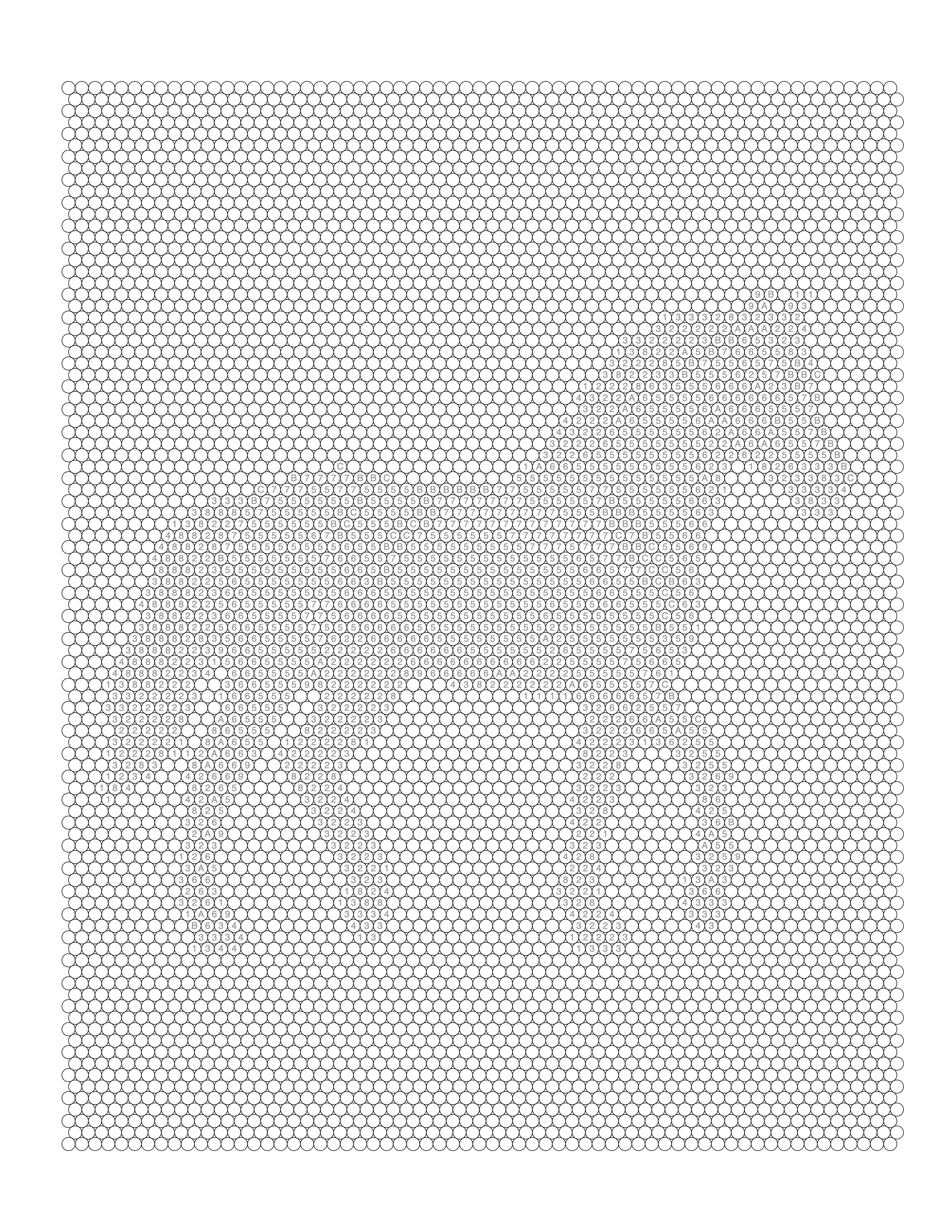
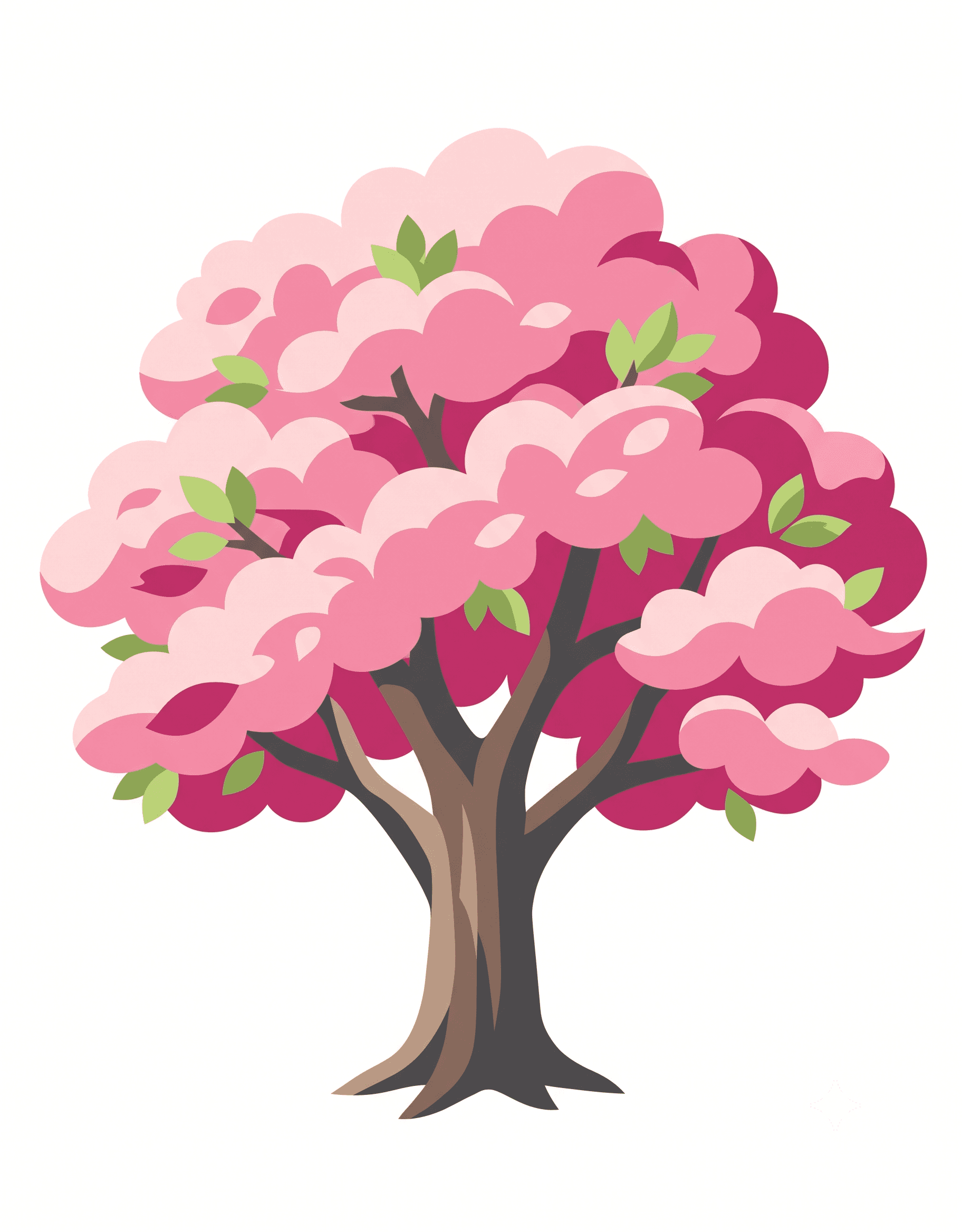
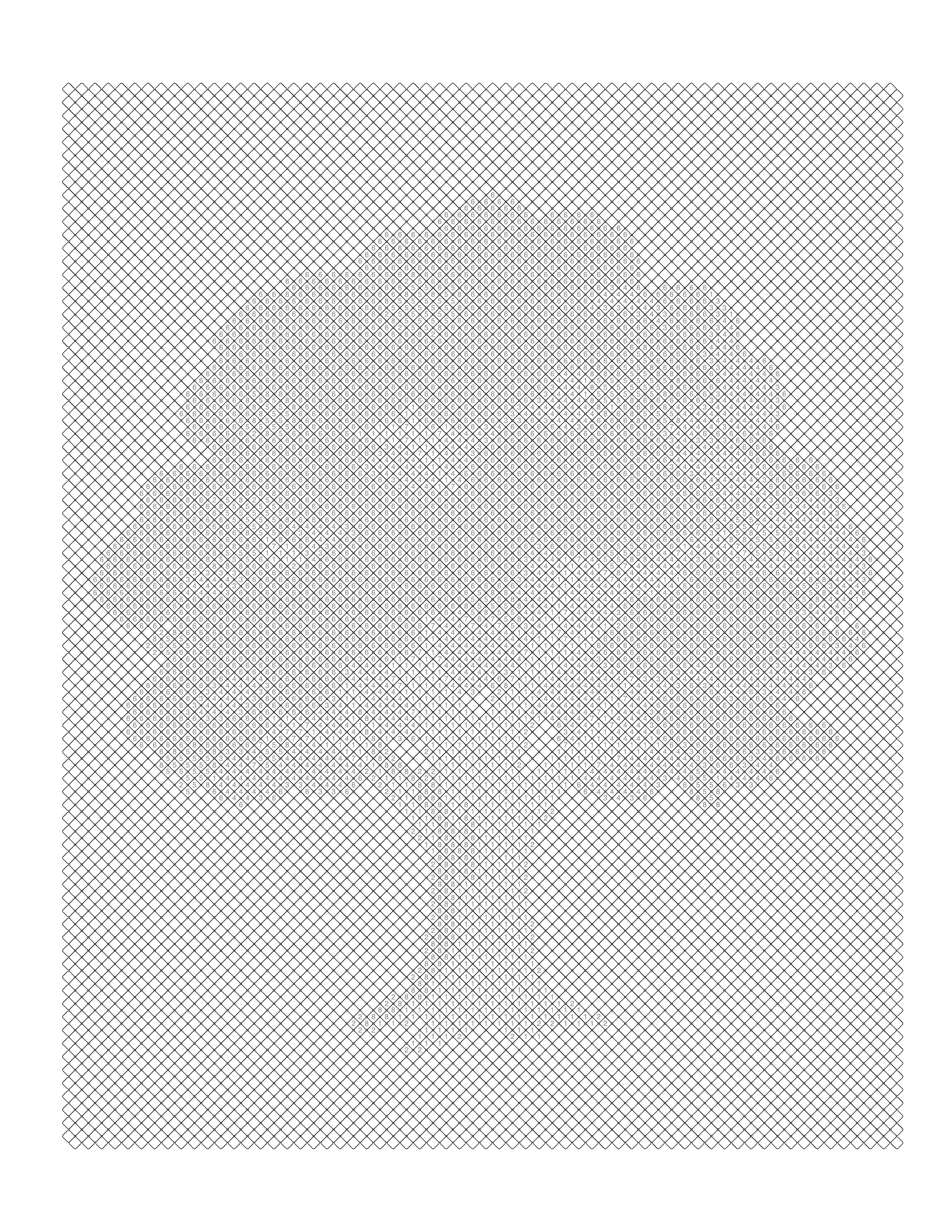
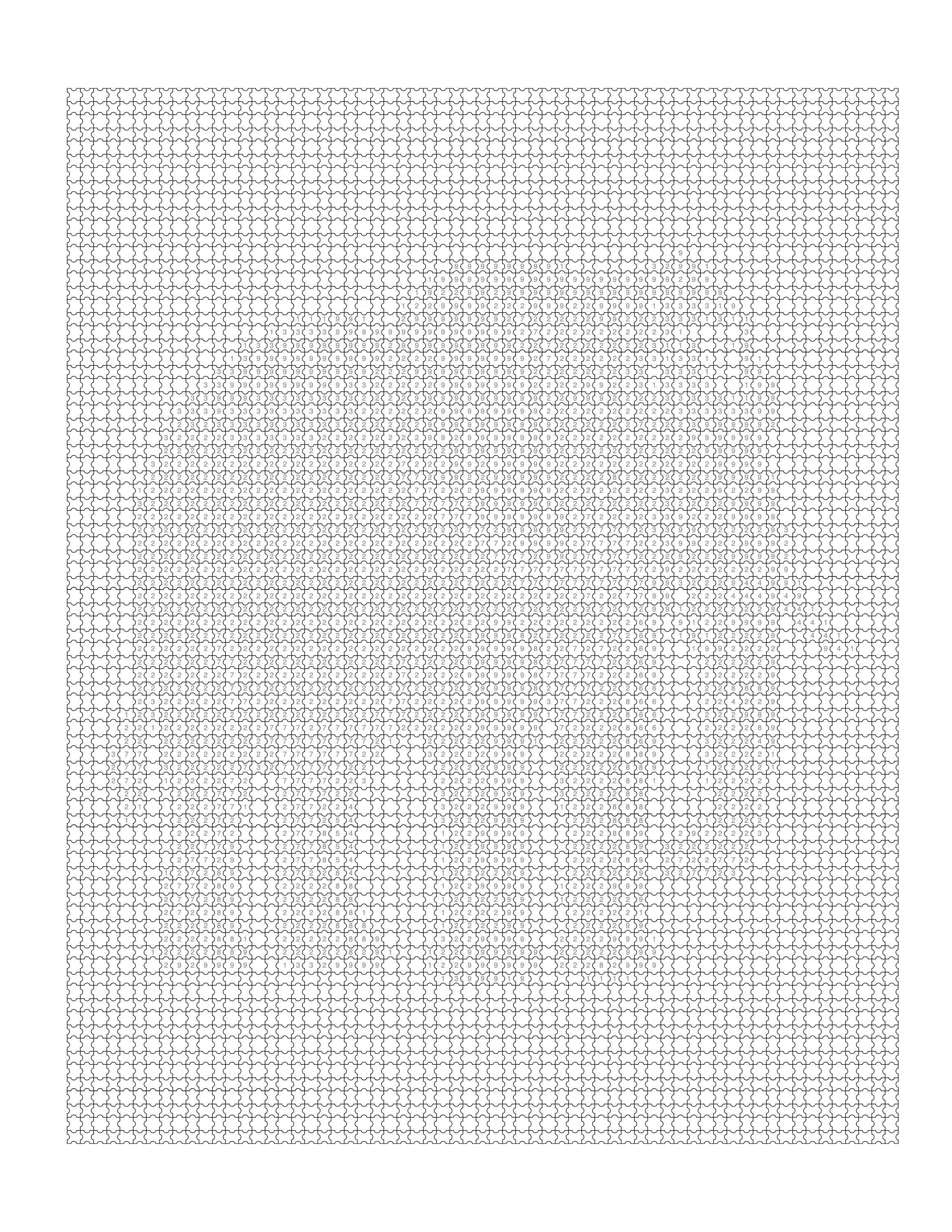
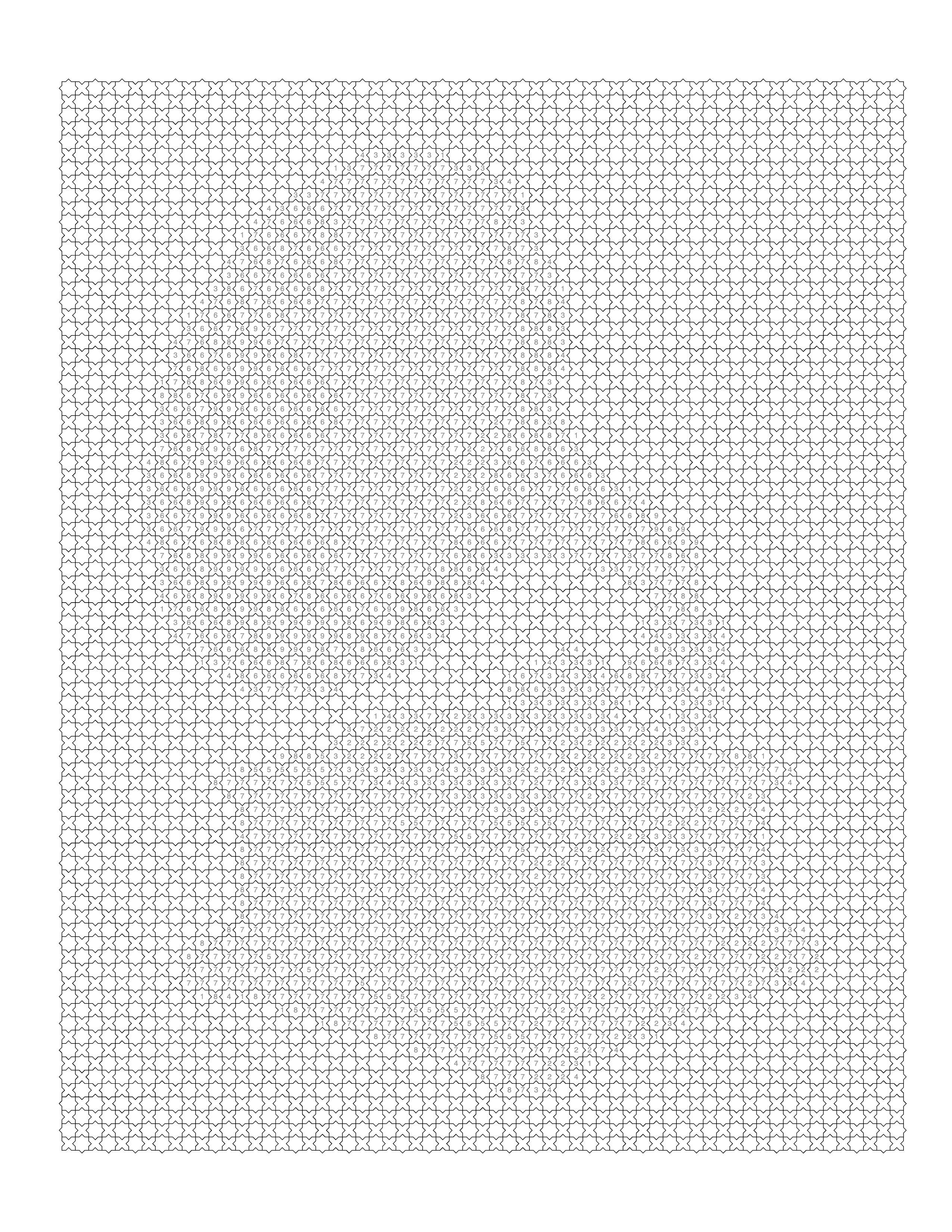
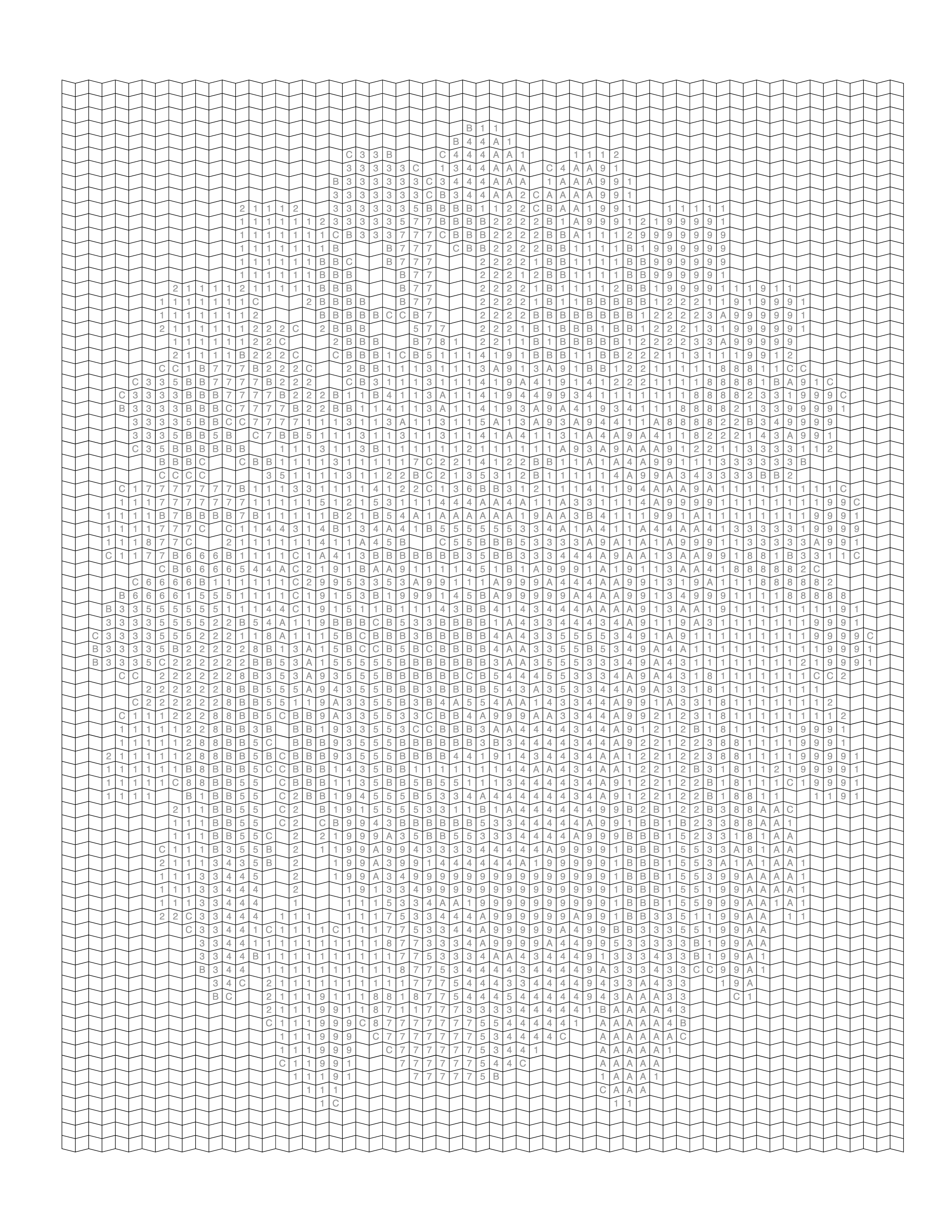
Color-by-Number isn't a single look — Mosaci ships 8 different color mosaic patterns (Square, Circle, Diamond, Hexagon, Puzzle, Islamic, Fish Scale, Trapezoid), and every CLEAR-passing photo above works with any of them. Each example below uses a different subject, so what varies between them is the grid geometry rather than the artwork. The grid style is an aesthetic choice layered on top of a good photo, not a fix for a bad one.
Square
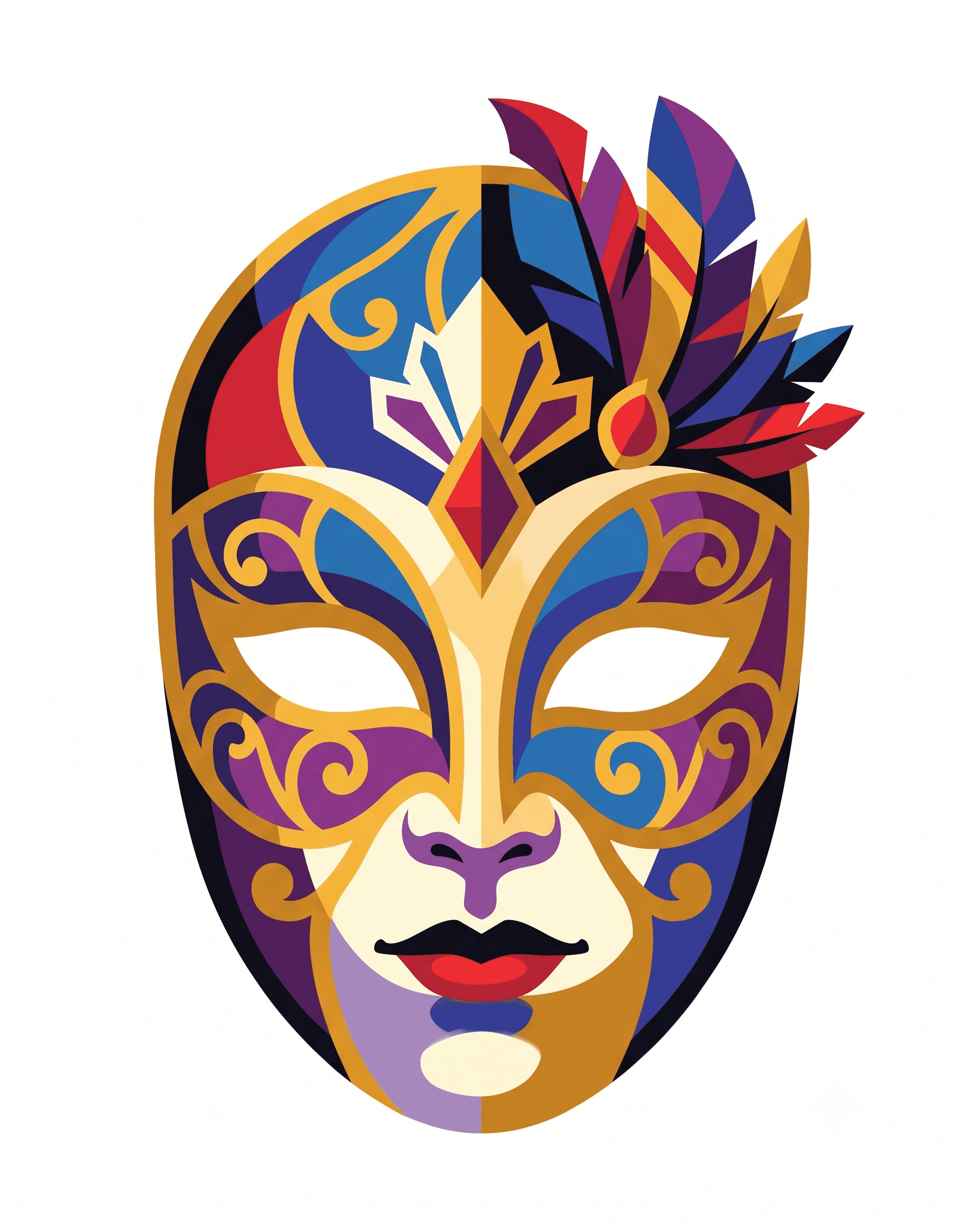 Source image
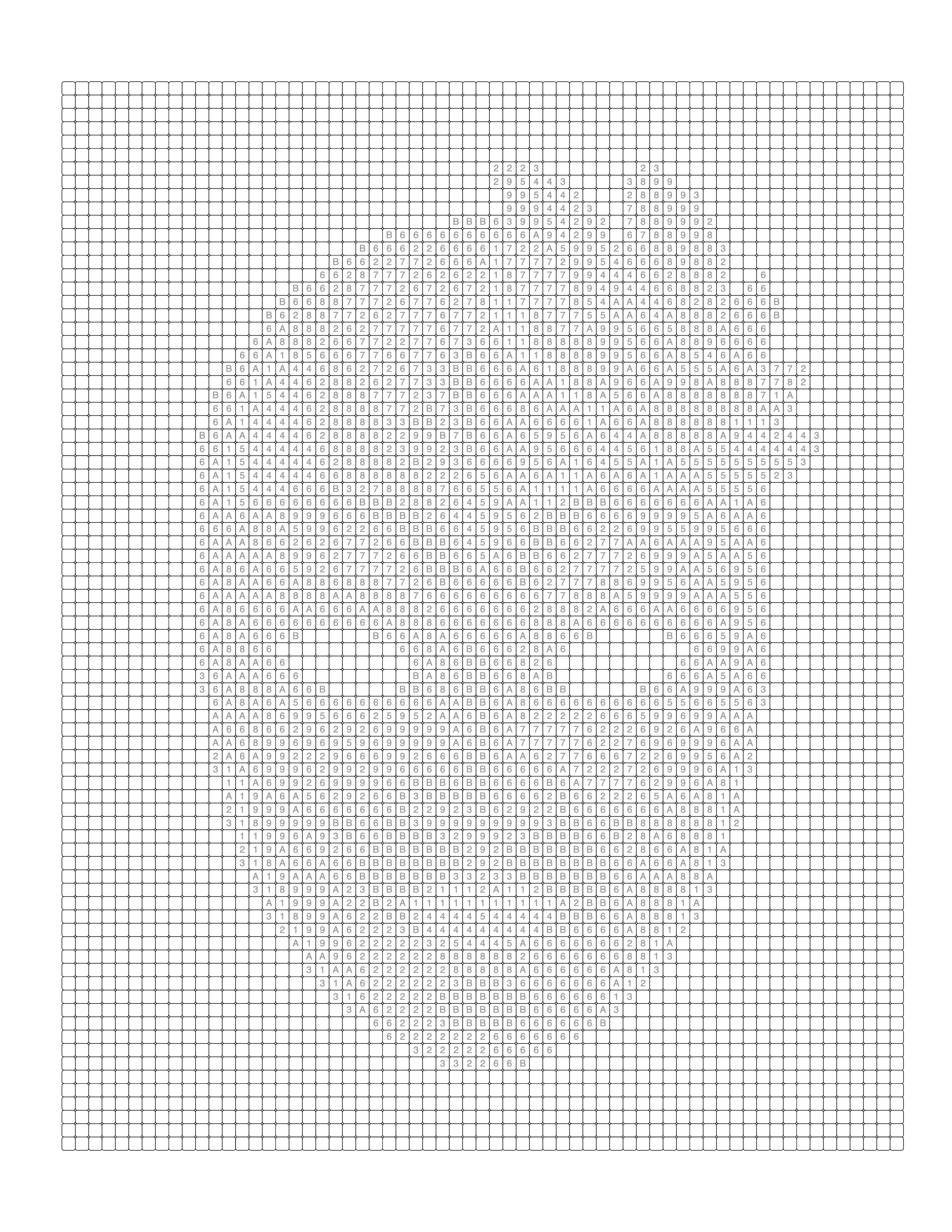 BlankCompleted — Square
Circle
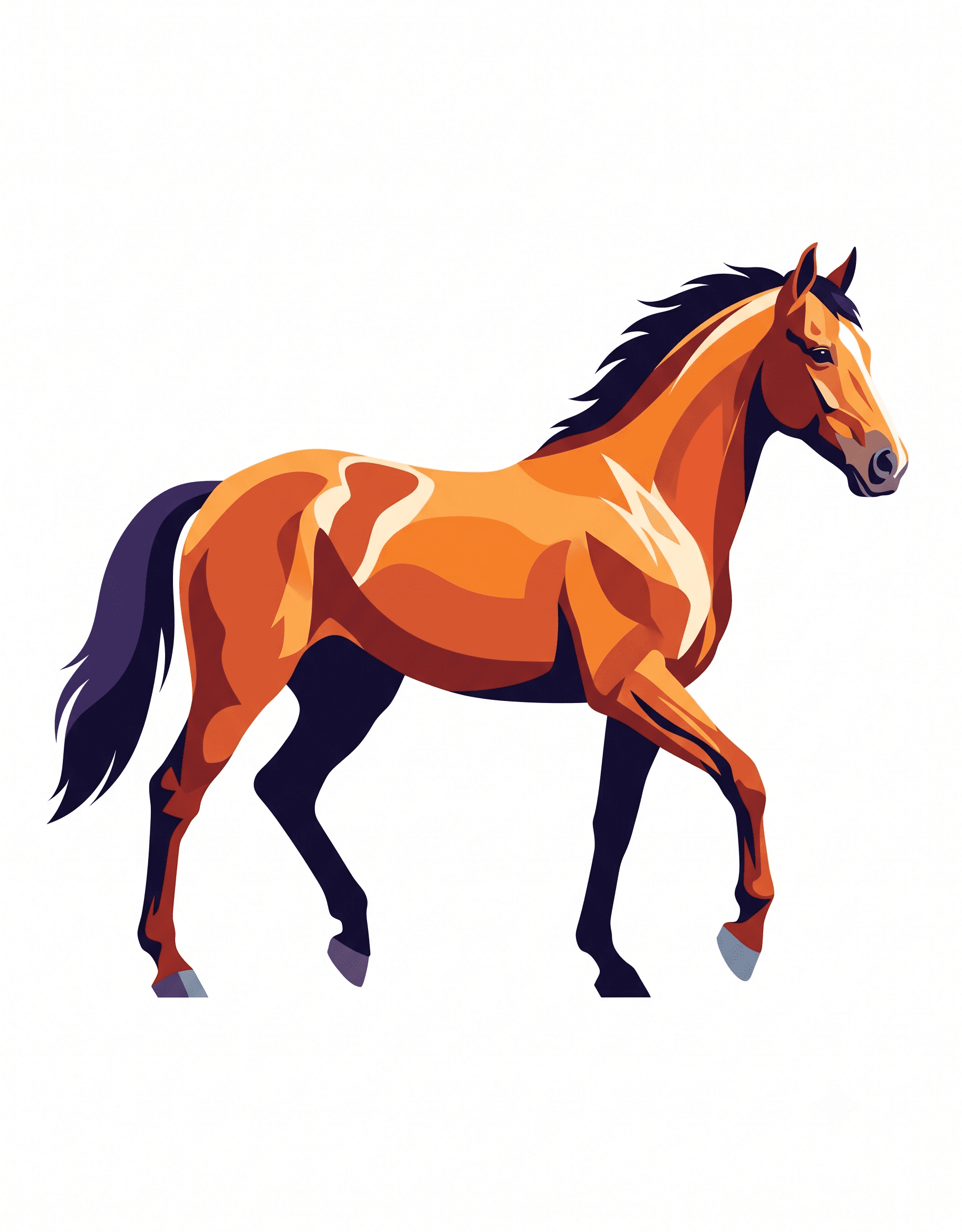 Source image
 BlankCompleted — Circle
Diamond
 Source image
 Blank
Blank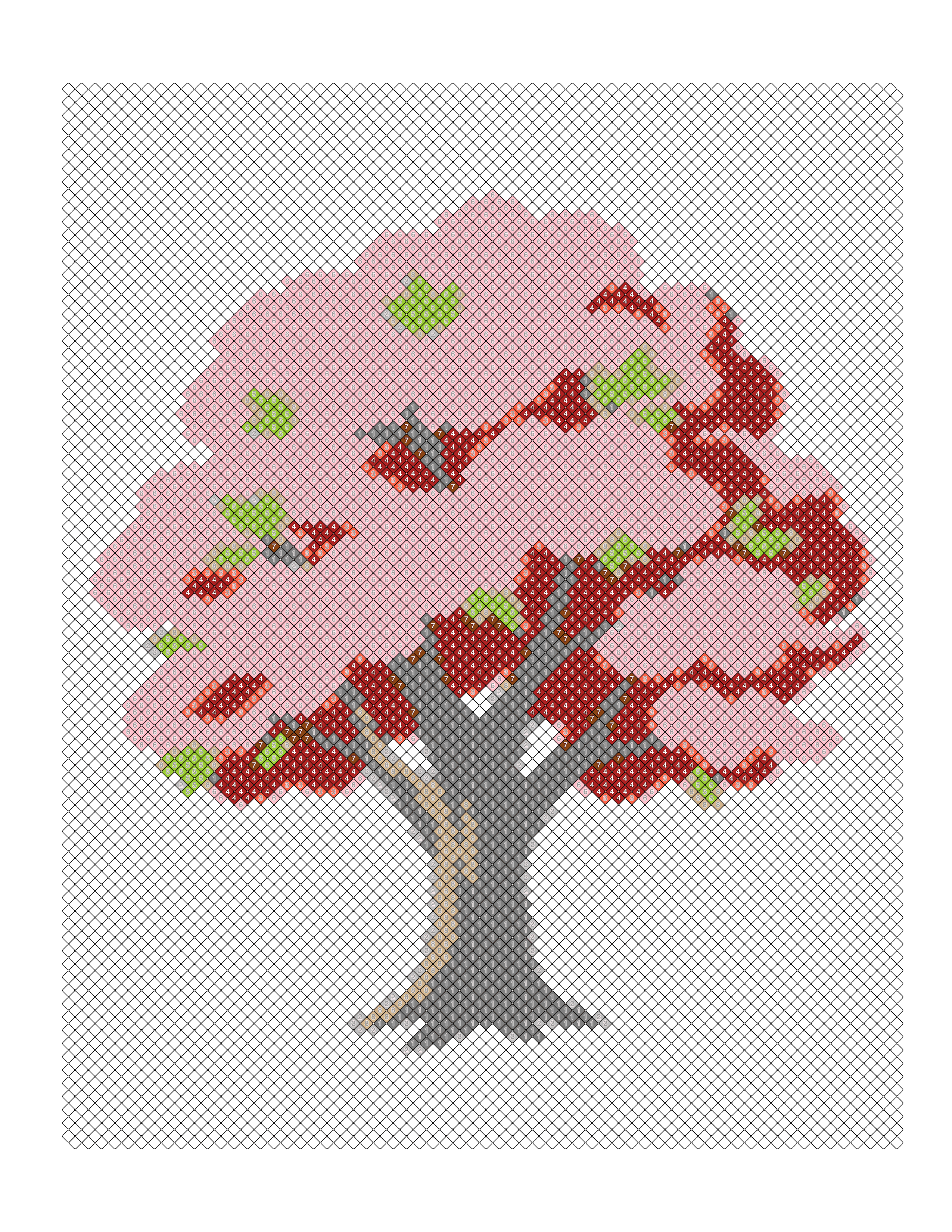 Completed — Diamond
Hexagon
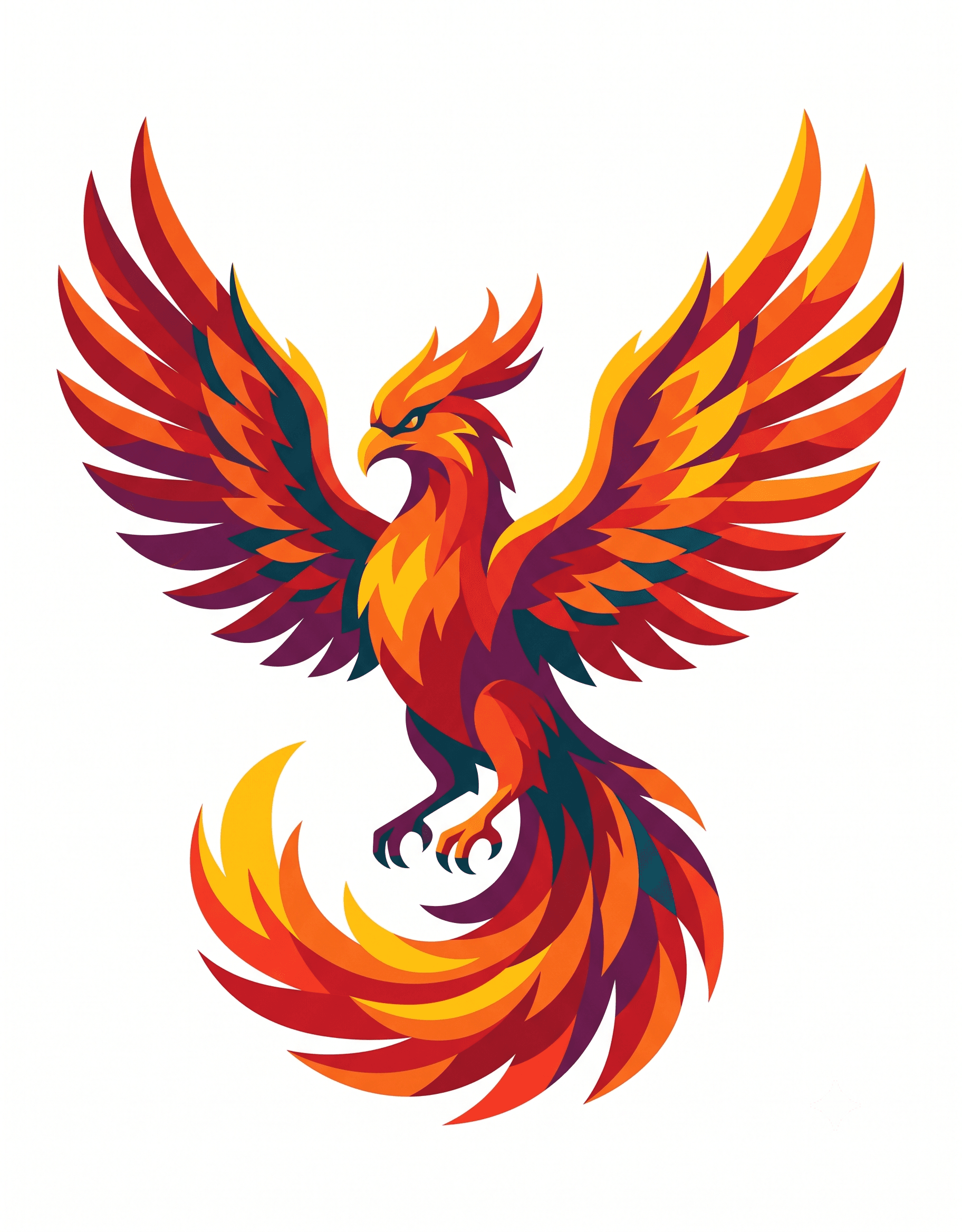 Source image
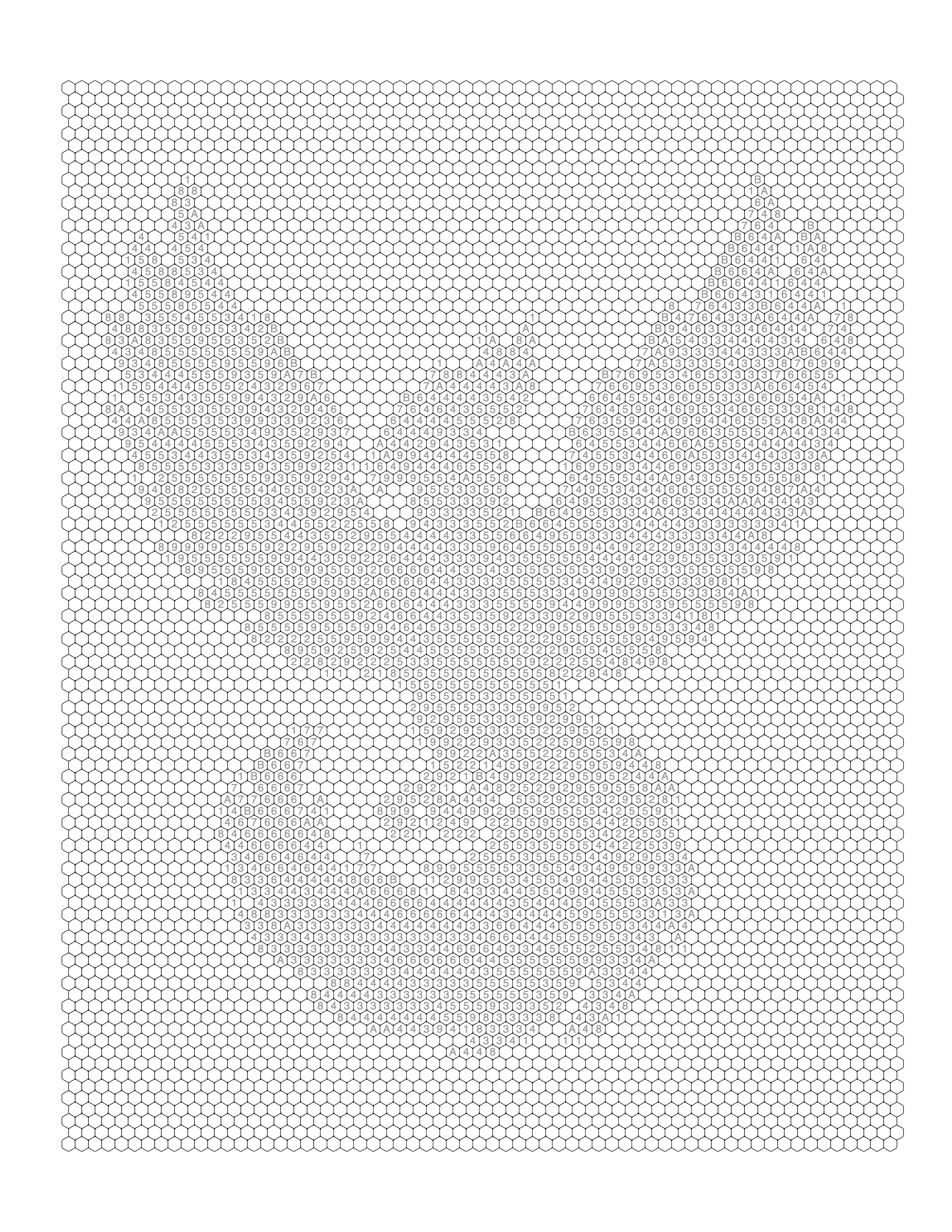 Blank
Blank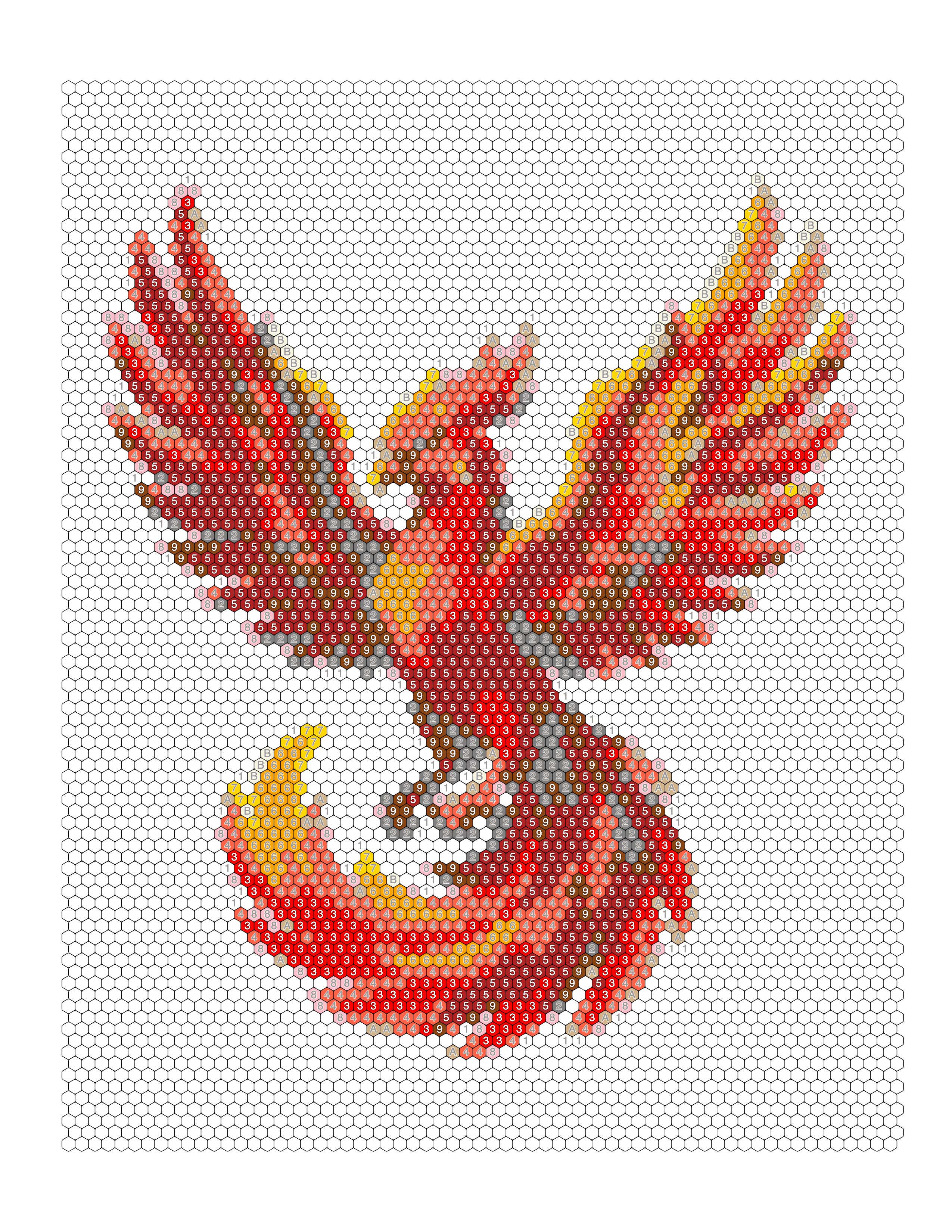 Completed — Hexagon
Puzzle
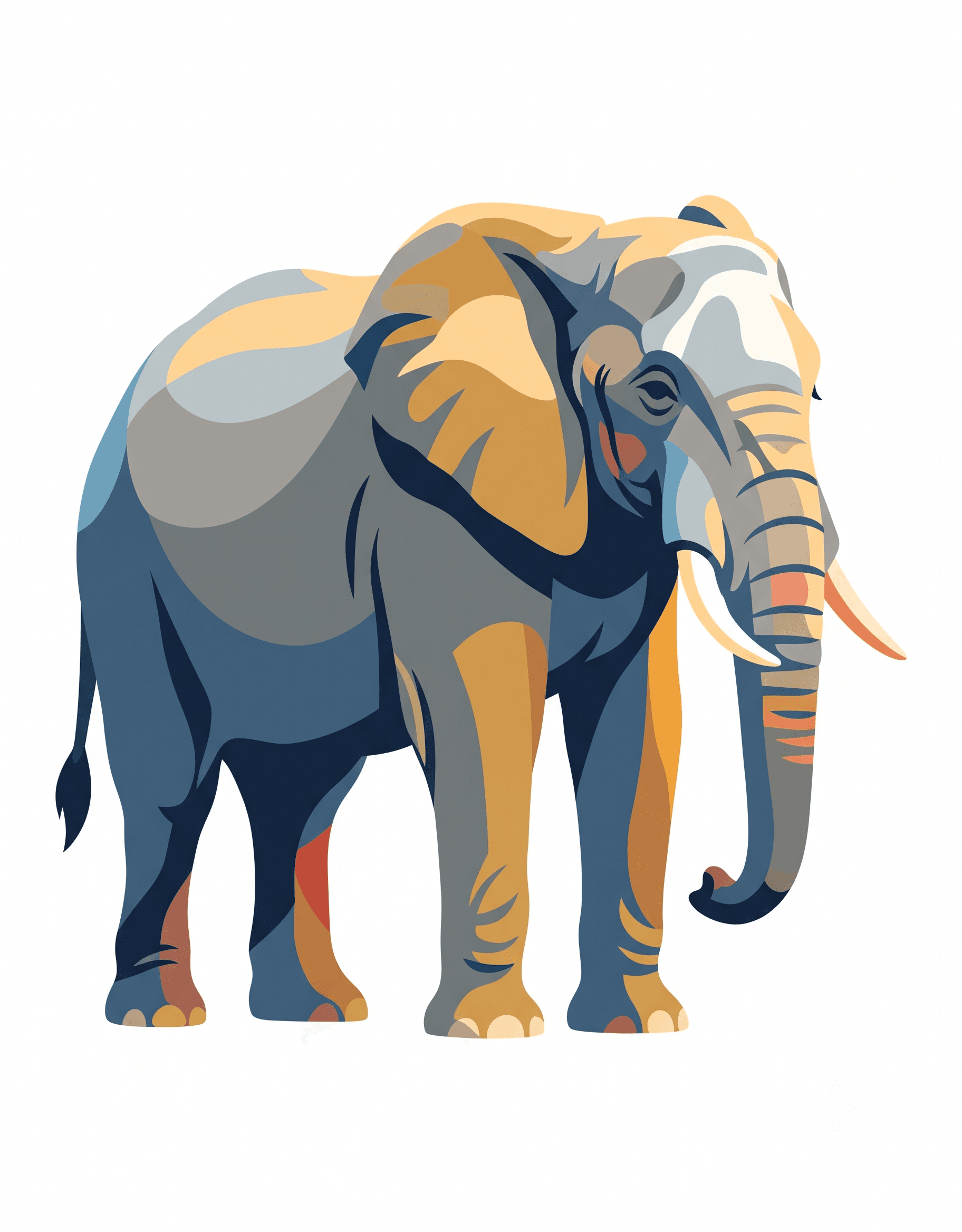 Source image
 Blank
Blank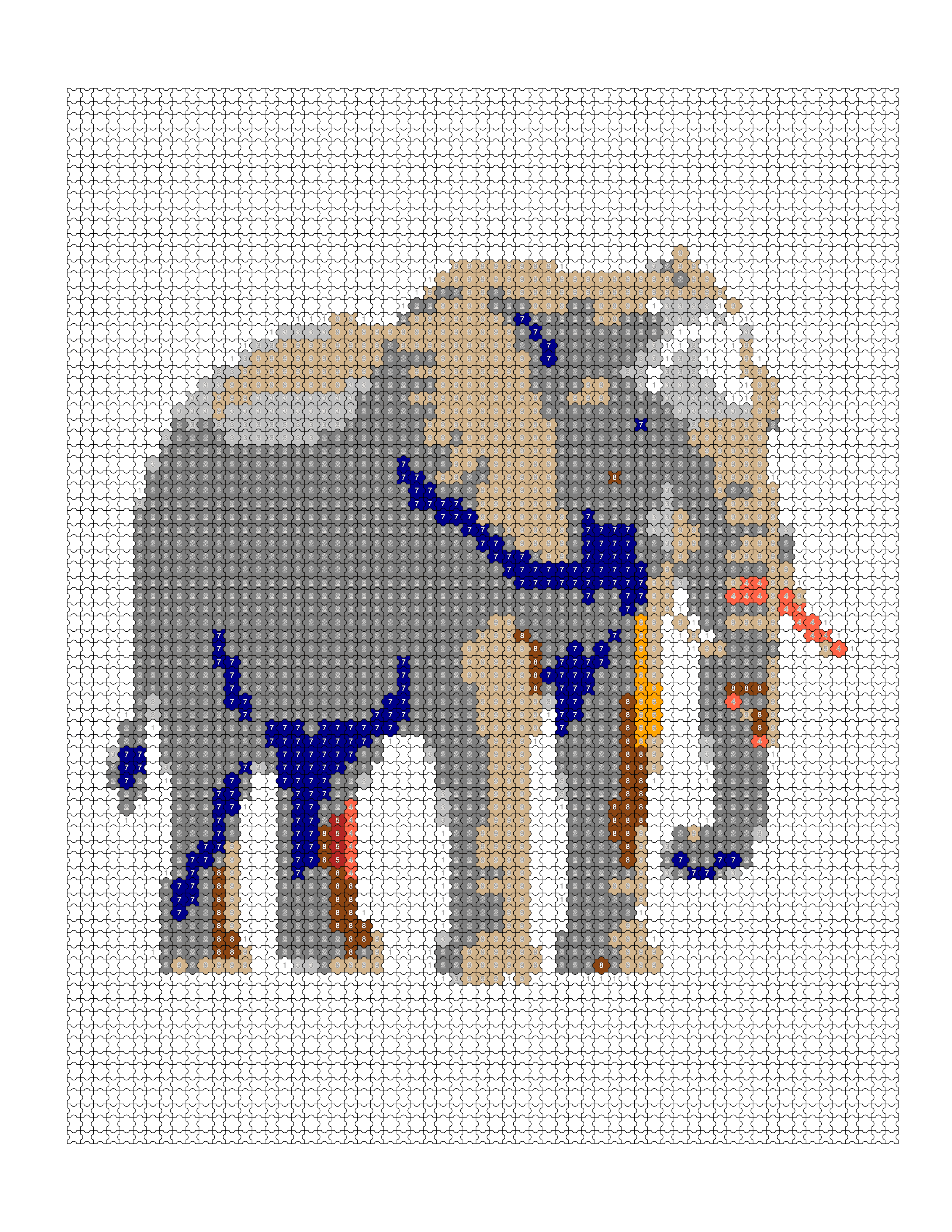 Completed — Puzzle
Islamic
 Source image
 Blank
Blank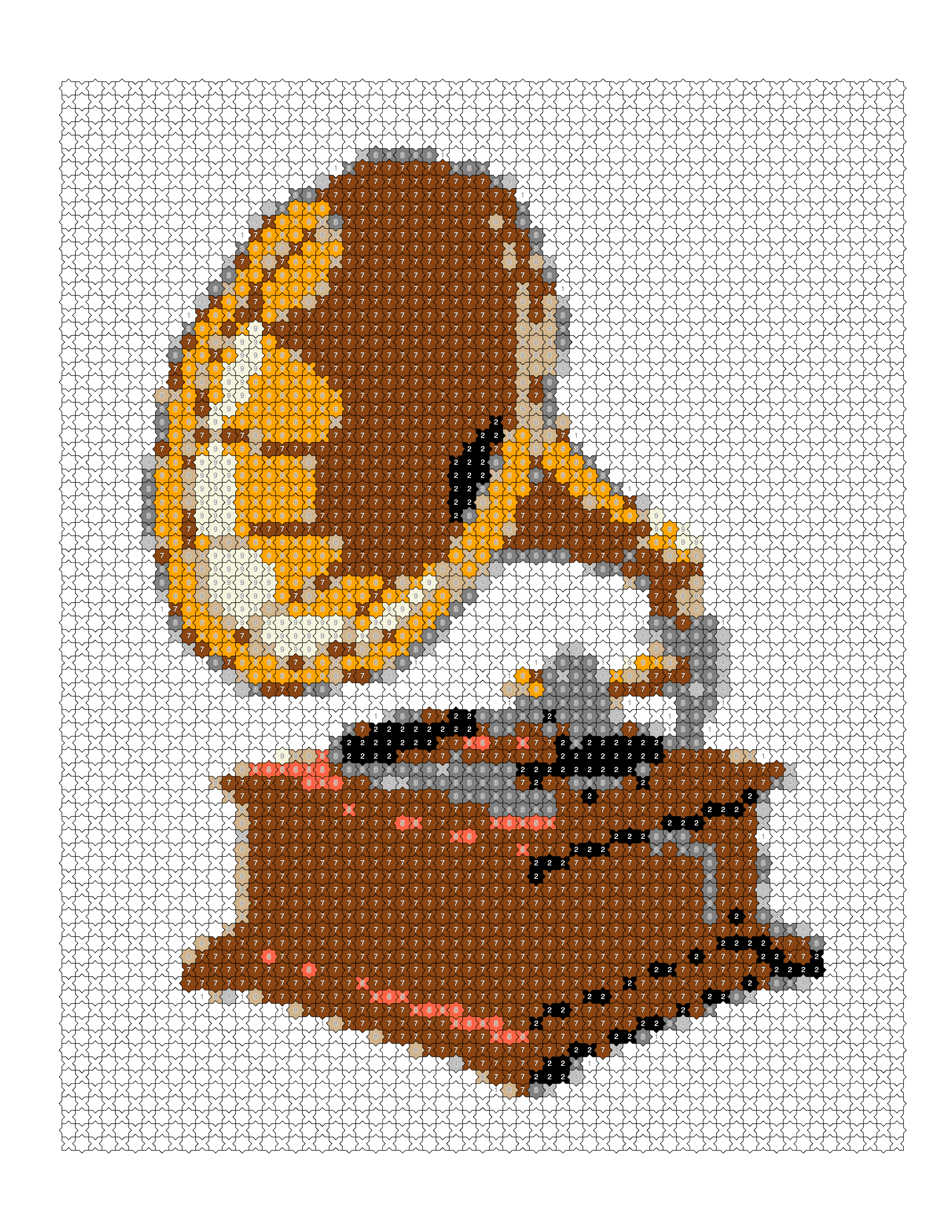 Completed — Islamic
Fish Scale
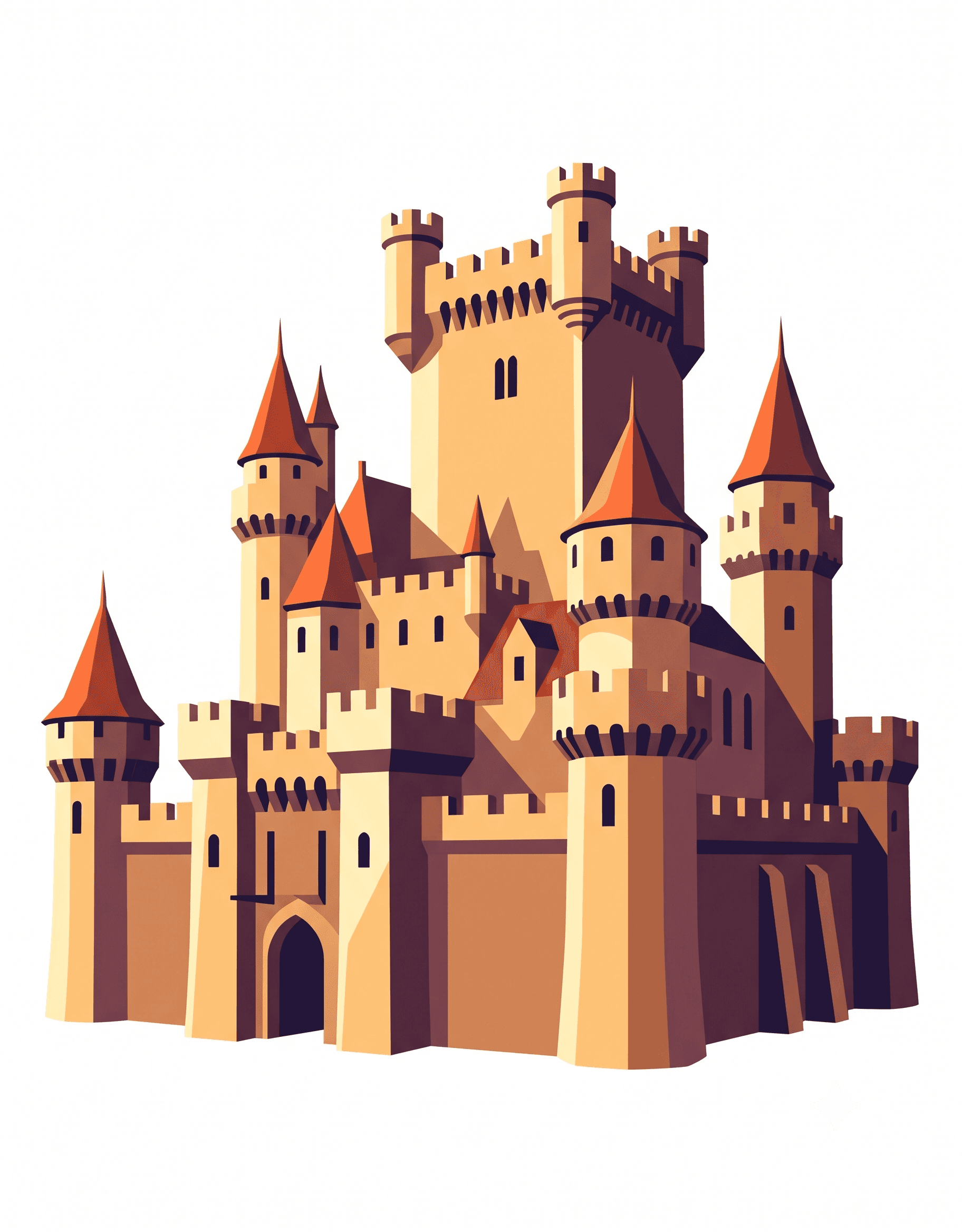 Source image
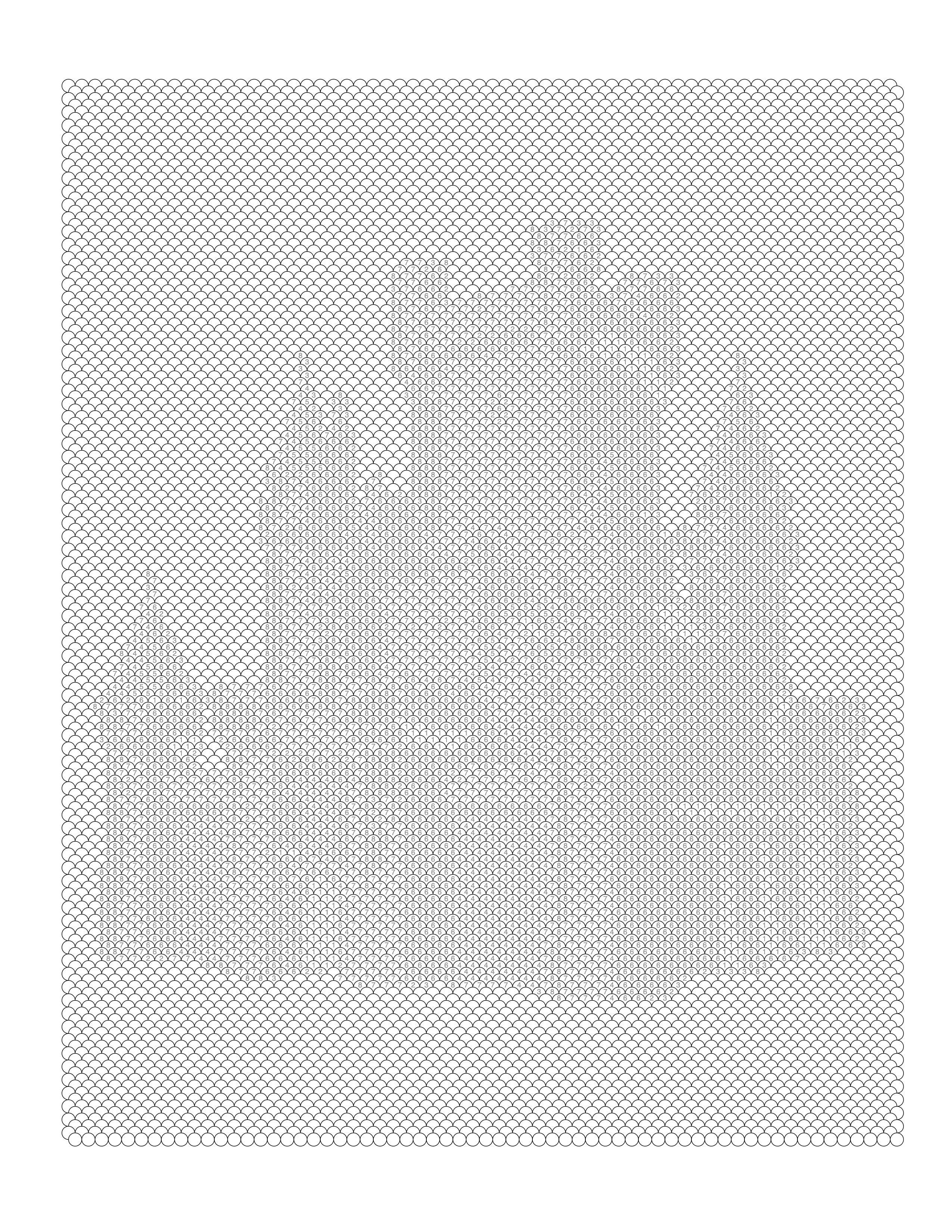 Blank
Blank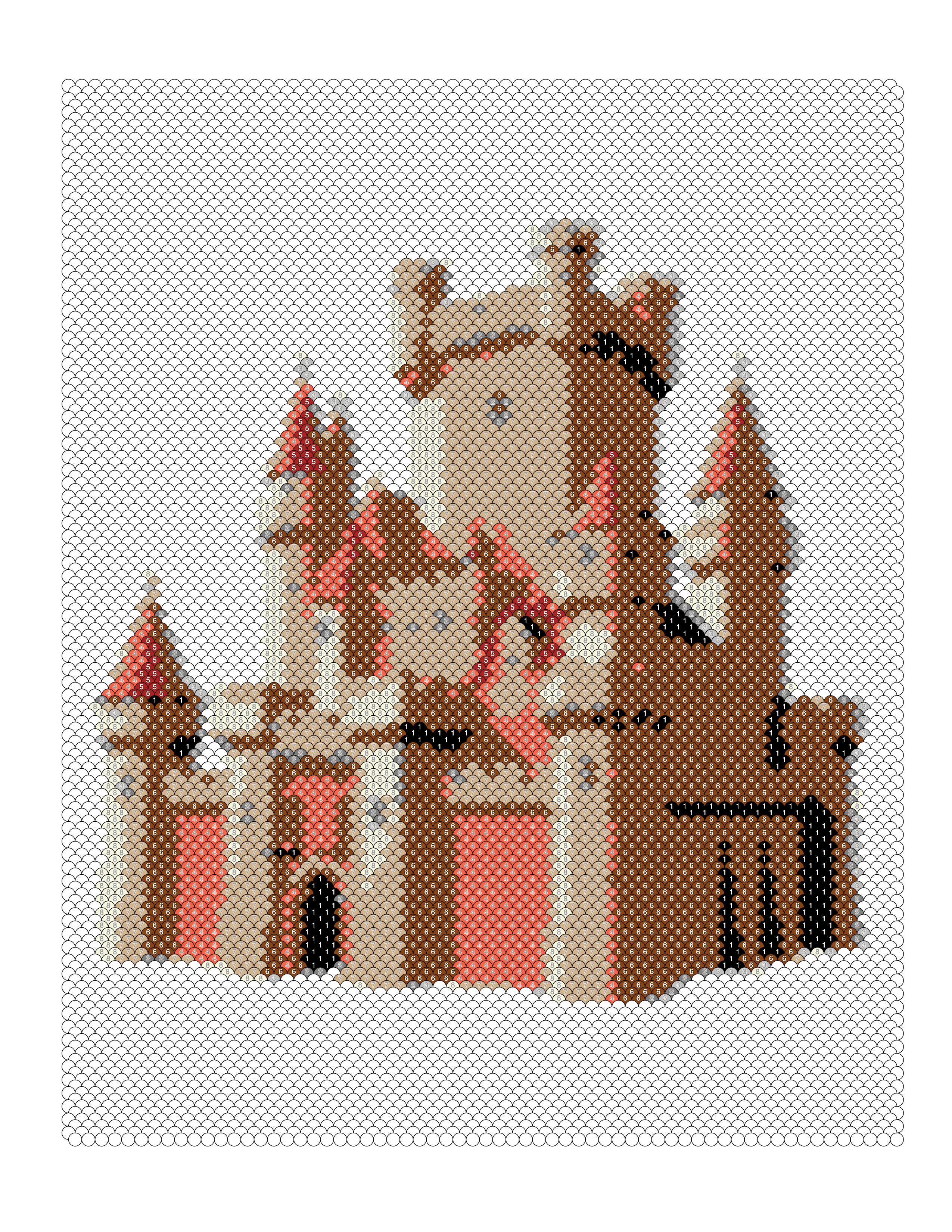 Completed — Fish Scale
Trapezoid
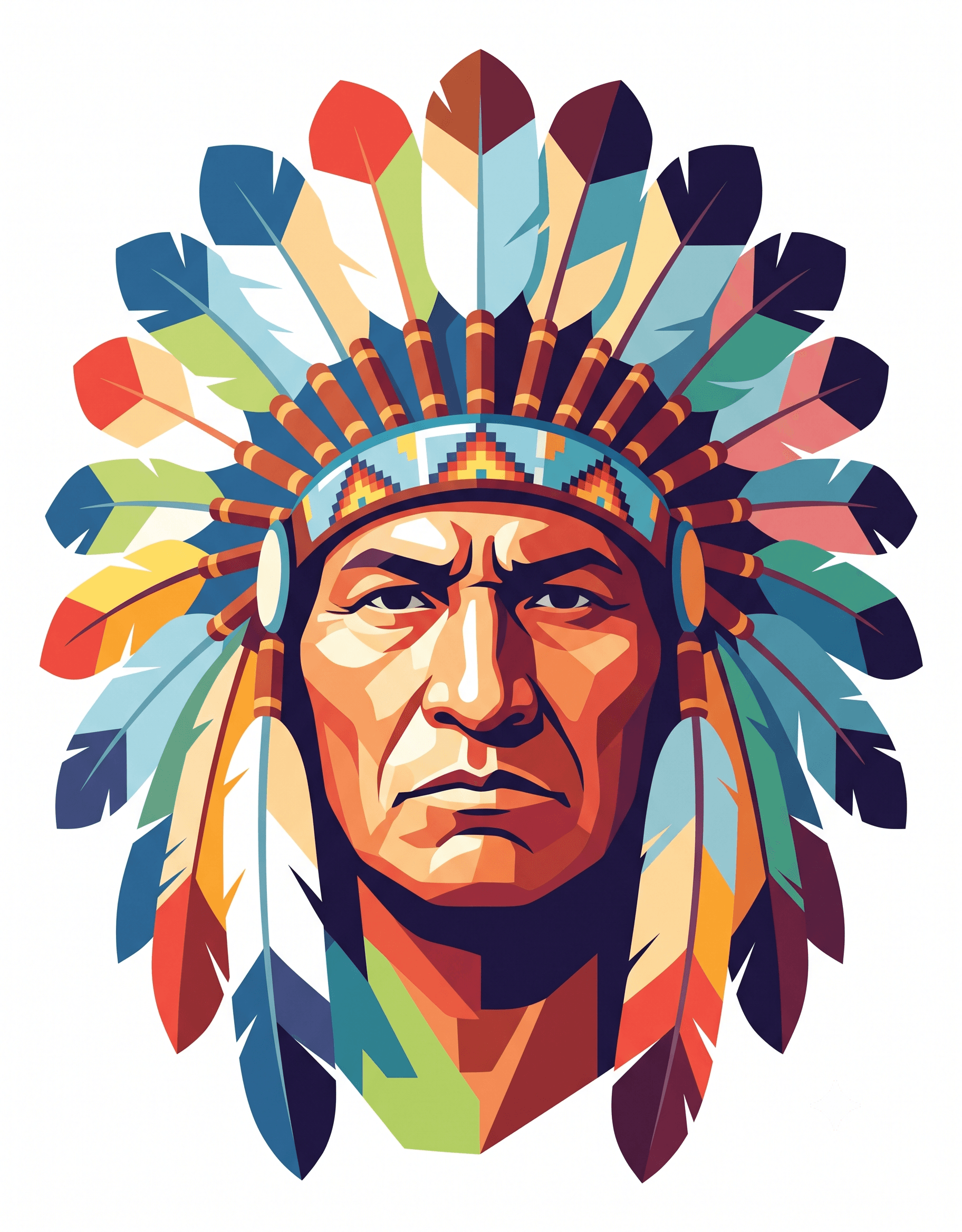 Source image
 Blank
Blank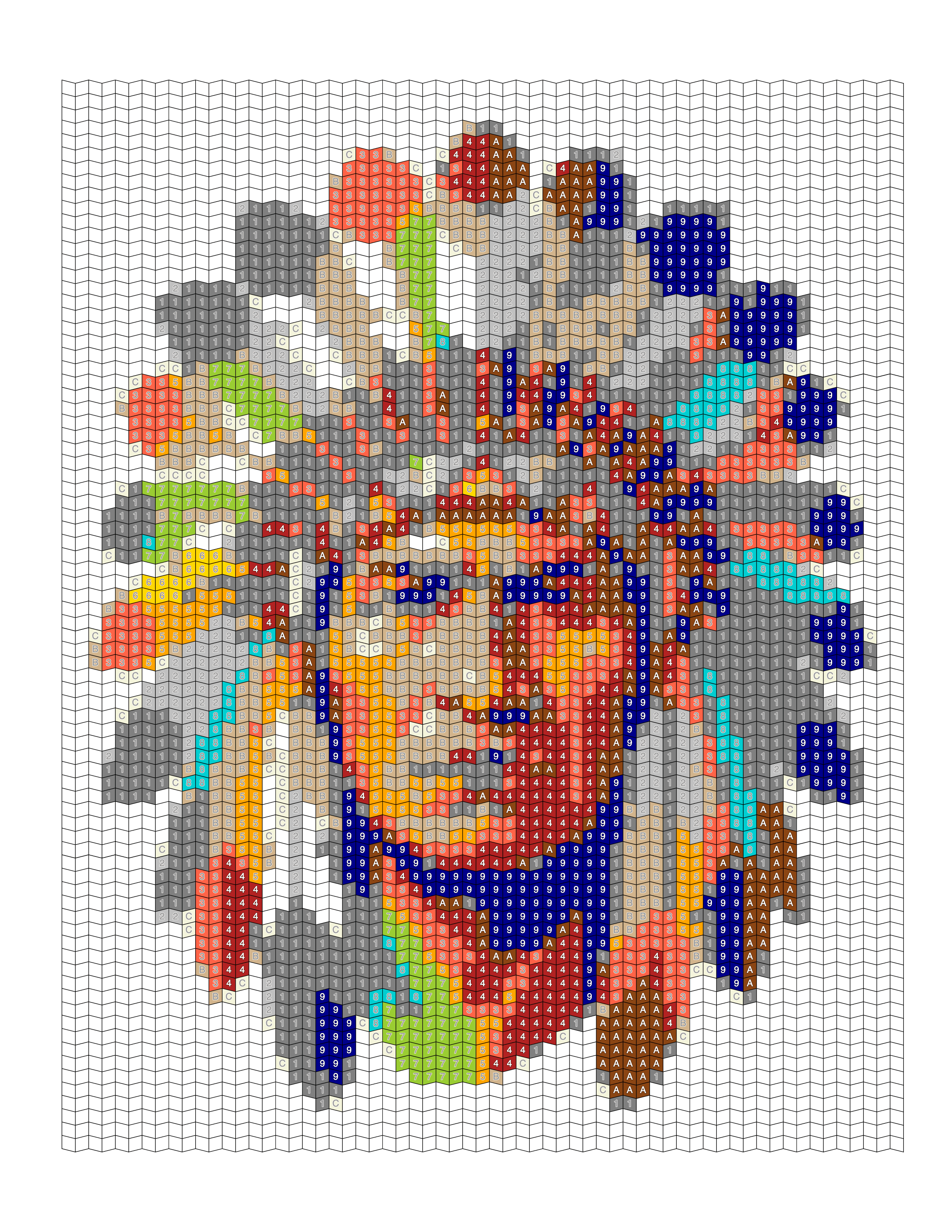 Completed — Trapezoid
Architectural and geometric subjects tend to suit Diamond, Islamic, or Trapezoid particularly well; organic subjects like animals and flowers often look best in Circle or Hexagon. See the full pattern breakdown for a style-by-style guide.
Photos That Produce Poor Color-by-Number Results
Blurry photos — when edges are soft, the algorithm can't find them. Find the sharpest available version.
Screenshots — always lower quality than the original file. Go back to the original.
Heavy filters — Instagram-style filters and vignettes flatten the color palette and add noise the algorithm reads as detail. Convert from the unfiltered original.
Low-light indoor photos — dim photos lack the tonal range needed; subject and background merge into muddy regions.
Crowded group photos — the detail budget gets divided across every face, so each one gets too few cells to be recognizable. Crop tightly to one person, or convert each person separately.
Quick Checklist — Color-by-Number
✓ Single subject — one clear, dominant subject filling most of the frame
✓ Good lighting — natural or even light, no harsh flash or deep shadow
✓ High contrast — subject clearly stands out from the background in brightness and/or color
✓ Clean background — blurred, plain, or simple; crop tightly if not
✓ High resolution — at least 1000px on the shortest side, original file (not a screenshot)
✓ No heavy filters — no grain, vignette, or desaturation
If your photo passes all six, convert with confidence.
Part 2 — Mark-Based (Monochrome): Complete Photo Guide
What Is Mark-Based Conversion?
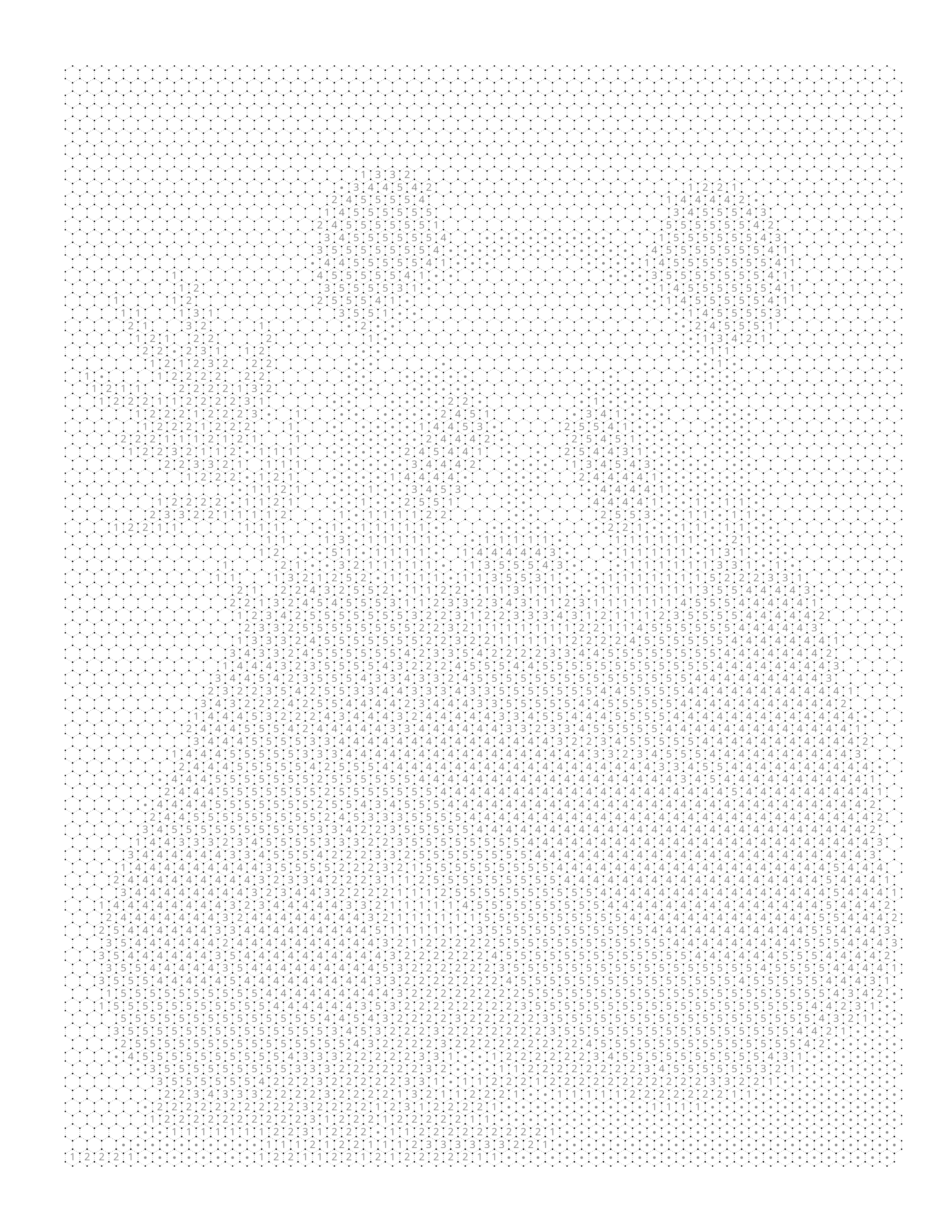
Square Mark and Hexagon Mark are Mosaci's monochrome coloring styles. Instead of numbered color regions, each cell in the grid is filled with a symbol — a dot, line, cross, or similar mark — and the density and pattern of marks recreates the photo's tonal (light-to-dark) structure. Darker areas get denser, heavier marks; lighter areas get sparse marks or none at all.
Because Mark-Based conversion works entirely from tone rather than color, it reads photos differently than Color-by-Number does — and photo selection has a different set of priorities.
The CLEAR Framework for Mark-Based Conversion
The same five CLEAR criteria apply, but two of them behave differently for Mark-Based conversion.
C — Clear Subject
Exactly as important as for Color-by-Number: one obvious, dominant subject that fills most of the frame. A diffuse or multi-subject photo splits the tonal detail budget just as it splits the color detail budget.
L — Lighting
Even more central to Mark-Based conversion, because lighting is the entire tonal map the style is built from. Natural, directional light that creates real shadow and highlight gives the algorithm a full range of tones to translate into mark density. Flat, shadowless lighting (overcast sky, direct flash, dim rooms) compresses everything into a narrow tonal band, and the resulting page looks uniformly gray with little visual interest.
E — Enough Contrast
This is the criterion Mark-Based conversion depends on most. Since there's no color to fall back on, tonal contrast between the subject and its background is what separates them in the final page. A subject and background that are similar in brightness — regardless of how different their colors look — will blend into the same mark density and the subject will disappear into its surroundings.
This is also why black-and-white photos work excellently for Mark-Based styles, often better than for Color-by-Number: the monochrome tonal values map directly and cleanly to symbol assignments, with nothing lost in translation.
A — Avoid Clutter
Weight this criterion more heavily than you would for Color-by-Number. Background clutter gets rendered as a dense field of competing symbols that has nowhere to visually "hide" the way mismatched background colors sometimes can in Color-by-Number. A plain, near-white, or softly blurred background gives Mark-Based conversions their cleanest, most graphic result.
R — Resolution
Identical threshold to Color-by-Number: at least 1000px on the shortest side.
CLEAR Score for Mark-Based Conversion
| Criterion | Pass | Fail |
|---|---|---|
| C — Clear Subject | One obvious main subject | Multiple subjects, no focal point |
| L — Lighting | Directional light with real shadow/highlight | Flat, shadowless, or dim light |
| E — Enough Contrast | Strong tonal separation from background | Similar brightness to background |
| A — Avoid Clutter | Plain or near-white background | Busy background, many competing elements |
| R — Resolution | 1000px+ on shortest side | Screenshot, compressed, degraded copy |
Score 5/5 — Upload with confidence. Score 4/5 where Avoid Clutter is the failed criterion — treat this as more urgent to fix than it would be for Color-by-Number; crop tightly or use Object Focus first. Score 3/5 or below — find a better photo or simplify the background before converting.
Best Photo Subjects for Mark-Based Conversion
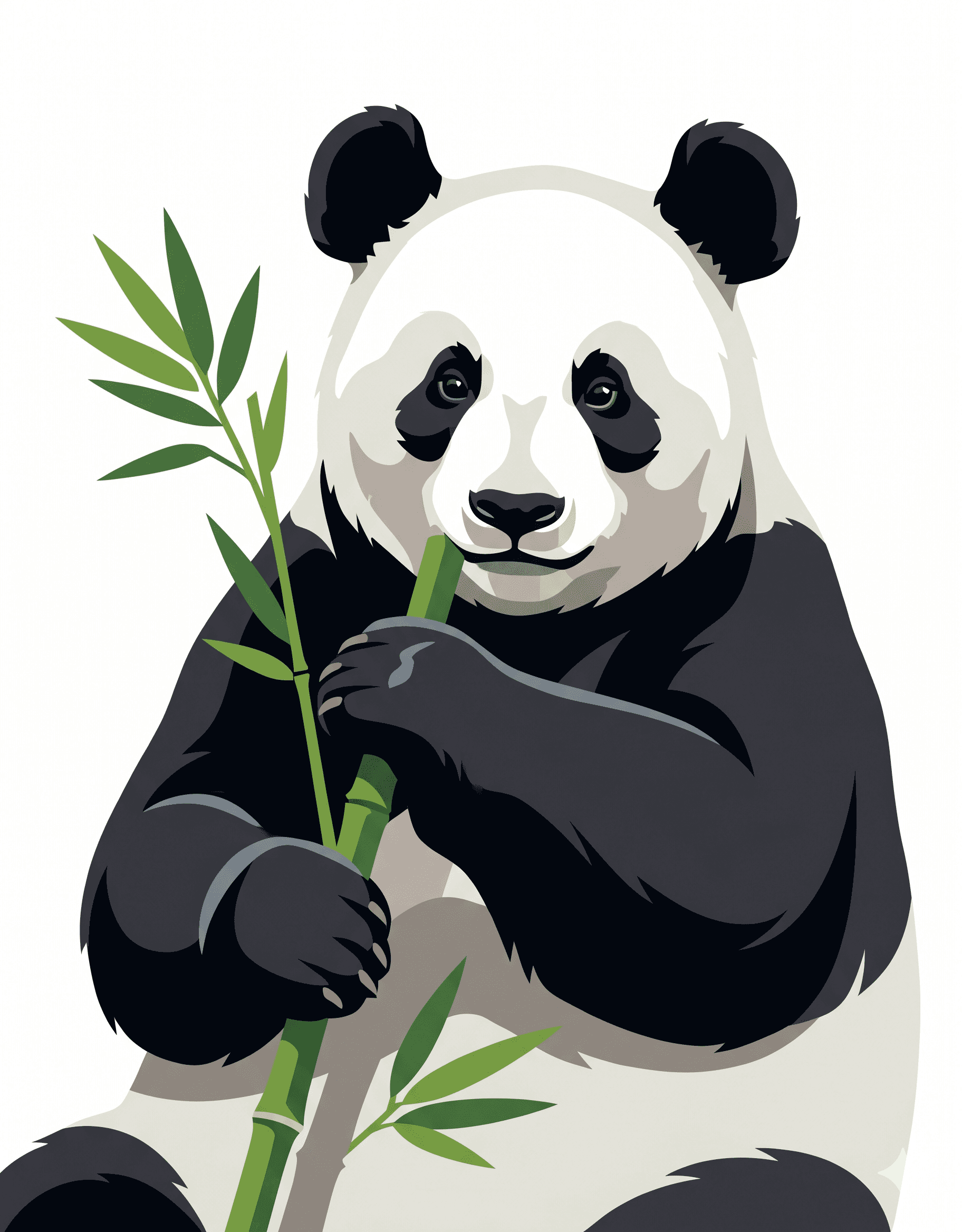
Naturally Black-and-White or High-Contrast Animals
Subjects whose natural coloring is already high-contrast and near-monochrome are the single best category for Mark-Based conversion — the photo arrives with exactly the tonal separation the style needs.
Why they work: the subject's own coloring does the contrast work for you; no color information is "wasted" the way it would be in a Color-by-Number conversion of the same photo.
Best examples: giant pandas, orcas, zebras, penguins, black-and-white cats or dogs.
 Origin photo
 Blank
Blank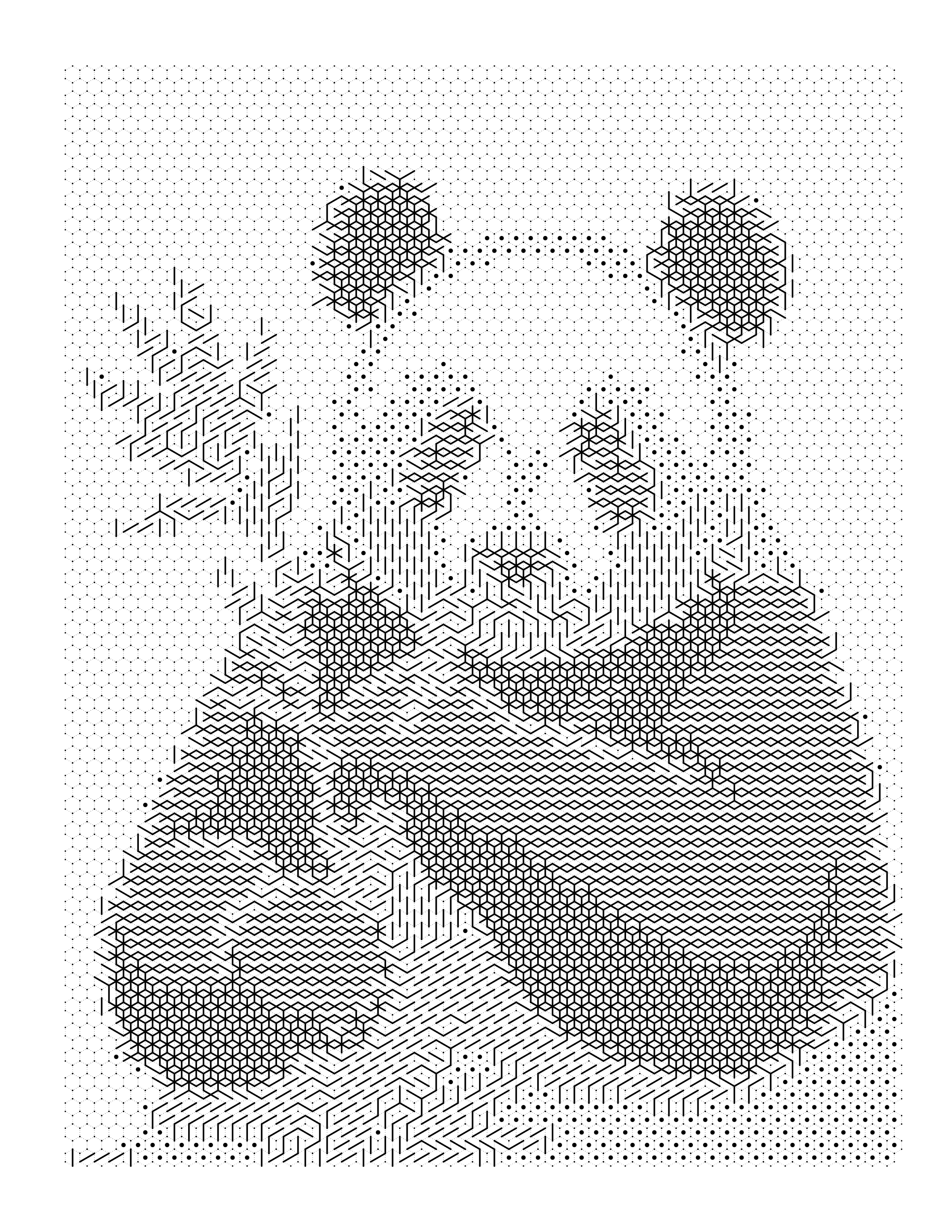 Completed — Hexagon Mark
Animals With Strong Fur or Feather Texture
Texture that reads as tonal variation — not just color variation — converts beautifully into mark density.
Why they work: fur and feather patterns create natural light-to-dark gradients across the subject, which the algorithm translates into varied, readable mark density instead of a flat block of symbols.
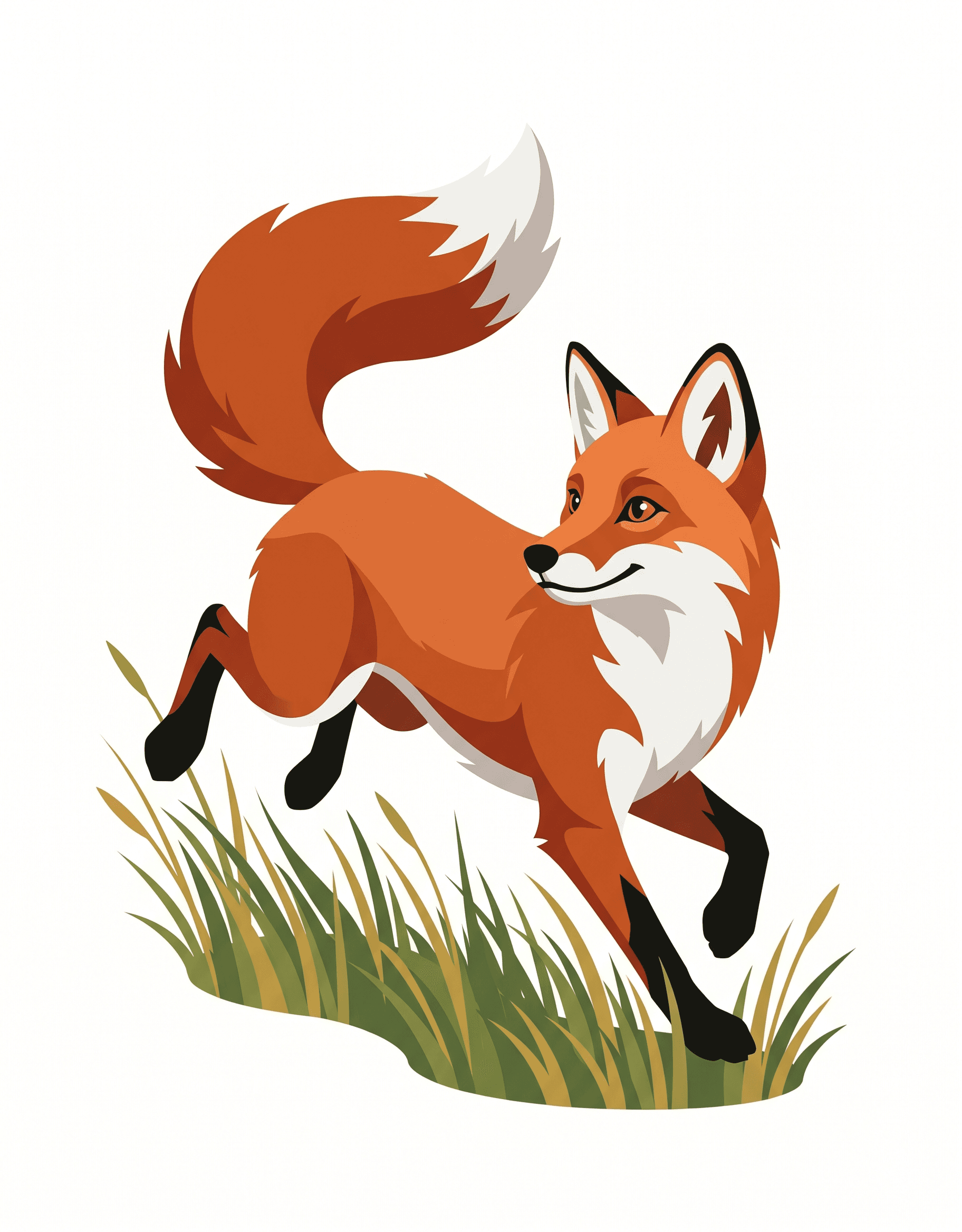 Origin photo
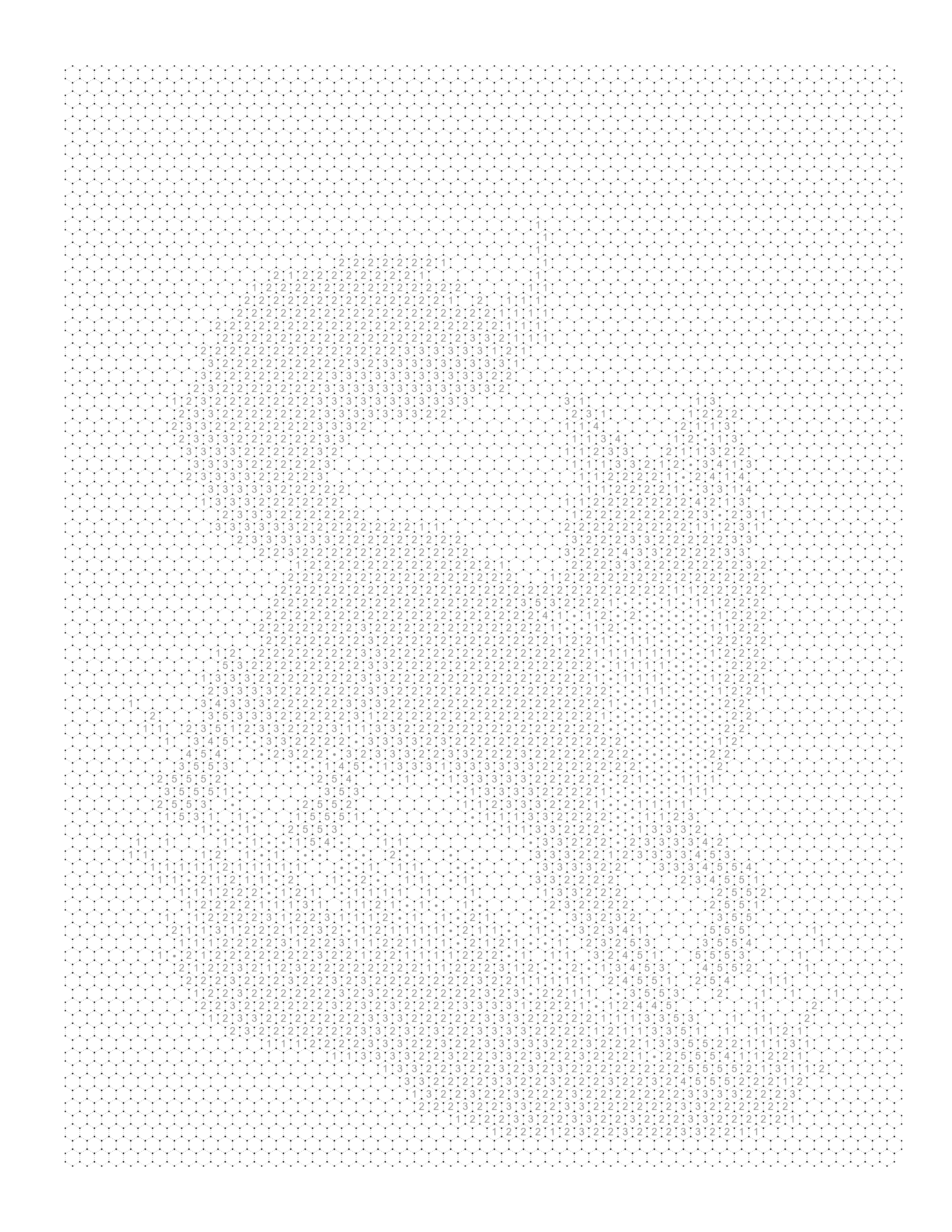 Blank
Blank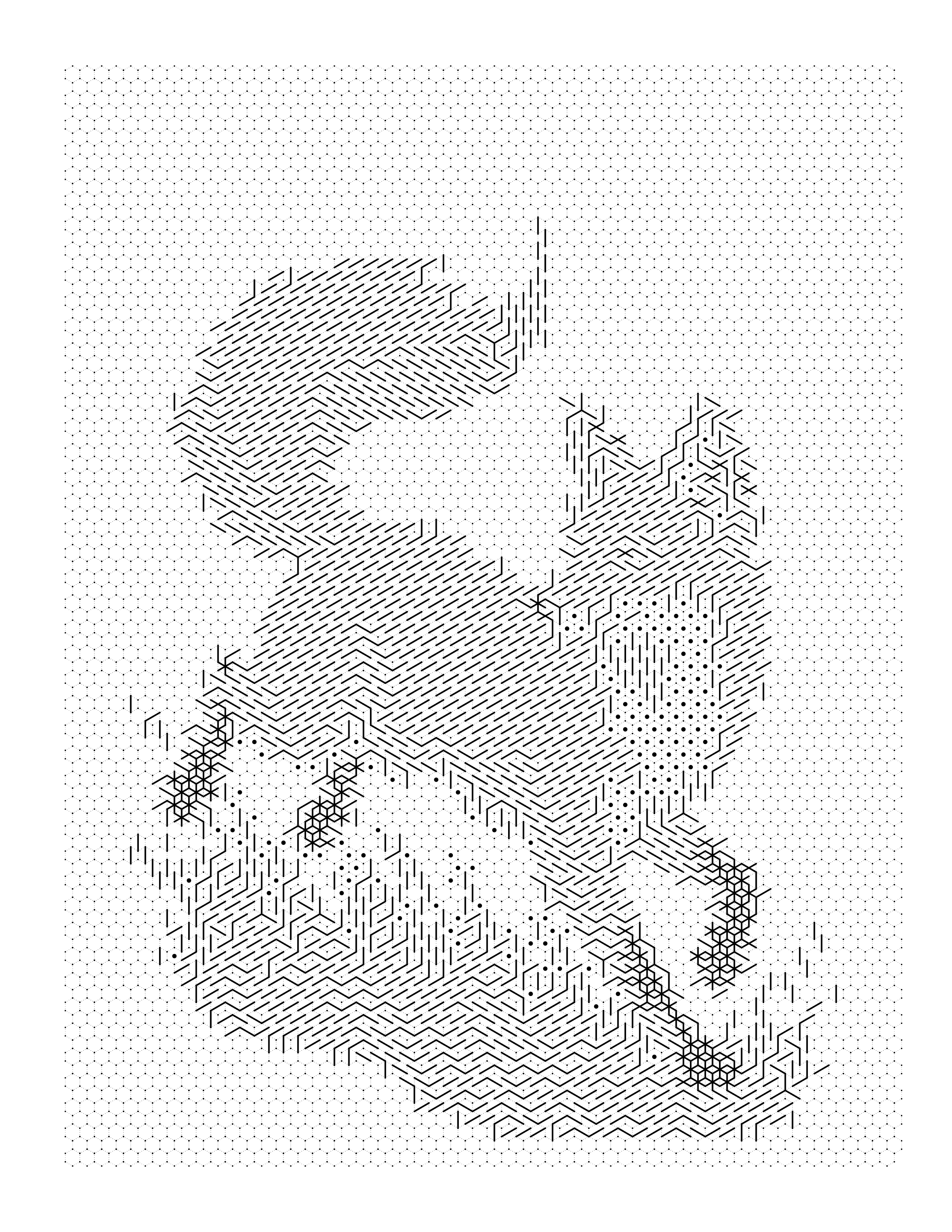 Completed — Hexagon Mark
Single Blooms Against Plain Backgrounds
Flowers still work well for Mark-Based conversion, but lean even harder on a clean background than they do for Color-by-Number, since petal shading (not petal color) is what carries the result.
Why they work: the natural light-and-shadow falloff across curved petals gives a smooth tonal gradient that produces a satisfying mark-density transition.
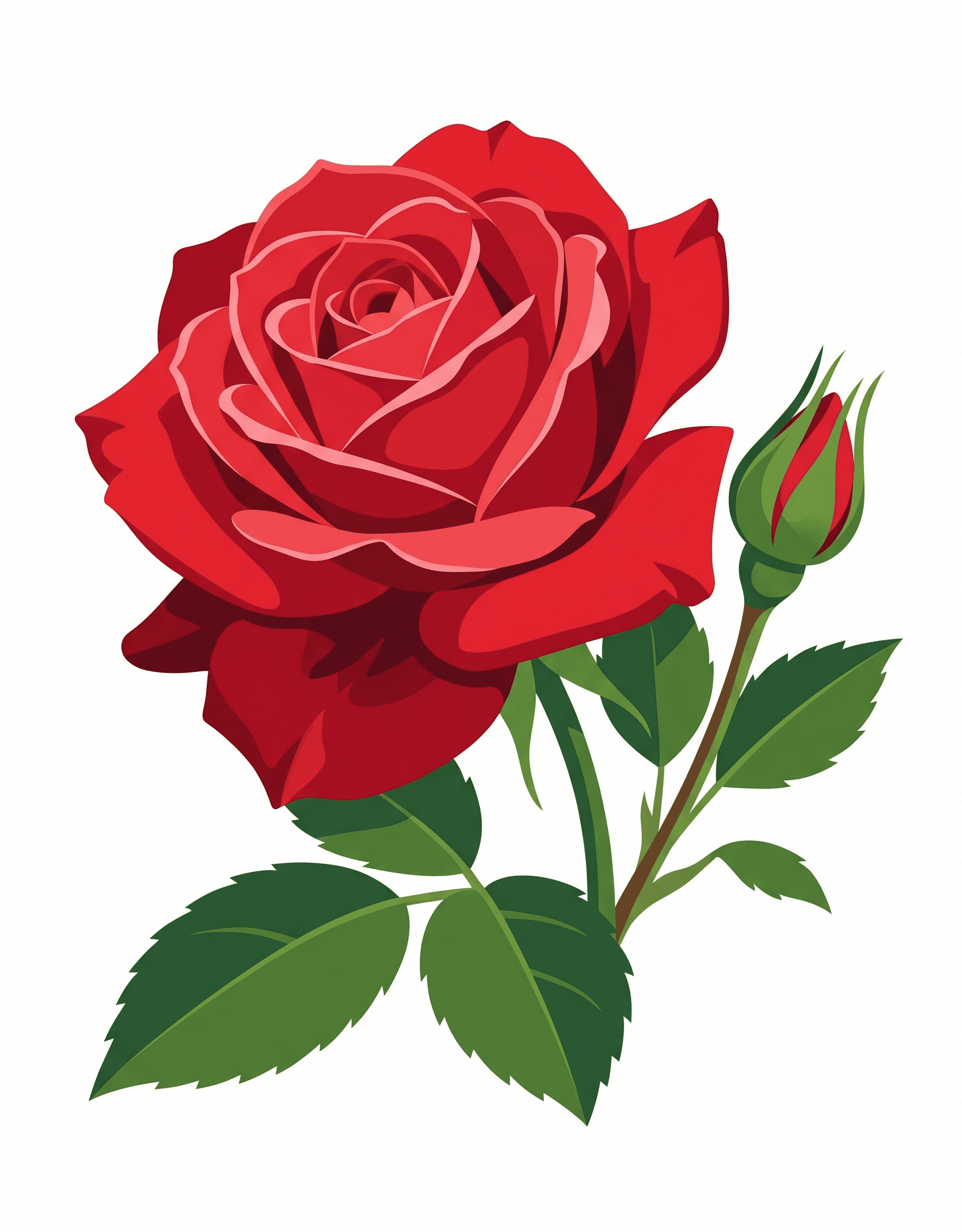 Origin photo
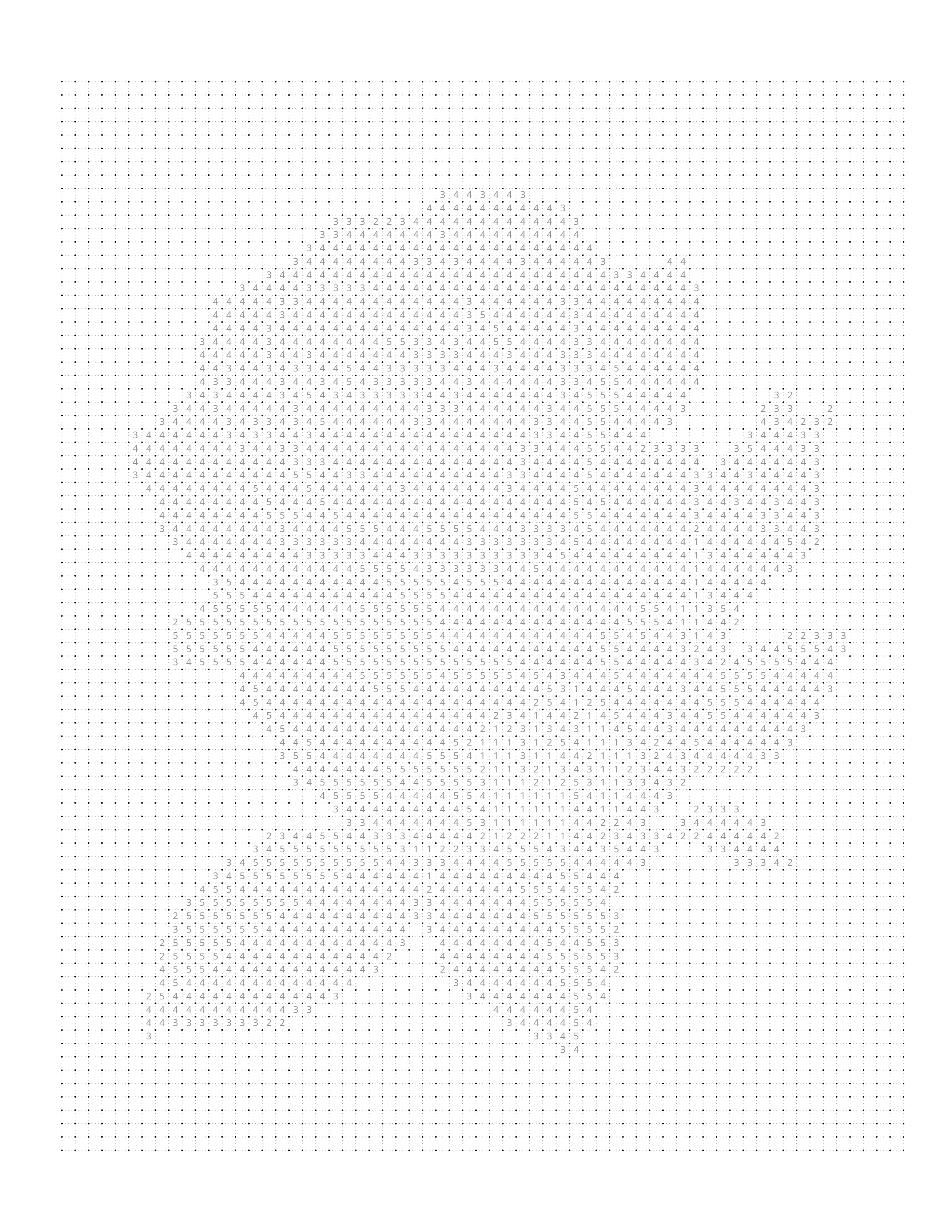 Blank
Blank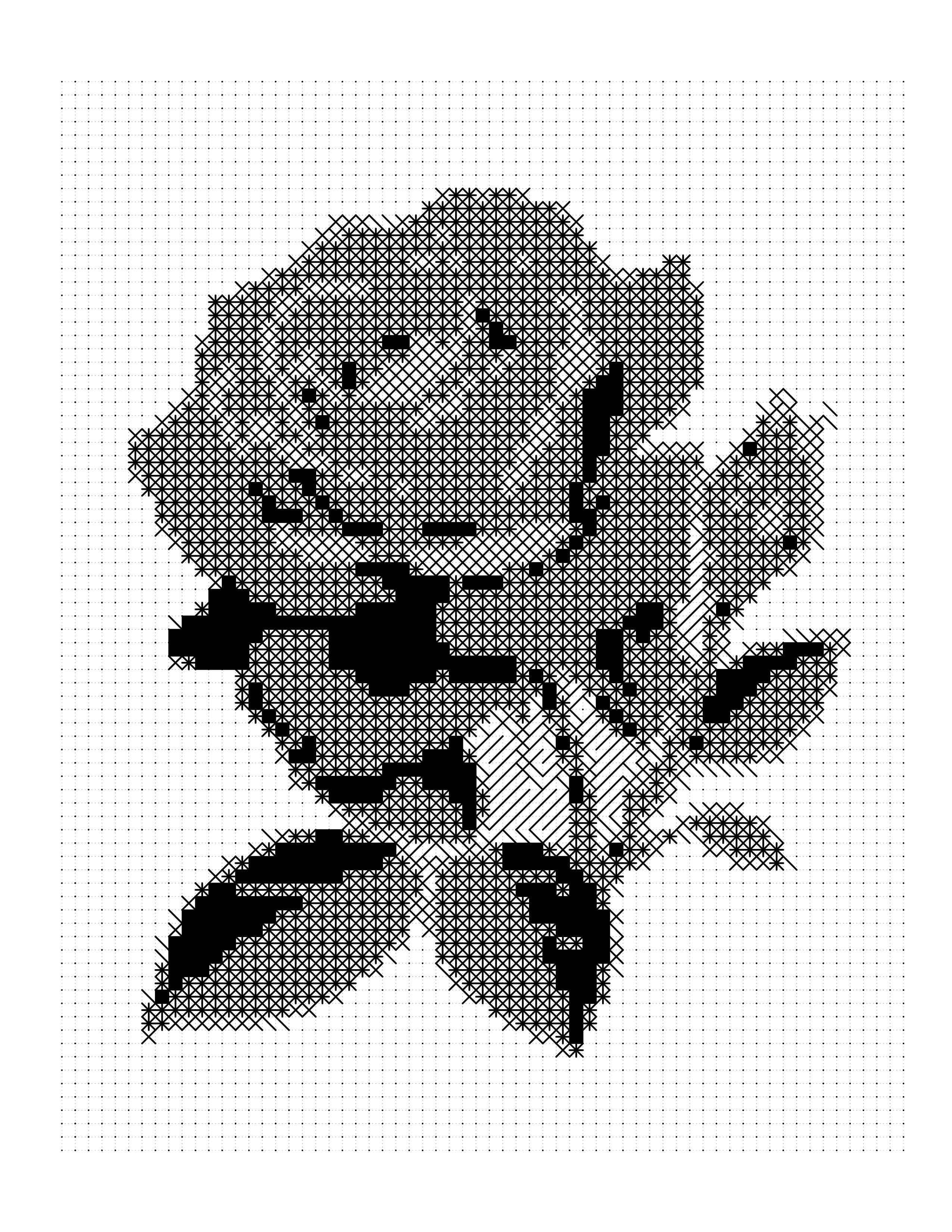 Completed — Square Mark
Architecture With Plain Sky or Wall Backgrounds
Strong structural lines and a plain sky or wall background give Mark-Based conversion a clean tonal separation to work with — the same strength that makes architecture good for Color-by-Number carries over directly.
Watch out for: buildings shot against a busy street-level background lose the clean tonal separation that makes architecture work well here.
Photos That Produce Poor Mark-Based Results
Busy backgrounds — even more damaging here than for Color-by-Number. Clutter renders as a dense, competing field of marks with no way to visually recede.
Flat, low-contrast lighting — foggy, overcast, or dimly lit photos lack the tonal range the style depends on entirely; the result is a uniform gray field with little visible structure.
Heavy filters — vignettes and desaturation flatten tone as well as color, which hurts Mark-Based conversion just as much (often more) than Color-by-Number.
Low resolution — same rule as Color-by-Number: screenshots and compressed copies lack the detail needed for clean symbol placement.
Quick Checklist — Mark-Based
✓ Single subject — one clear, dominant subject filling most of the frame
✓ Directional lighting — real shadow and highlight, not flat or dim light
✓ Strong tonal contrast — subject clearly separates from background in brightness, regardless of color
✓ Plain or near-white background — crop tightly or use Object Focus if not; weight this higher than you would for Color-by-Number
✓ High resolution — at least 1000px on the shortest side
✓ Black-and-white photos welcome — they often convert better here than as Color-by-Number
If your photo passes all six, convert with confidence.
Can Any Photo Be Converted? What Can and Cannot Be Fixed
The Honest Answer
Most coloring-page conversion tools, including ours, will technically process almost any image you upload. That's a different claim than saying every result will look good. A photo's suitability isn't a single yes-or-no gate — it's a spectrum, and understanding where a specific photo falls on that spectrum before converting it saves time and produces better decisions than converting first and hoping for the best.
A Practical Classification
| Category | Description | What to Expect |
|---|---|---|
| Excellent | Clear subject, even lighting, plain background, high resolution | Clean, detailed, print-ready result with minimal adjustment |
| Good | Minor issues — slightly busy background or mild exposure imbalance | Strong result after light preparation |
| Possible with preparation | Fixable problems — cluttered background, uneven lighting, tight crop needed | Solid result, but requires deliberate editing first |
| Difficult | Multiple compounding issues — low resolution and poor lighting together | Usable but noticeably limited result; manage expectations |
| Poor candidate | Severe blur, near-total darkness, resolution far below print needs | Result will likely disappoint regardless of preparation |
What Can Be Fixed
A busy or cluttered background is one of the most fixable problems — cropping tighter or blurring the background in almost any photo editor resolves it without needing a different photo, as covered in How to Prepare a Photo for Coloring Page Conversion. Uneven lighting, as long as some detail remains visible in both shadows and highlights, can usually be corrected with a brightness or contrast adjustment. A subject that's small within a large frame can be fixed with a tighter crop, provided resolution allows it.
What Can't Be Fixed
Extreme blur — where edges and features are already hard to distinguish by eye — will convert into a similarly unclear result, because no conversion process can generate detail that was never captured. Severe underexposure, where large areas are crushed to near-total black with no recoverable detail, has the same problem in reverse. Resolution far below what your intended print size requires can be partially compensated by using a simpler, larger-shape style, but can't be fully solved by upscaling alone — see Best Photo Resolution for Coloring Pages.
Difficult Categories, Not Automatic Rejections
Crowded group photos are difficult, not impossible — success depends on separation between people and consistent lighting far more than headcount; see How to Turn a Family Photo Into a Coloring Page. Backlit photos, where the subject stands in front of a bright light source, range from mildly to severely affected depending on how much internal detail survives the backlighting — mild cases often correct well with exposure adjustment. Busy or complex backgrounds are one of the most common issues overall but rarely disqualify a photo outright, since cropping or blurring usually resolves them.
Tiny subjects — a person or pet occupying a small fraction of a large frame — convert with much less available detail than the same subject cropped tighter, but a tight, high-resolution crop can often recover a usable result. Heavily compressed images, common with repeatedly shared or downloaded social media photos, lose fine detail in ways that resemble low resolution even if the pixel dimensions look adequate on paper.
When to Choose a Different Photo
It's worth being honest with yourself when a specific photo is emotionally important but technically weak. In these cases, it's often better to look for a second photo from the same moment or occasion — most photo sessions produce more than one usable frame — rather than forcing a technically poor photo through preparation steps that can't fully compensate for its core issues.
Photo Types and Source Problems
Source Photo Quality
Poor Source
Good Source
Faces
Portraits need especially even lighting and a plain background, since facial features require clean tonal separation to remain recognizable after conversion. See How to Turn a Portrait Photo Into a Coloring Page for a dedicated walkthrough.
Landscapes
Landscapes convert best with a clear focal point — a distinct horizon or a single dominant feature — rather than an evenly detailed scene with no visual hierarchy.
Objects
Simple, bold objects with clear silhouettes convert cleanly, since their straightforward shapes don't lose much identity even at coarser region counts.
Group Photos
Multiple people or animals in one frame split the region budget across every subject, and none receives enough detail to stay clearly recognizable individually — group photos are one of the least reliable source types for this format.
Dark Photos
Underexposed photos lack the midtone detail that region segmentation relies on, producing regions that cluster in the shadows with little differentiation.
Blurry Photos
Soft focus removes the sharp tonal transitions needed to define clean region boundaries — no processing step recovers detail that was never captured sharply.
Overexposed Photos
Blown-out highlights lose detail just as permanently as blocked-up shadows do — an overexposed area converts as a flat, featureless region regardless of what detail existed in that part of the actual scene.
Low-Resolution Images
Below roughly 800 pixels on the longer side, results tend to look noisy and inconsistent — there simply isn't enough pixel data per region for reliable segmentation.
The Two-Metre Test
Most of the advice about choosing photographs can be replaced by a single check that takes about five seconds, and it is more reliable than any of the individual rules.
Put the photograph on a screen, step back two metres, and look at it. Whatever you can still make out from there is what will survive conversion. Whatever has disappeared at that distance will disappear on the page.
This works because it approximates what a conversion does. Reducing an image to a set of flat regions is, in effect, throwing away fine detail and low-contrast variation — which is exactly what distance does to your eye. A face that is still clearly a face from across the room has the structure a conversion needs. A face that has become a pale oval at two metres has structure too subtle for the process to find.
The test is particularly useful for the cases where the individual rules conflict. A photograph might have excellent resolution and still convert badly because the subject is low in contrast; another might be technically soft but convert well because the shapes are large and well separated. Resolution and sharpness are proxies for legibility, and the two-metre test measures legibility directly.
It also settles the crop question quickly. Step back, look, and ask what you can actually identify. If the answer is "the general shape of a person" rather than "my sister", the crop is too wide — the subject is not occupying enough of the frame to carry detail, and cropping in will do more for the finished page than any setting will.
One caveat: do the test on a screen at the size you will print, not on a phone held at arm's length. A phone screen is small enough that everything on it is already passing a distance test, which is why photographs so often look better before conversion than the printed page looks after it.
Which Edits Help, and Which Ones Do Not
Photo editing before conversion is worth doing, but only a narrow set of adjustments actually changes the outcome. Knowing which ones saves a good deal of time spent on edits that make no difference.
Contrast adjustment genuinely helps. A conversion separates regions by the differences between them, so increasing contrast increases the material it has to work with. This is the single most effective pre-conversion edit for a flat or hazy photograph, and it is usually worth pushing further than looks natural — a slightly over-contrasted source converts better than a correctly exposed one.
Brightening a dark subject helps. Not because the page will be brighter, but because detail compressed into the bottom of the tonal range gets spread out where the conversion can find it. This matters most for dark animals, dark clothing, and anything photographed against the light.
Background removal helps, a lot. Every region the conversion spends on a background is one it does not spend on the subject. Removing or flattening the background before uploading reliably improves the subject, and the tools for it are now built into most phones.
Sharpening does not help. It adds local contrast at edges that already exist; it cannot recover detail that the lens or the focus never captured. A soft photograph sharpened is still a soft photograph, and heavy sharpening introduces halos that the conversion then faithfully reproduces as artefacts.
Filters and colour grading do not help, and often hurt. A filter that shifts everything toward one colour cast reduces the separation between regions, which is the opposite of what you want. If you have a favourite edit you apply to everything, it is worth converting once with it and once without to see which the process prefers.
Upscaling does not help. Enlarging a small image adds pixels without adding information. The conversion sees a larger image with the same detail, and the result is identical apart from taking longer.
Conclusion
A great coloring page starts with a great photo, in either style. No tool, however good, can build detail from information that doesn't exist in the source.
For Color-by-Number: find a photo with a clear subject, good lighting, strong color contrast, a clean background, and 1000px+ resolution — see Part 1 for the full walkthrough.
For Mark-Based (Square Mark, Hexagon Mark, Dot Mark): find the same qualities, but weight tonal contrast and background simplicity even more heavily — black-and-white and naturally high-contrast subjects shine here — see Part 2 for the full walkthrough.
Ready to see how your photos convert? Try Mosaci free — no credit card required. Upload a photo, apply the CLEAR check for your chosen style, and see the difference photo selection makes in real time.
Printable quality checklist
- Clear subject — one dominant subject filling most of the frame (both styles)
- Even, natural lighting — no harsh flash or deep shadow (both styles)
- Strong contrast between subject and background (critical for Mark-Based, important for Color-by-Number)
- Simple or plain background — crop tight or use Object Focus (weight higher for Mark-Based)
- At least 1000px on the shortest side (both styles)
- Color-by-Number: start from a photo with distinct, saturated colors
- Mark-Based: black-and-white or plain-background photos convert exceptionally well
Key takeaways
- Not every photo produces a good coloring page — photo selection is the single biggest factor in conversion quality.
- Mosaci Studio converts to two page styles: Color-by-Number (numbered color regions) and Mark-Based (Square Mark / Hexagon Mark, monochrome symbol-based).
- The CLEAR Framework (Clear subject, Lighting, Enough contrast, Avoid clutter, Resolution) gives you a reliable method for evaluating photos before you convert them, for either style.
- Pets, flowers, wildlife, and architecture consistently produce the best results.
- Blurry photos, screenshots, crowded scenes, and heavy Instagram filters consistently produce poor results.
- Mosaci Studio's Object Focus feature can remove busy backgrounds before conversion — turning a mediocre photo into a great one.
- The same CLEAR principles apply to both styles, but Avoid Clutter matters even more for Mark-Based conversions, while black-and-white photos work best there rather than for Color-by-Number.
Frequently asked questions
Should I pick Color-by-Number or a Mark-Based style for my photo?
Let the photo decide. If your photo has distinct, saturated colors and you want the finished page to read as a color image once filled in, use Color-by-Number. If your photo is black-and-white, has strong light-and-dark tonal contrast, or has a plain/near-white background, a Mark-Based style (Square Mark or Hexagon Mark) will usually produce a cleaner, more graphic result. Either way, the CLEAR Framework still applies — see Part 1 or Part 2 above for the version tailored to your style.
What resolution should I use for the best results?
A minimum of 1000px on the shortest side is the working threshold for both styles. Above that, more resolution gives the algorithm more detail to work with. Most smartphone photos are 3000–5000px on the long side — far above what's needed. The practical ceiling is around 4000px; above that, you won't gain visible quality in the final coloring page.
Can I use photos taken on my phone?
Yes. Modern smartphone cameras produce more than enough resolution — typically 12 megapixels or higher, well above the 1000px minimum. The main thing to watch is lighting: indoor phone photos taken without flash in dim light tend to have poor contrast and produce muddy results in either style. Outdoor or well-lit indoor phone photos work well.
Can I convert old family photos into coloring pages?
Yes, with some caveats. Older printed photos digitized by flatbed scanner tend to work well — especially portraits from before the era of cluttered backgrounds. Photos digitized from small prints may lack resolution, and very old, faded photos have low contrast, which hurts Mark-Based conversion in particular. If a scanned family photo looks sharp and the subject is clearly visible, it will likely convert well in either style.
Will adding filters or editing my photo before conversion help or hurt?
Adjusting brightness and contrast before uploading can genuinely help — for both styles. But Instagram-style filters (vignettes, film grain, heavy color grading) usually hurt. They add visual noise, reduce effective contrast, and can flatten the color and tonal palette. If you want to edit before converting, stick to basic adjustments: brightness, contrast, and possibly saturation.
Can I convert screenshots or digital artwork?
Screenshots can work but come with a specific risk: they're captured at screen resolution (72–96 DPI) and may be low resolution if the source window was small. Digital artwork designed for screen may also be lower resolution than it appears. For best results, export digital artwork at the highest available resolution (2000px or higher) before uploading. Flat vector-style illustrations with bold regions convert very cleanly in either style.
Are pet photos really the best subject for Color-by-Number pages?
Pet photos are among the most reliable — but not because pets are inherently special. It's because people who photograph their pets naturally take close-up portraits with the animal filling most of the frame, good lighting, and at least some attempt to blur the background. These are exactly the conditions that produce clean conversions.
What about photos with multiple people or subjects?
Group photos are one of the most common sources of poor results in either style. When multiple subjects fill the frame, the detail (or tonal) budget gets divided across all of them — meaning each face gets far fewer cells than a single portrait would. For group photos, crop tightly to one face before converting, or convert each person separately and build a multi-page book.
Can a blurry photo be turned into a coloring page?
A slightly soft photo can still work, especially for a simple outline conversion. A genuinely blurry photo, where edges and features are hard to distinguish even by eye, will convert into a similarly unclear result — no conversion process can recover detail that isn't actually present in the source.
Can a dark photo be converted?
Yes, often after a brightness and contrast correction beforehand. A photo that's dark but still shows visible shadow detail can usually be recovered; one that's crushed to near-total black in large areas has genuinely lost that detail and can't be fully recovered.
What about a low-resolution photo, like an old scanned picture?
Low-resolution photos can still convert, especially into a simpler, larger-shape outline page, though fine detail and larger print sizes become more limited. See our guide on photo resolution for practical resolution targets.
Can a backlit photo, like someone standing in front of a bright window, be converted?
It depends on how severe the backlighting is. Mild backlighting that still shows some facial detail can often be corrected with exposure adjustment. Severe backlighting that reduces the subject to a near-silhouette loses too much internal detail to recover fully.
What makes a photo a poor candidate rather than just a difficult one?
A photo is a poor candidate when its core problems can't be fixed through preparation — extreme blur, near-total darkness, or resolution far below what's needed for your intended print size. A difficult photo has fixable issues, like a busy background or uneven lighting, that preparation or a tighter crop can meaningfully improve.
How do I know if my specific photo is a good candidate before converting it?
Run through the classification and checklist in this guide, and be specific rather than emotional about the photo's technical qualities. A photo can be personally meaningful and still be a difficult technical candidate, in which case preparation steps matter more than they would for an easier photo.
Why does lighting matter so much for conversion quality?
Even, diffused lighting preserves the widest usable tonal range. Harsh direct light creates shadows and blown-out highlights that lose detail permanently, and flat lighting compresses tones so much that regions become hard to distinguish.
What happens if I upload a low-quality photo anyway?
The conversion still runs, but the result reflects the photo's real limitations — low contrast produces a muddy page, a cluttered background produces visual noise competing with the subject. No setting compensates for missing source quality.
Related tools
Try Mosaci Studio Free
Upload your photo and see how it converts — free account, no credit card needed.
Photo to Coloring Page Converter
Convert an image into a numbered mosaic coloring page and export a print-ready PDF.
Color-by-Number Generator
Test how your photo converts into a numbered color-by-number page.
Written by
Mosaci Studio TeamThe team behind Mosaci Studio
Mosaci Studio is built to help KDP publishers, Etsy sellers, and hobby artists turn photos into print-ready coloring pages without any design experience.
Published Jun 20, 2026 · Updated Oct 6, 2026