
Quick answer
There's a photo on your phone right now that would make a beautiful coloring page.
Maybe it's your dog sleeping in a patch of sunlight. Your kid's drawing pinned to the fridge. A flower from your garden, or a landscape you photographed on a trip you keep meaning to write about. Whatever it is, turning that photo into a printable coloring page used to mean either hiring a designer or spending hours in Photoshop.
It doesn't anymore.
This guide is about the part that decides most of the result: choosing the right photo and preparing it. We'll cover which photos work (and which ones don't), how to dial in cell size and color count, and how to export a file that's ready to print or publish on Amazon KDP. When you're ready to convert, the photo to coloring page tool does it in your browser, and the mosaic pattern guide shows what each pattern looks like.
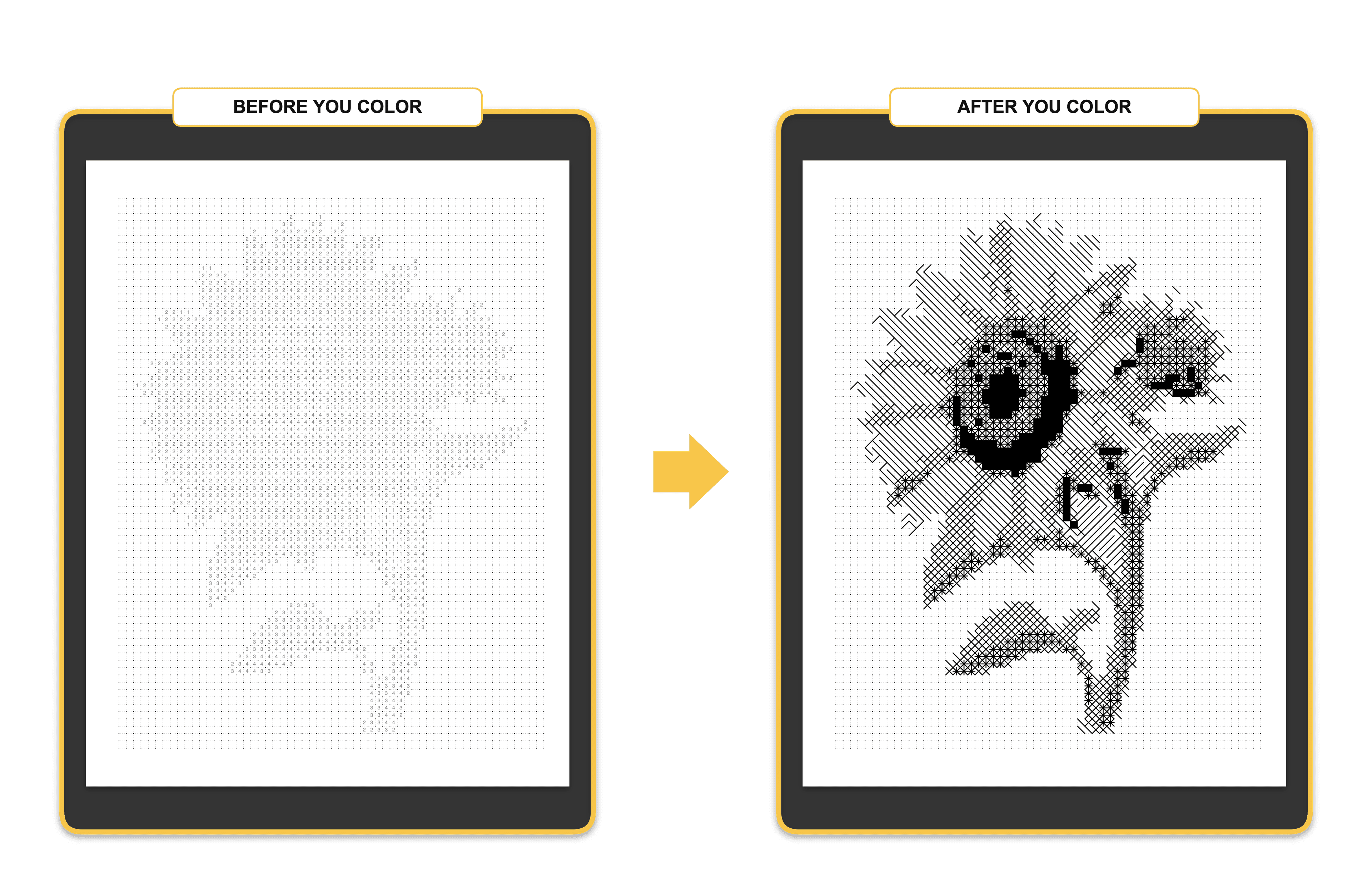
Table of Contents
- What Is a Photo to Coloring Page Converter?
- Why Traditional Methods Are Difficult
- Step-by-Step: Turn Any Photo Into a Coloring Page
- Best Photos for Coloring Page Conversion
- Common Mistakes to Avoid
- KDP Safe Zone: What You Need to Know
- Why Color-by-Number Pages Are Growing in Popularity
- FAQ
- Start Converting Your Photos Today
What Is a Photo to Coloring Page Converter?
A photo to coloring page converter is a tool that takes a regular photograph and transforms it into a numbered grid — where each cell is filled with a number corresponding to a specific color. The person coloring fills in each numbered cell with the matching color, and the original image gradually appears.
This format — often called color-by-number — has been around since the 1950s. What's changed is who can create them. Until recently, producing a clean, printable color-by-number page required either professional illustration software or outsourcing the work entirely.
Modern browser-based tools have removed that barrier. You upload a photo, choose your settings, and get back a numbered grid — formatted, labeled, and ready to print.
Why people use them:
- KDP publishers creating coloring book interiors to sell on Amazon
- Teachers making custom activity sheets from classroom photos or curriculum images
- Parents turning family photos into personalized gifts or activities
- Hobbyists preserving memories as something handmade
- Small business owners producing branded coloring content for customers
The key difference between tools is quality — specifically, how well the tool handles color reduction, edge detection, and grid alignment. We compare the main online options against each other on exactly those three points. A poor converter produces muddy grids where the original subject is unrecognizable. A good one produces a clean, numbered page where even a child can follow along and end up with something that looks like the original photo.
Try Mosaci free — no credit card required →
Why Traditional Methods Are Difficult
Before purpose-built tools existed, creators had two options: Photoshop or manual tracing. Both are still used by professional illustrators. Neither is practical for most people.
Photoshop approach: You'd import the photo, reduce it to a limited color palette using posterization, apply threshold adjustments, manually add a grid overlay, number each cell by hand, and export at print resolution. On a complex photo, this could take several hours — and any change to the color count meant starting over.
Manual tracing: Some creators print the photo, trace the outline on paper, divide it into regions, assign colors, and number each one. It's time-intensive, inconsistent, and nearly impossible to scale if you're building a multi-page book.
The real problem: Both methods require significant technical knowledge, and neither produces consistent results across different photos. When you're building a KDP coloring book with 50 or 100 pages, inconsistency is a product problem.
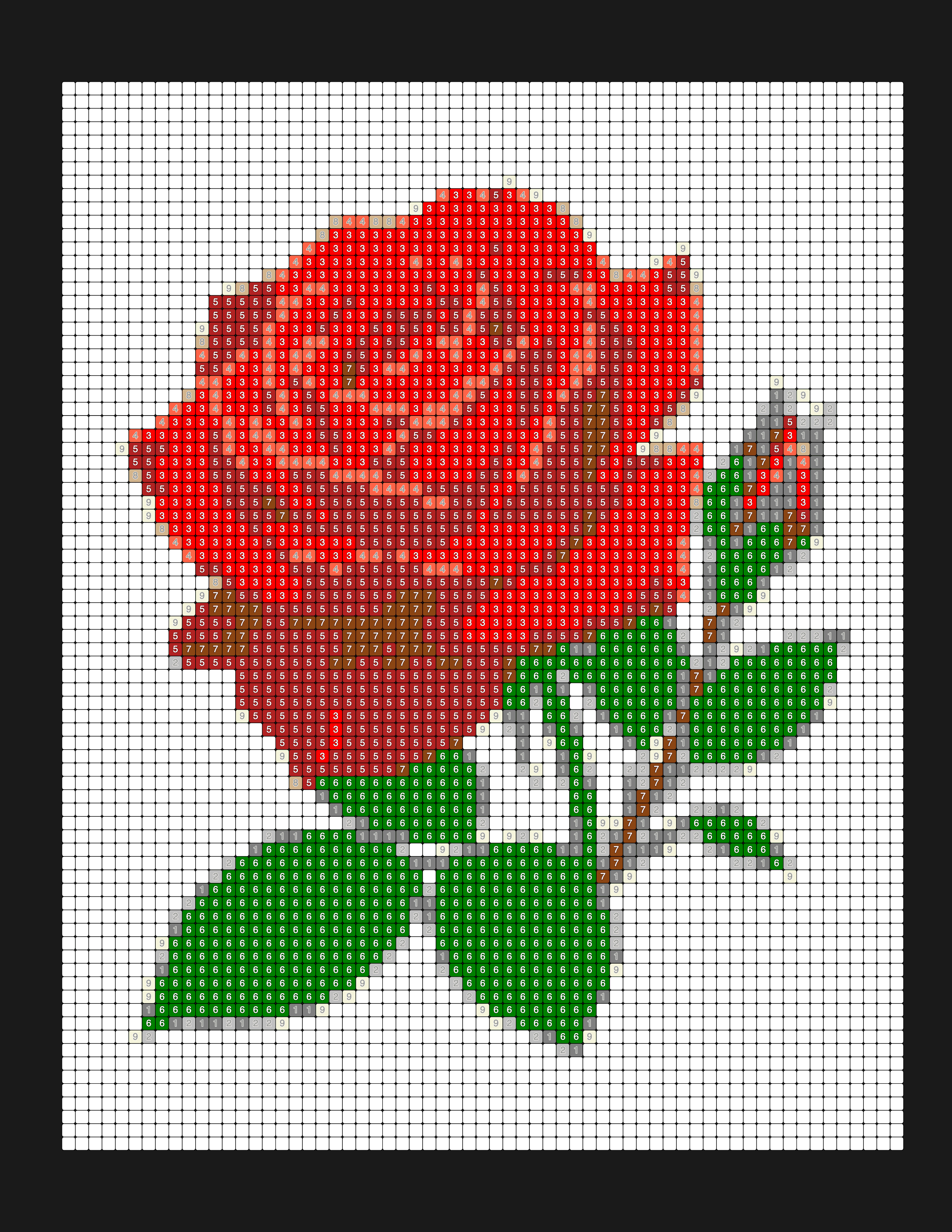
Purpose-built converters solve this by automating the color quantization, grid generation, and numbering — consistently, across every photo you upload.
Step-by-Step: Turn Any Photo Into a Coloring Page
Step 1: Choose the Right Photo (The CLEAR Framework)
The single biggest factor in getting a great coloring page isn't the tool you use — it's the photo you start with. A well-chosen photo produces a clean, detailed, satisfying coloring page. A poor photo produces a muddy grid that's frustrating to color.
Use the CLEAR Framework to evaluate any photo before you convert it:
C — Clear Subject There should be one obvious main subject — a dog, a flower, a person, a building. When the eye knows where to look, the conversion algorithm knows where to focus detail. Abstract compositions or busy scenes tend to produce cluttered grids.
L — Lighting Good lighting means even, directional light that creates natural contrast and depth. Flat, overcast light can work for simple subjects. Harsh direct flash tends to wash out detail. The best photos for conversion are usually taken in natural daylight or golden hour.
E — Enough Contrast Contrast is what defines edges in a mosaic grid. A photo with strong tonal contrast — dark shadows and bright highlights — converts with crisp, readable cells. Low-contrast photos (shot in fog, shade, or with similar colors throughout) produce indistinct grids.
A — Avoid Clutter A plain or blurred background focuses the color-by-number on the subject. A busy background — a park full of people, a cluttered desk, a cityscape with hundreds of windows — distributes detail across the entire grid and makes coloring exhausting. If your subject has a distracting background, use the Object Focus feature in Mosaci to remove it before converting.
R — Resolution Higher resolution photos produce sharper grids. Aim for at least 1000px on the shortest side. Phone camera photos from the last five years are almost always sufficient. Very small images (under 500px) may not have enough detail to produce a readable mosaic.
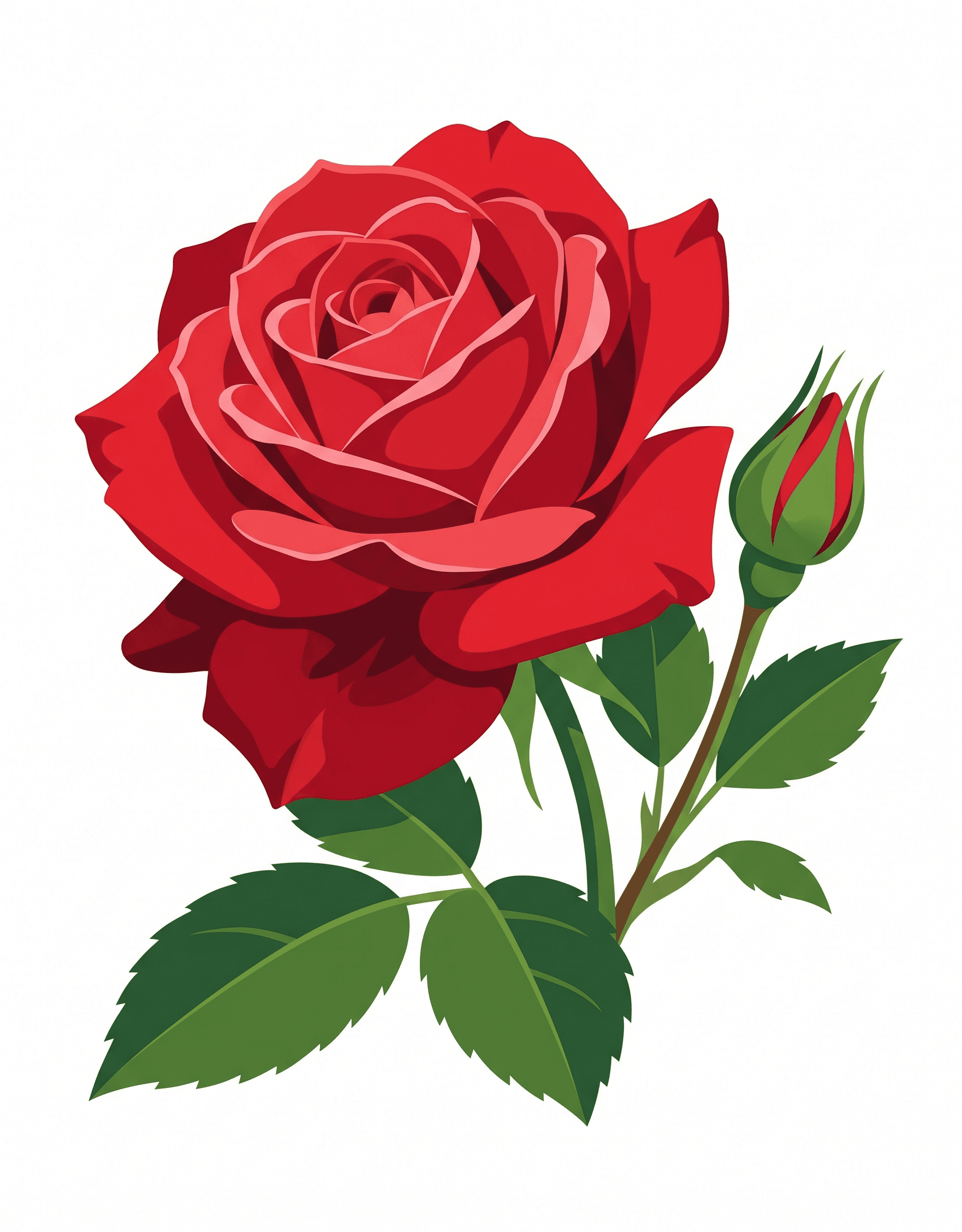
Quick test: If you can immediately tell what the subject is and the background is simple or blurred, the photo will probably convert well. If you have to look twice to understand what you're looking at, the coloring page will be confusing.
Step 2: Upload to Mosaci
Go to Mosaci and click Upload Photo. You can upload a single photo or drag multiple photos at once for batch processing.
Mosaci accepts JPG and PNG files. There's no size limit on uploads — the tool handles large files without issue because all processing happens inside your browser. Your photo never reaches any server.
Once uploaded, you'll see an instant preview of the mosaic conversion. This preview updates in real time as you adjust settings — no waiting, no reload.
Privacy note: Mosaci processes your photos entirely in your browser using Web Workers. Your images are never uploaded to any server, never stored, and never used for AI training. This is a meaningful difference from many online image tools.
Step 3: Choose a Pattern
Mosaci Studio offers 8 color mosaic patterns and 3 monochrome mark styles. The pattern sets the cell shape, which changes which edges render cleanly and how many regions the page has. Square is the plain baseline; Hexagon and Diamond follow diagonals more smoothly; Circle gives the coarsest, quickest page; Trapezoid keeps the most detail. If you're not sure, start with Square, or preview the same photo in two or three patterns before you export.
The mosaic pattern guide describes all 11 pattern options with real converted examples, and says which subjects each one suits. Auto cycles through the patterns across pages, which is useful in a multi-page book when you want variety without picking one per page.
Step 4: Adjust Cell Size
Cell size controls the level of detail in your coloring page. Smaller cells = more cells = more detail. Larger cells = fewer cells = simpler coloring.
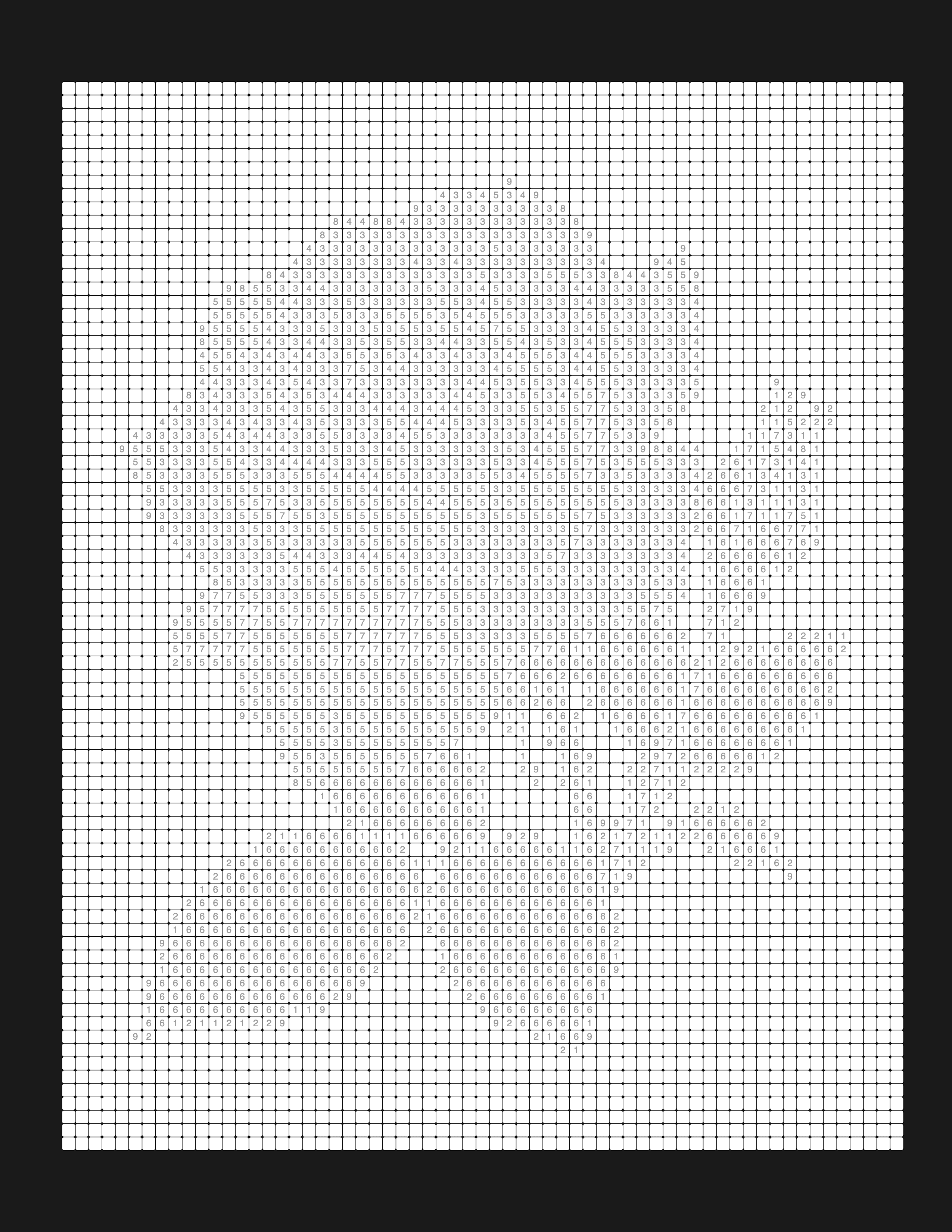
Large cells (recommended for:)
- Children's coloring books (easier to stay inside the lines)
- Simple subjects like bold flowers or cartoon-style images
- Quick gifts or classroom worksheets
- First-time colorists
Medium cells (recommended for:)
- General adult coloring books
- Most pet and portrait photos
- The default setting that works well across most use cases
Small cells (recommended for:)
- Detailed landscape or architectural photos
- Advanced colorists who want a more intricate challenge
- Photos with fine detail you want to preserve (fur texture, feathers, intricate patterns)
A practical guideline: if you're publishing on Amazon KDP and targeting a broad adult audience, medium cells strike the best balance. Go larger if your book is aimed at children or beginners, smaller if it's positioned as a detailed or therapeutic activity.
Step 5: Adjust Color Count
Color count determines how many distinct colors appear in your coloring page. More colors = more accurate to the original photo. Fewer colors = simpler, cleaner result.
Note: The color count runs from 4 to 20, and the default is 12. The mark styles (Square Mark, Hexagon Mark and Dot Mark) have no color count setting: they use ink symbols instead of colors, and the "shading" is created by which symbol is drawn in each cell. See how many colors a page should have for starting points by age and skill.
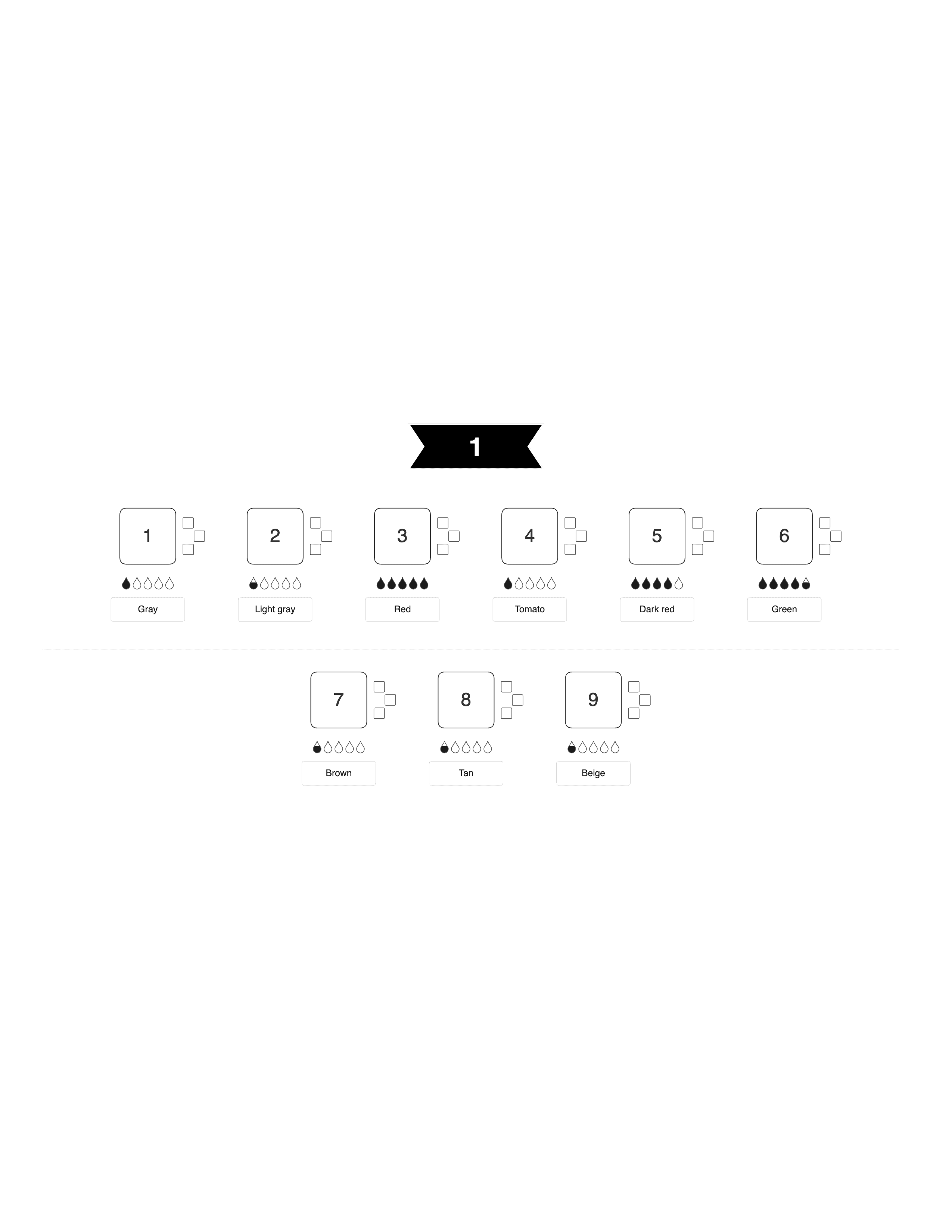
8 colors Highly simplified. Strong graphic look — almost posterized. Best for bold subjects with distinct color regions: a sunset, a cartoon character, a graphic illustration. The numbered palette fits easily on the page.
12 colors A good balance for most KDP coloring books. The image is recognizable, the palette is manageable, and colorists don't need a huge set of colored pencils. Recommended starting point for new publishers.
16 colors More nuanced transitions, particularly in skin tones, sky gradients, and complex textures. Suitable for adult coloring books where the audience expects more detailed work.
20 colors (the maximum) The most nuanced color rendering — you'll see subtle variations in shadows and highlights. Best reserved for high-detail photos where the subject matter justifies the complexity. Colorists will need a full set of pencils or markers to complete the page.
For most KDP publishers, 12–16 colors hits the sweet spot between accuracy and accessibility. Test your photo at different settings — the preview updates instantly, so you can compare before committing to an export.
See pricing for unlimited exports →
Step 6: Export Your PDF
When you're satisfied with the preview, click Export PDF. Mosaci generates a 300 DPI PDF at 8.5" × 11" with 0.375" safe margins on all sides.
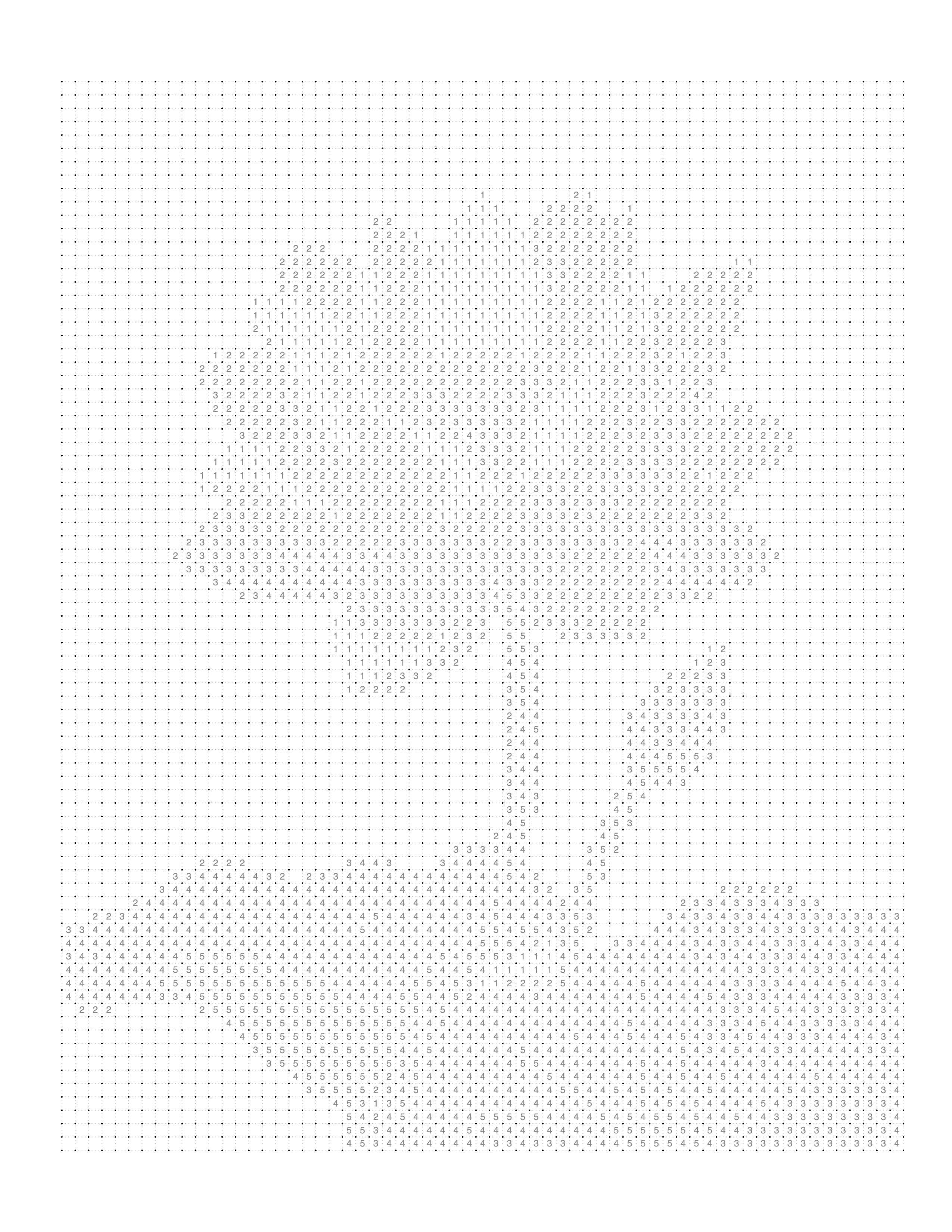
This is formatted for KDP's common interior specifications, so in most cases you won't need to open the file in another program, adjust the resolution, or resize it. Still check the interior in KDP's previewer before publishing — the gutter KDP asks for grows with page count, and KDP reviews the content itself too.
What's included in each exported page:
- The numbered mosaic grid (or symbol grid for mark-based styles)
- A color key legend showing each number and its corresponding color
- KDP-safe margins (nothing important sits within the trim zone)
Every account can combine multiple pages into a single multi-page, 300 DPI PDF — the complete interior file for your coloring book. Upload it to KDP, set your cover, price, and you're done.
Best Photos for Coloring Page Conversion
Some subjects consistently produce better coloring pages than others. Here's what works reliably:
Pets Dogs and cats are the most popular subject for personalized coloring books. Close-up portraits work best — a tight shot of a dog's face with a blurred background produces a clean, detailed mosaic. Full-body shots work too, but watch the background. If your pet is photographed against a busy garden or cluttered living room, use Object Focus in Mosaci to remove the background first.
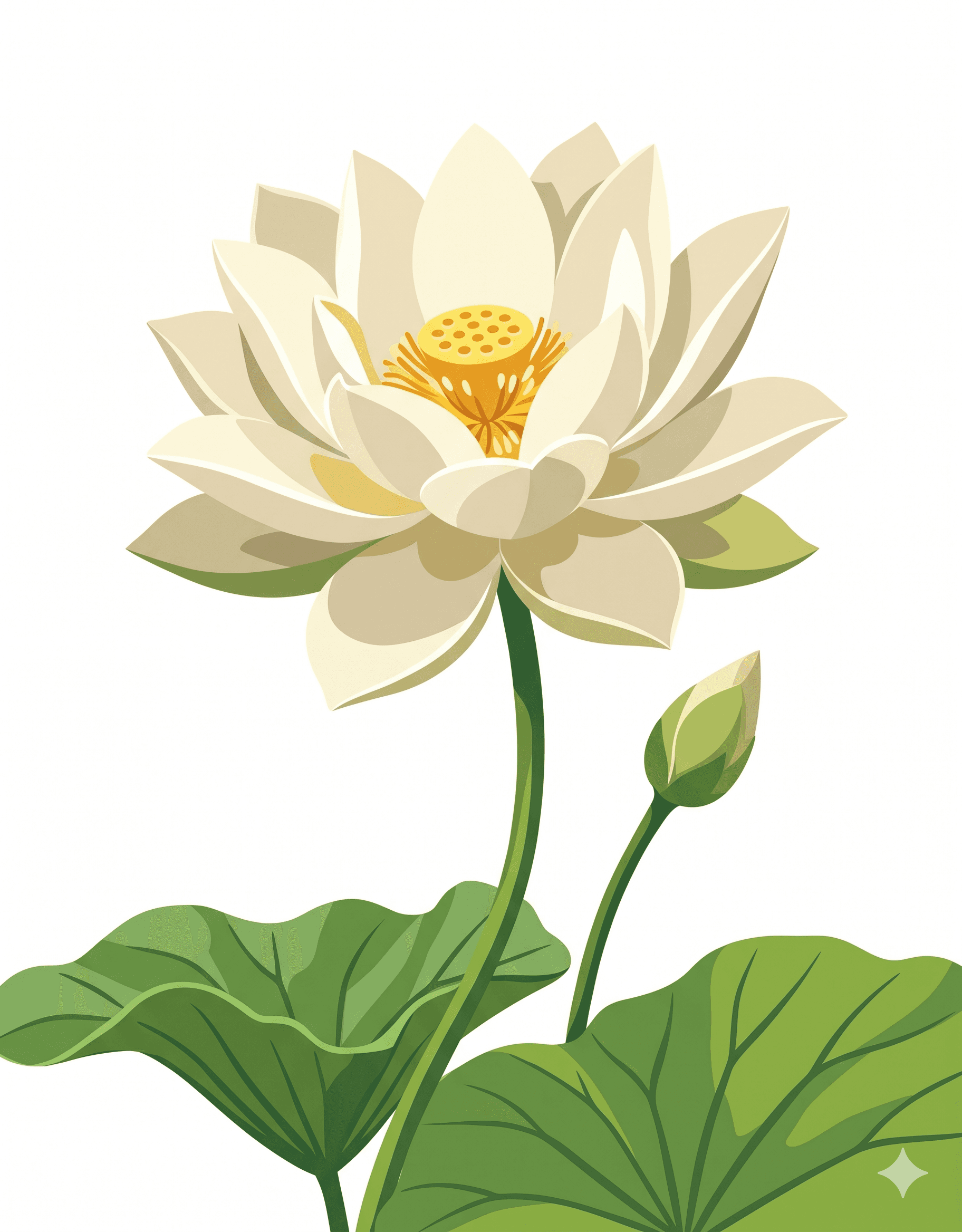
Flowers and Botanicals Flowers have natural contrast, saturated colors, and simple backgrounds (sky, green leaves). A single bloom in focus against a soft background is almost foolproof. Flower coloring pages sell consistently on KDP — particularly in seasonal or garden-themed books. For Square Mark or Hexagon Mark, flower subjects with a white or plain background convert especially cleanly.
Wildlife Birds, butterflies, and wild animals convert well when the subject is sharp and the background is simple — a perched bird against a clean sky, a butterfly on a white flower. Photos from zoos or nature reserves often work better than wild shots because the subjects are closer and better lit.
Landscapes Landscapes require more care. The most successful landscape conversions have a dominant foreground element (a tree, a mountain, a lighthouse) and a simple sky. Photos with complex foreground texture across the entire frame — a forest floor, a rocky beach — tend to produce cluttered grids.
Architecture and Buildings Buildings have strong geometric lines that grid-based mosaics handle well. Historic architecture, doorways, and facade details work particularly well with Diamond or Square style. For monochrome mark books, architectural subjects with high contrast work especially well — stone walls, arched windows, ornate facades.
Common Mistakes to Avoid
These are the errors that consistently produce disappointing results — and how to fix them.
Using a blurry photo Blur is the enemy of a clean mosaic. If the camera didn't capture sharp edges, the conversion algorithm has nothing to work with. The resulting grid will have indistinct cell boundaries and muddy color regions. Always use the sharpest version of a photo you have — zoom into the subject area before converting.
Ignoring the background A subject photographed in front of a busy background — a park, a patterned wall, a crowd — will produce a coloring page where the background competes with the subject for detail. Use Object Focus in Mosaci to remove or simplify the background before converting. The difference is significant. This matters even more for mark-based styles, where the tonal values of the background will be rendered as filled symbols.
Setting color count too high for a simple subject A graphic illustration or a simple flower doesn't need the full 20 colors. Using too many colors on a simple subject produces unnecessary complexity — tiny color regions that are difficult to fill, and a palette so large it overwhelms the coloring experience. Match color count to subject complexity.
Using a very small image A 300px photo will produce a blurry, pixelated mosaic — the tool can only work with the detail that exists in the original file. If your photo looks crisp on screen, it's probably fine. If it looks grainy when you zoom in, find a higher-resolution version.
Choosing the wrong cell size for the audience Selling a children's coloring book with tiny cells is a product problem — young children can't color precisely inside small spaces. Match cell size to your target reader, not to what looks most impressive in the preview.
KDP Safe Zone: What You Need to Know
For the complete workflow — from choosing a concept through uploading your interior to KDP — see How to Publish a Coloring Book on Amazon KDP.
Amazon KDP has specific requirements for interior files. Understanding the safe zone prevents your content from being cut off or rejected during the print review process.
What is the KDP safe zone? KDP distinguishes between three areas of a page:
- Bleed area — extends 0.125" beyond the trim line. Anything here may be cut during printing.
- Trim line — the intended finished edge of the page.
- Safe zone — at least 0.25" inside the trim on the outside edges, and a larger inside (gutter) margin that starts at 0.375" and grows with page count. All important content (text, numbers, images) must stay within this area.
How Mosaci handles this: Every PDF exported from Mosaci is automatically formatted with 0.375" margins on all sides, which covers KDP's minimum for interiors up to 150 pages. The mosaic grid and color legend are placed entirely within the safe zone. Nothing important sits within the trim area.
This applies to all 11 pattern options, including the monochrome mark styles.
What to check yourself: Longer books need a wider gutter than 0.375", and KDP also reviews content and rights, which no export setting can decide. Preview the full interior in KDP's previewer before you publish.
The exported file dimensions are 8.5" × 11" at 300 DPI — the standard interior size for KDP paperback coloring books. This is the size KDP expects and the size that produces the highest quality print at standard printing cost.
If you're building a 100-image interior using Square Mark or Hexagon Mark for the monochrome mystery niche, all pages will export with the same margins and black-and-white rendering. At that length, confirm KDP's gutter requirement for your final page count before uploading.
Try Mosaci free — 10 exports per month, no credit card required →
Why Color-by-Number Pages Are Growing in Popularity
Color-by-number occupies a specific, growing niche in the coloring book market — and understanding why helps you create better products.
Relaxation with structure Plain coloring books ask the colorist to make every creative decision. Color-by-number removes decision fatigue. You know what to do: match the number to the color, fill the cell. This constraint is, paradoxically, relaxing. Research consistently shows that structured activities reduce anxiety more effectively than open-ended ones — and coloring book buyers report this as one of the main reasons they prefer color-by-number formats.
Accessible to non-artists Many adults want to engage with a creative activity but feel intimidated by blank pages. Color-by-number provides a defined path to a satisfying result. The finished page looks like artwork even if the colorist has no artistic skill. This drives strong repeat purchases — buyers who succeed with color-by-number come back for more.
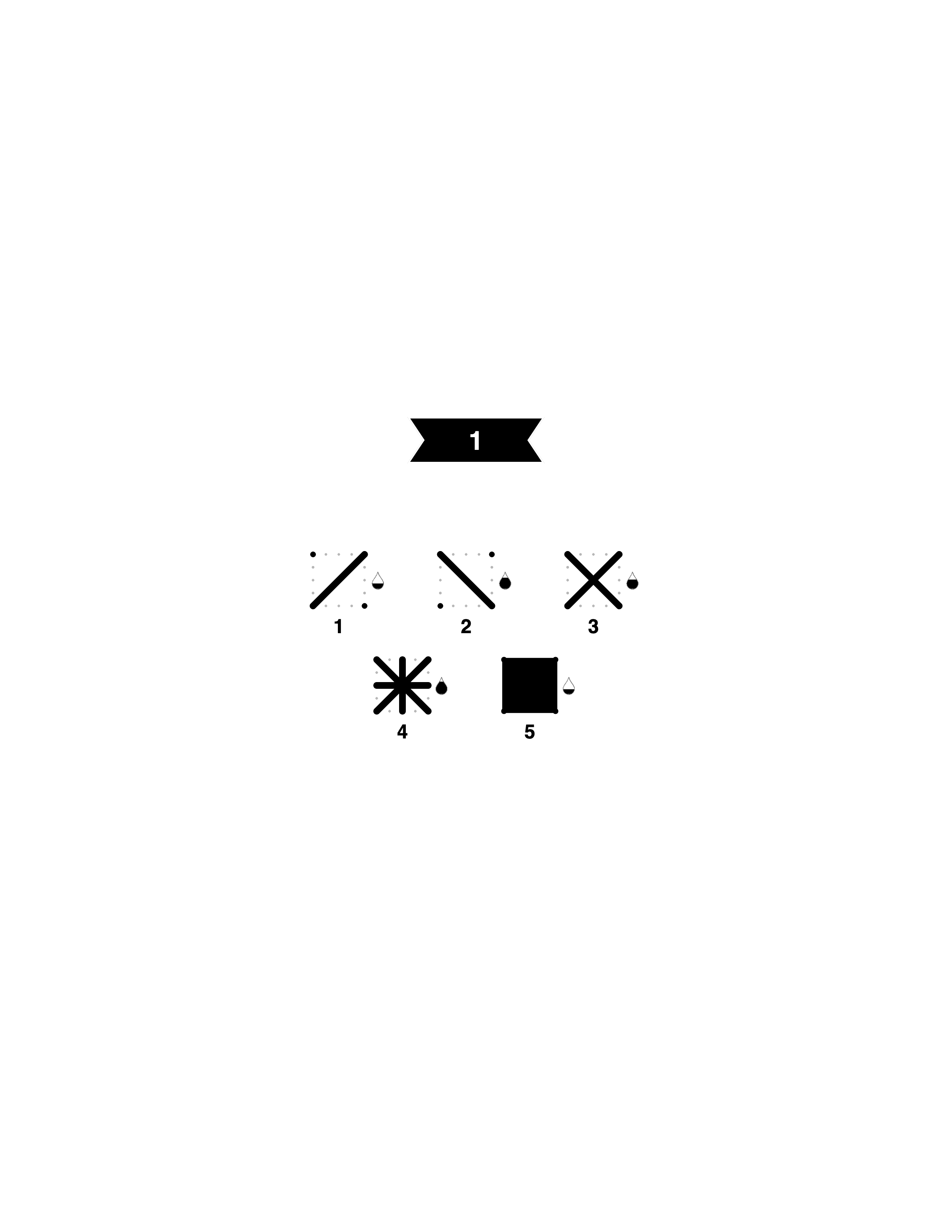
The monochrome mystery trend A newer format — the "Monochrome Mystery" or "Mark-by-Symbol" activity book — has emerged as one of the fastest-growing niches on Amazon KDP. These books use ink symbols instead of colors. You fill each cell with the correct mark, and a hidden image gradually reveals itself. The format is pen-only, requires no art supplies beyond a pencil, and appeals strongly to puzzle-oriented buyers. Mosaci's Square Mark and Hexagon Mark styles are purpose-built for this niche.
Educational applications Teachers use color-by-number worksheets to teach color recognition, number matching, and fine motor skills. Custom sheets made from classroom photos or curriculum-relevant images are more engaging than generic worksheets. Several KDP publishers have built successful educational niches around this.
KDP publishing opportunity Low-content book publishing on Amazon KDP has grown significantly since 2020. Coloring books are one of the most consistent performers in the category because they require no text, the interior can be produced without specialized skills, and there's genuine consumer demand. Color-by-number books specifically have strong keyword search volume and relatively lower competition than plain coloring books.
Personalized gifts A color-by-number page made from a photo of someone's pet, their home, or a meaningful location is a genuinely thoughtful gift. It's personal in a way that a generic coloring book isn't. Several small businesses have built gift product lines around custom color-by-number pages — printed at home, printed at a local shop, or shipped as a digital download.
FAQ
Can I turn any photo into a coloring page? Almost any photo works, but photos with a clear subject, good contrast, and a simple background convert best. Portraits of people, pets, flowers, and landmarks tend to produce the cleanest results. Very blurry or dark photos are harder to convert well.
What photo format should I use? Mosaci accepts JPG and PNG. For best results, use the highest resolution version of your photo — at least 1000px on the longest side. Higher resolution gives you more detail in the final coloring page.
Do I need Photoshop to create coloring pages? No. Mosaci runs entirely in your browser. No software installation, no design skills, no Photoshop required. Upload your photo and the tool handles the conversion automatically.
Can I sell coloring books made with Mosaci on Amazon KDP? Yes. PDFs exported from Mosaci have no watermark and are formatted for common KDP specifications — 8.5" × 11" at 300 DPI with 0.375" margins. You can publish the output commercially, provided you have the rights to the photos you converted. See pricing →
What size PDF does Mosaci export? The standard export is 8.5" × 11" at 300 DPI — the most common interior size for Amazon KDP paperback coloring books. This matches KDP's upload requirements with no resizing needed.
Is Mosaci free? Yes — every account gets 10 free credits every month, no credit card required. Need more? Buy a one-time credit pack — there's no subscription, and purchased credits never expire. See pricing →
Are my photos stored on Mosaci's servers? No. All processing happens inside your browser using Web Workers. Your photos never leave your device and are never uploaded to any server. This is a core privacy guarantee of Mosaci.
How many colors should I use for a coloring page? It depends on your audience. For children or beginners, 8–12 colors keeps it simple and less intimidating. For adult coloring books or detailed artwork, 16–20 colors creates richer, more realistic results. For Square Mark and Hexagon Mark, no color selection is needed — the tool assigns symbols automatically based on tonal values.
Can I create a multi-page coloring book with Mosaci? Yes. Every account can combine up to 100+ pages into a single multi-page PDF — ready to upload as a complete coloring book interior to Amazon KDP. This includes mark-based monochrome books. See pricing →
What mosaic style should I choose? Square is the most traditional and works for any photo. Hexagon and Circle give a modern, organic feel that suits nature subjects, and Diamond suits geometric or architectural photos. For a one-pen monochrome book, use one of the mark styles. The mosaic pattern guide on this site compares all of them, and the preview updates instantly, so try a few on the same photo.
What are the mark-based monochrome styles? Square Mark, Hexagon Mark and Dot Mark are the 3 monochrome mosaic styles. They use ink symbols instead of color numbers, so no colored pencils are needed. Square Mark and Dot Mark use a dot plus five marks, and Hexagon Mark a dot plus six, from lightest to darkest. The mark styles cost 2 credits per generation against 1 for the color patterns.
Do Mosaci exports fit KDP's safe zone requirements? All exports include 0.375" margins on all sides, which covers KDP's minimum for interiors up to 150 pages. Longer books need a wider gutter, so check KDP's requirement for your page count and preview the interior before publishing.
Start Converting Your Photos Today
Turning a photo into a coloring page used to take hours. Now it takes a few minutes.
The workflow is straightforward: choose a photo with a clear subject and good contrast, upload it, pick a style, adjust the cell size and color count to suit your audience, and export a KDP-ready PDF. No Photoshop. No design skills. Just a free account — no credit card required.
If you're building a coloring book for Amazon KDP, start with three or four of your best photos and run them through different mosaic styles and color counts. The preview updates in real time, so you can compare options quickly. Once you have a look you're happy with, apply those same settings across your full batch.
If you're targeting the monochrome mystery niche, Square Mark is the fastest path. Upload your photos, select Square Mark, export — the output is a complete black-and-white interior ready for KDP upload. No color decisions, no palette adjustments, no additional formatting.
If you're making a personalized gift, a single photo of a pet or a meaningful place is enough. Upload it, dial in the settings, export, and print.
Either way, the first export takes less time than reading this guide.
Printable quality checklist
- Choose a photo with a clear subject and good contrast
- Upload to Mosaci Studio (free account, no credit card needed)
- Pick a mosaic style — 10 available including Square Mark and Hexagon Mark
- Adjust cell size — larger for beginners, smaller for detail
- Set color count between 8 and 24 (not needed for mark-based styles)
- Preview the result and tweak as needed
- Export as PDF at 300 DPI with KDP-safe margins
- Upload directly to Amazon KDP or print at home
Key takeaways
- Any photo can become a printable coloring page — you just need the right tool and the right photo.
- The CLEAR Framework helps you pick photos that convert well every time.
- Mosaci Studio offers 8 color mosaic patterns and 3 monochrome mark styles; the mosaic pattern guide shows each one on a real converted page.
- Mosaci Studio processes everything inside your browser — your images never leave your device.
- Export at 300 DPI, KDP-ready, no watermark on any credit — free or purchased. Every page uses the same 0.375" margins, so a 100+ image interior stays consistent.
Frequently asked questions
Can I turn any photo into a coloring page?
Almost any photo works, but photos with a clear subject, good contrast, and a simple background convert best. Portraits of people, pets, flowers, and landmarks tend to produce the cleanest results. Very blurry or dark photos are harder to convert well.
What photo format should I use?
Mosaci Studio accepts JPG and PNG. For best results, use the highest resolution version of your photo — at least 1000px on the longest side. Higher resolution gives you more detail in the final coloring page.
Do I need Photoshop to create coloring pages?
No. Mosaci Studio runs entirely in your browser. No software installation, no design skills, no Photoshop required. Upload your photo and the tool handles the conversion automatically.
Can I sell coloring books made with Mosaci Studio on Amazon KDP?
Yes. PDFs exported from Mosaci Studio have no watermark and are formatted for common KDP specifications — 8.5" × 11" at 300 DPI with 0.375" margins. You can publish the output commercially, provided you have the rights to the photos you converted.
What size PDF does Mosaci Studio export?
The standard export is 8.5" × 11" at 300 DPI — the most common interior size for Amazon KDP paperback coloring books. This matches KDP's upload requirements with no resizing needed.
Is Mosaci Studio free?
Yes — every account gets 10 free credits every month, no credit card required. Need more? Buy a one-time credit pack — there's no subscription, and purchased credits never expire.
Are my photos stored on Mosaci's servers?
No. All processing happens inside your browser using Web Workers. Your photos never leave your device and are never uploaded to any server. This is a core privacy guarantee of Mosaci Studio.
How many colors should I use for a coloring page?
It depends on your audience. For children or beginners, 8–12 colors keeps it simple and less intimidating. For adult coloring books or detailed artwork, 16–20 colors creates richer, more realistic results.
Can I create a multi-page coloring book with Mosaci Studio?
Yes. Every account can combine up to 100+ pages into a single multi-page PDF — ready to upload as a complete coloring book interior to Amazon KDP.
What mosaic style should I choose?
Square is the most traditional and works for any photo. Hexagon and Circle give a modern, organic feel that suits nature subjects, and Diamond suits geometric or architectural photos. For a one-pen monochrome book, use one of the mark styles. The mosaic pattern guide on this site compares all of them, and the preview updates instantly, so try a few on the same photo.
What are the mark-based monochrome styles?
Square Mark, Hexagon Mark and Dot Mark are the 3 monochrome mosaic styles. They use ink symbols instead of color numbers, so no colored pencils are needed. Square Mark and Dot Mark use a dot plus five marks, and Hexagon Mark a dot plus six, from lightest to darkest. The mark styles cost 2 credits per generation against 1 for the color patterns.
Do exports from Mosaci Studio fit KDP's safe zone?
All PDFs exported from Mosaci Studio include 0.375" margins on all sides, with the mosaic grid and color legend placed entirely inside them. That covers KDP's minimum margins for interiors up to 150 pages; longer books need a wider gutter, so check KDP's requirement for your page count and preview the interior before publishing.
How many mosaic styles does Mosaci Studio offer?
Mosaci Studio offers 8 color mosaic patterns and 3 monochrome mark styles: Square, Circle, Diamond, Hexagon, Puzzle, Islamic, Fish Scale and Trapezoid (8 color-based styles), plus Square Mark, Hexagon Mark and Dot Mark (3 monochrome mark-based styles for black-and-white publishing).
Related tools
Written by
Mosaci Studio TeamThe team behind Mosaci Studio
Mosaci Studio is built to help KDP publishers, Etsy sellers, and hobby artists turn photos into print-ready coloring pages without any design experience.
Published Jun 19, 2026 · Updated Oct 6, 2026