
Quick answer
There's a photo sitting in your camera roll right now — a pet, a grandchild, a landscape from a trip — that could become a piece of art you actually make with your own hands. Not a print you hang as-is, but something you build, cell by cell, number by number, until the photo reappears in front of you.
That's the promise of photo to color by number: turning any photograph into a numbered, paint-by-cell grid that anyone can complete with colored pencils, markers, or paint. What used to require a professional illustrator and a few hundred dollars now takes a browser tab and a few minutes.
It's also become one of the fastest-growing categories in the coloring and low-content publishing world. Amazon KDP publishers are building entire catalogs around custom color-by-number books. Etsy sellers turn customer pet photos into personalized digital downloads. Teachers build classroom activity sheets from field-trip photos. Parents turn family photos into weekend projects with their kids. Puzzle creators use the format to build a "reveal the hidden image" experience that regular coloring pages can't offer.
This guide is the complete reference for photo to color by number: what it is, how it actually works under the hood, which pattern style fits which project, which photos convert well (and which don't), and how to go from a raw photo to a print-ready PDF in minutes using Mosaci Studio.
If you only read one section, read the pattern comparison — choosing the right pattern before you convert your first photo will save you more rework than any other decision in this guide.
Table of Contents
- What Is Photo to Color by Number?
- How Does Photo to Color by Number Work?
- Choosing the Right Pattern
- Best Photos for Color by Number Conversion
- Common Mistakes
- Real Examples
- How to Create Your Own Photo to Color by Number
- Who Should Use Photo to Color by Number?
- Frequently Asked Questions
- Conclusion
What Is Photo to Color by Number?
For the broader picture of the format itself — its history, the different variations, and how it compares to ordinary coloring pages — see What Is Color by Number? A Complete Beginner's Guide.
Definition: Photo to color by number is the process of converting a photograph into a grid of numbered cells, where each number corresponds to a specific color. Filling in every cell with its matching color gradually reveals the original photo.
How It Works
A conversion engine analyzes your photo, reduces it to a limited color palette (4 to 20 colors in Mosaci Studio, 12 by default), maps the image onto a grid of shapes (square, hexagon, circle, or another pattern), and assigns each cell a number tied to one palette color. The output is two things: a blank numbered outline to color, and a reference key showing which number matches which color.
Benefits
- No artistic skill required. The hard creative decisions — composition, color placement, shading — are already made. You just match numbers to colors.
- Meditative and repeatable. The structured, low-decision nature of color by number is part of why it's popular as a relaxation activity for adults, not just a kids' craft.
- Personal. Unlike a stock coloring page, the finished piece is recognizably your photo — your pet, your family, your favorite place.
- Publishable at scale. A single tool can convert dozens of photos with consistent formatting, which is exactly what a KDP coloring book interior needs.
Typical Workflow
- Choose a photo with a clear subject.
- Upload it to a converter like Mosaci.
- Choose a pattern (square, hexagon, circle, or one of the others).
- Adjust cell size and color count.
- Export a print-ready PDF.
- Print and color — or upload the interior to Amazon KDP.
Photo to Coloring Page vs. Photo to Color by Number vs. Mystery Mosaic vs. Monochrome Color by Number
These four formats are often confused, but they solve different problems:
| Format | What appears on the page | Colors needed | Best for |
|---|---|---|---|
| Photo to coloring page | Plain black-and-white outline, no numbers | Any colors, colorist's choice | Open-ended creative coloring |
| Photo to color by number | Numbered grid + color key | Matches the numbered palette | Guided, accurate recreation of the photo |
| Mystery mosaic | Numbered grid with no visual preview — the image is a surprise until finished | Matches the numbered palette | Puzzle-style engagement, "reveal" experience |
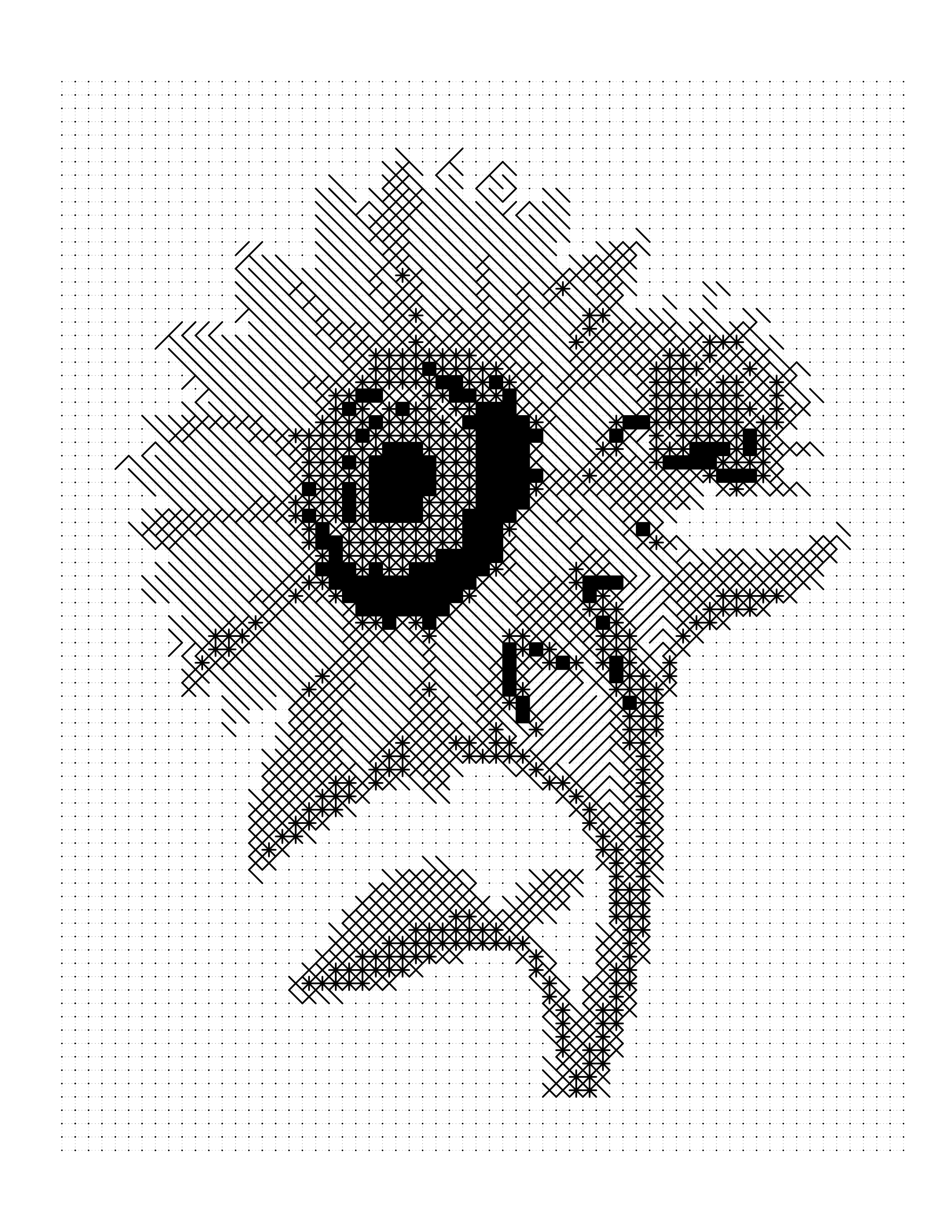
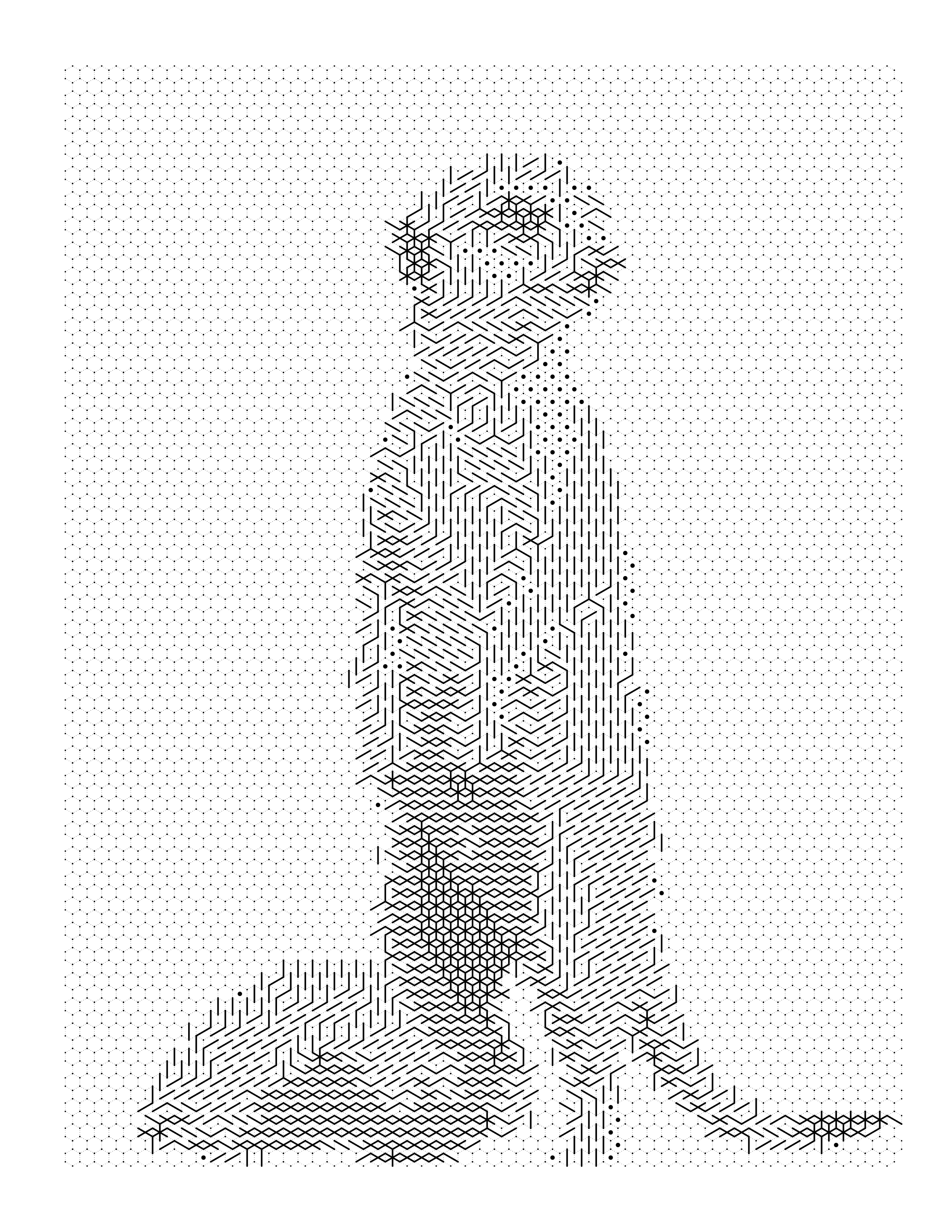
| Monochrome color by number | Numbered grid using ink symbols instead of colors | None — pen or pencil only | Black-and-white publishing, low production cost |
If you want full creative freedom, use a plain photo to coloring page. If you want a guided, numbered version of a photo, that's color by number — the subject of this guide. If you want the same guided experience but with the fun of not knowing what you're building until near the end, that's a mystery mosaic. And if you want to skip colored pencils entirely and publish in pure black and white, that's a monochrome color by number page.
Key Takeaways
- Photo to color by number uses a numbered grid and a color key — you always know what you're building.
- Mystery mosaic hides the preview for a puzzle-like reveal experience, using the same underlying grid technology.
- Monochrome color by number replaces colors with ink symbols, making it ideal for black-and-white KDP interiors.
- All three formats can be generated from the same source photo using the same pattern.
Common Misconceptions
- "Color by number is just for kids." Adult color-by-number books are one of the fastest-growing segments in low-content publishing — the structured format appeals strongly to stressed-out adults looking for a low-decision creative outlet.
- "You need design software to make one." Browser-based tools like Mosaci now do the entire conversion automatically — no Photoshop, no manual grid drawing.
- "Any photo works equally well." It doesn't. Photo choice is the single biggest factor in output quality — see the best photos section below.
How Does Photo to Color by Number Work?
Every photo to color by number conversion follows the same six-stage pipeline, whether you're using Mosaci or building it manually.
↓

↓
↓
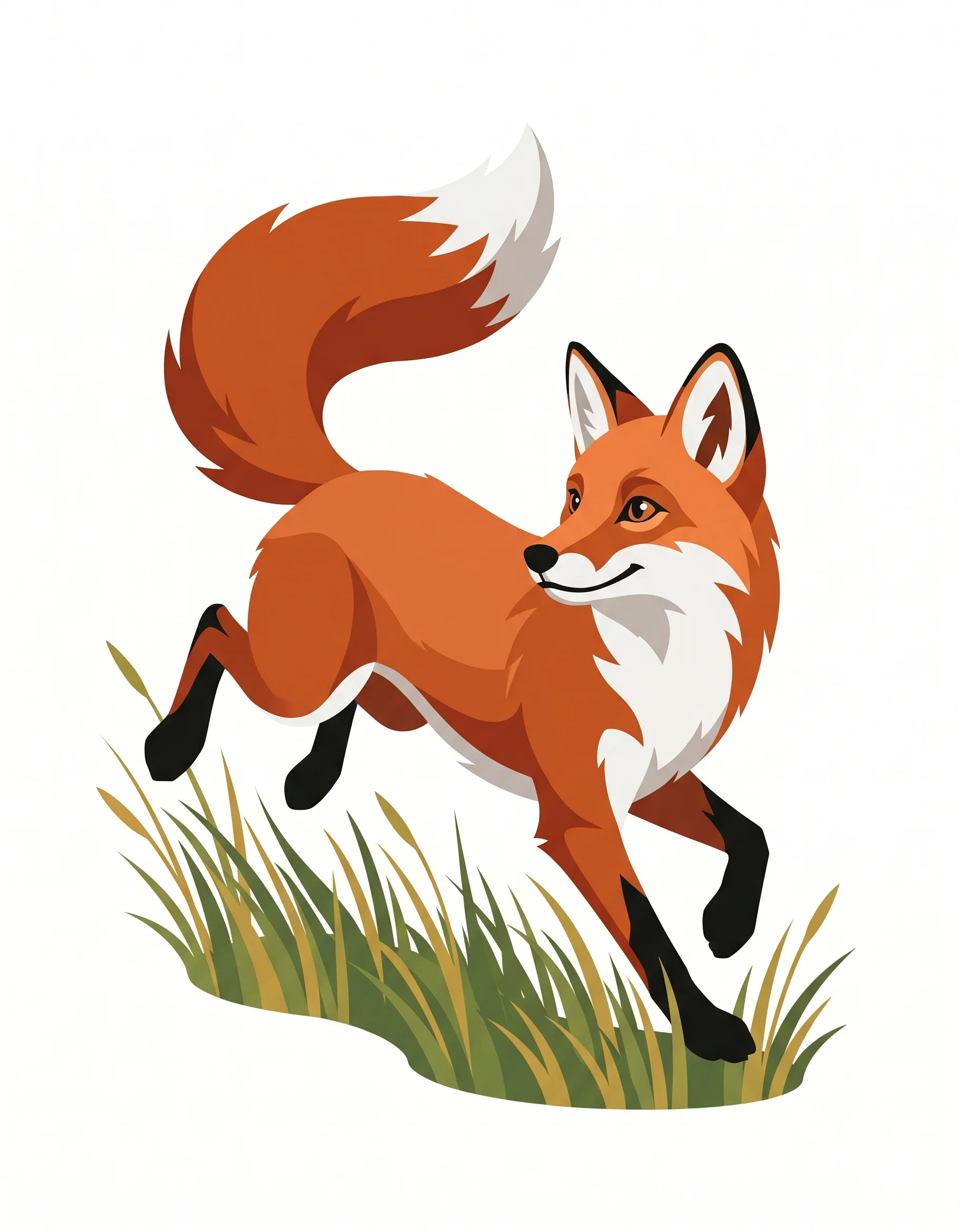
Stage 1 — Original Photo
Everything starts with your source image. The algorithm reads pixel data, contrast, and edges to determine where the subject is and where the detail lives. This is the input the entire pipeline depends on — a sharp, well-lit photo gives every downstream stage more to work with.
Stage 2 — Outline
The engine detects the boundaries between distinct regions of color and tone, building a simplified line structure of the photo. This is the "skeleton" the numbered grid will eventually sit on top of. At this stage you'd see a clean, cell-free outline — similar to a traditional photo to coloring page output.
Stage 3 — Pattern Selection
The outline is overlaid with your chosen cell shape — square, hexagon, circle or another pattern — at your selected cell size. This is the step that determines the visual character of the final piece. A square grid reads as classic and structured; a hexagon grid feels organic; a circle grid reads as softer, with small gaps between cells. (Full breakdown in the next section.)
Stage 4 — Palette
The engine reduces the photo's full color range down to a limited palette — 4 to 20 colors in Mosaci Studio, 12 by default — using color quantization. Each resulting color is assigned a number. This palette becomes your reference key on the printed page.
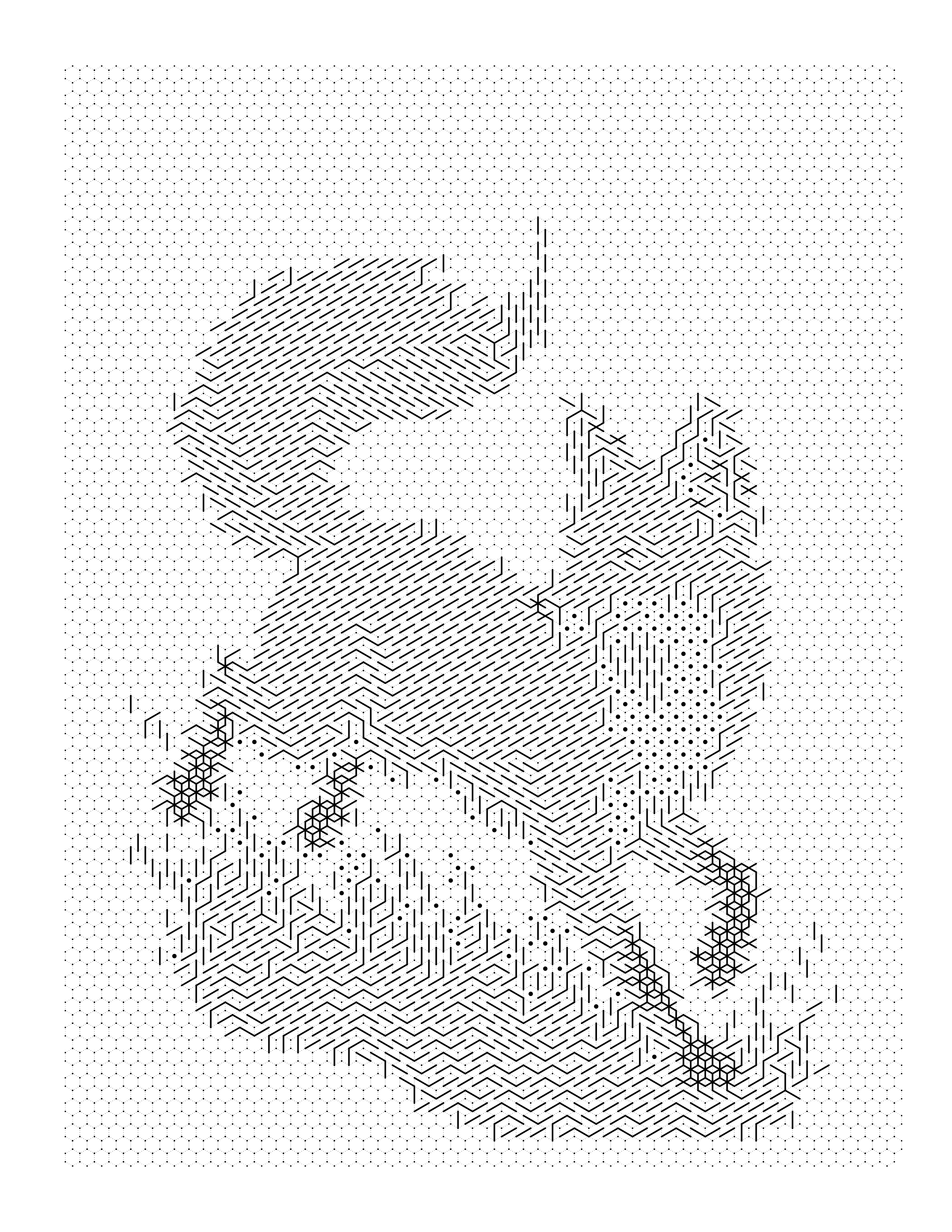
Stage 5 — Finished Color by Number
Each cell in the grid is labeled with the number of its matching palette color. At this stage, you can preview exactly what the finished, colored-in piece will look like — this is your quality check before exporting.
Stage 6 — Printable PDF
The final numbered grid, plus its color key, is laid out on a print-ready page — typically 8.5" × 11" at 300 DPI with KDP-safe margins. This is the file you print at home, hand to a printer, or upload directly to Amazon KDP.
The entire pipeline, from upload to export, takes under a minute in Mosaci — and every stage updates live as you adjust settings, so you can compare pattern and color choices before committing to a final export.
Choosing the Right Pattern
The pattern changes the look of the page, how the cells print, and how it feels to color. Mosaci Studio offers 8 color mosaic patterns and 3 monochrome mark styles. Square, Hexagon and Circle are the three below because they are the quickest to compare on one photo; the mosaic pattern guide covers all 11 pattern options, each with a real example from the gallery.
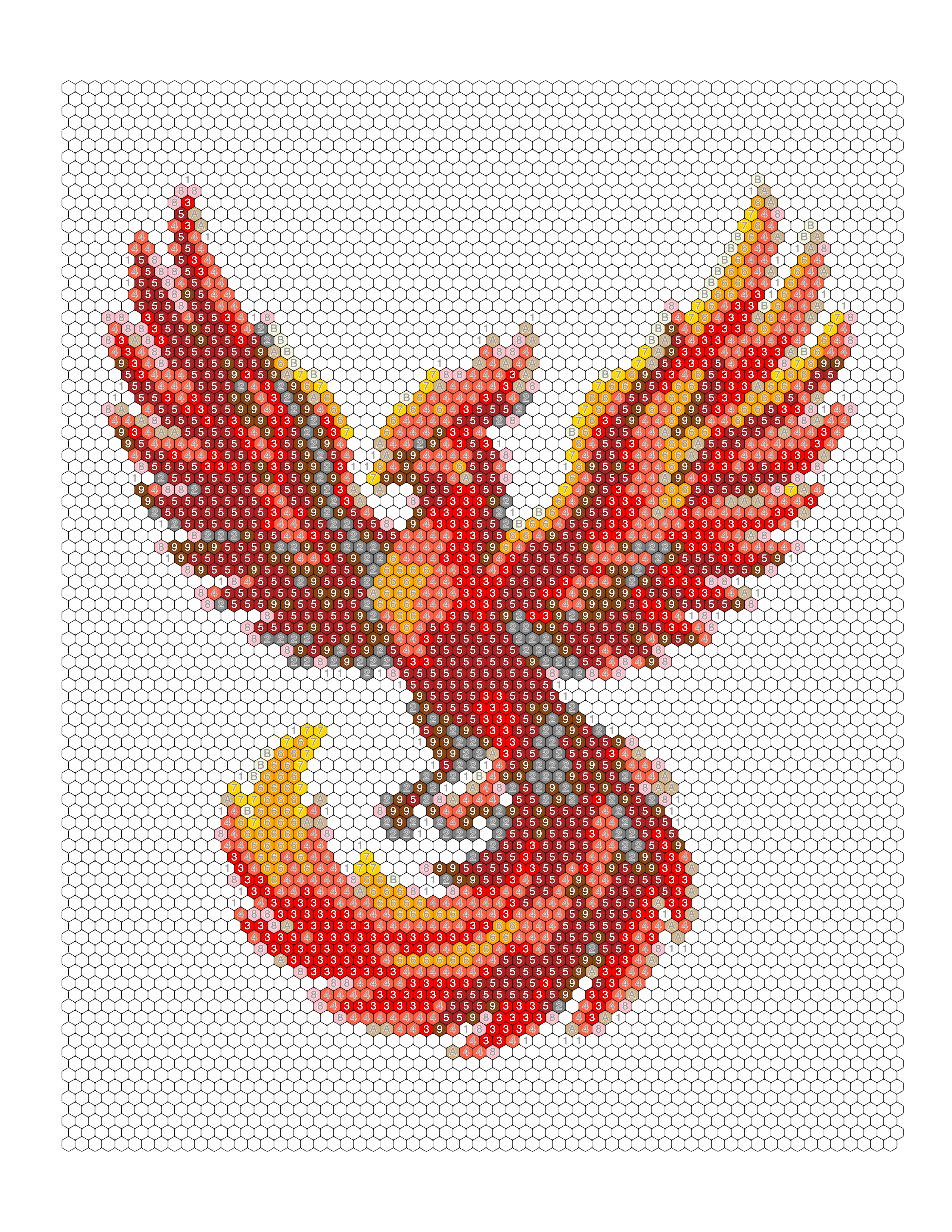
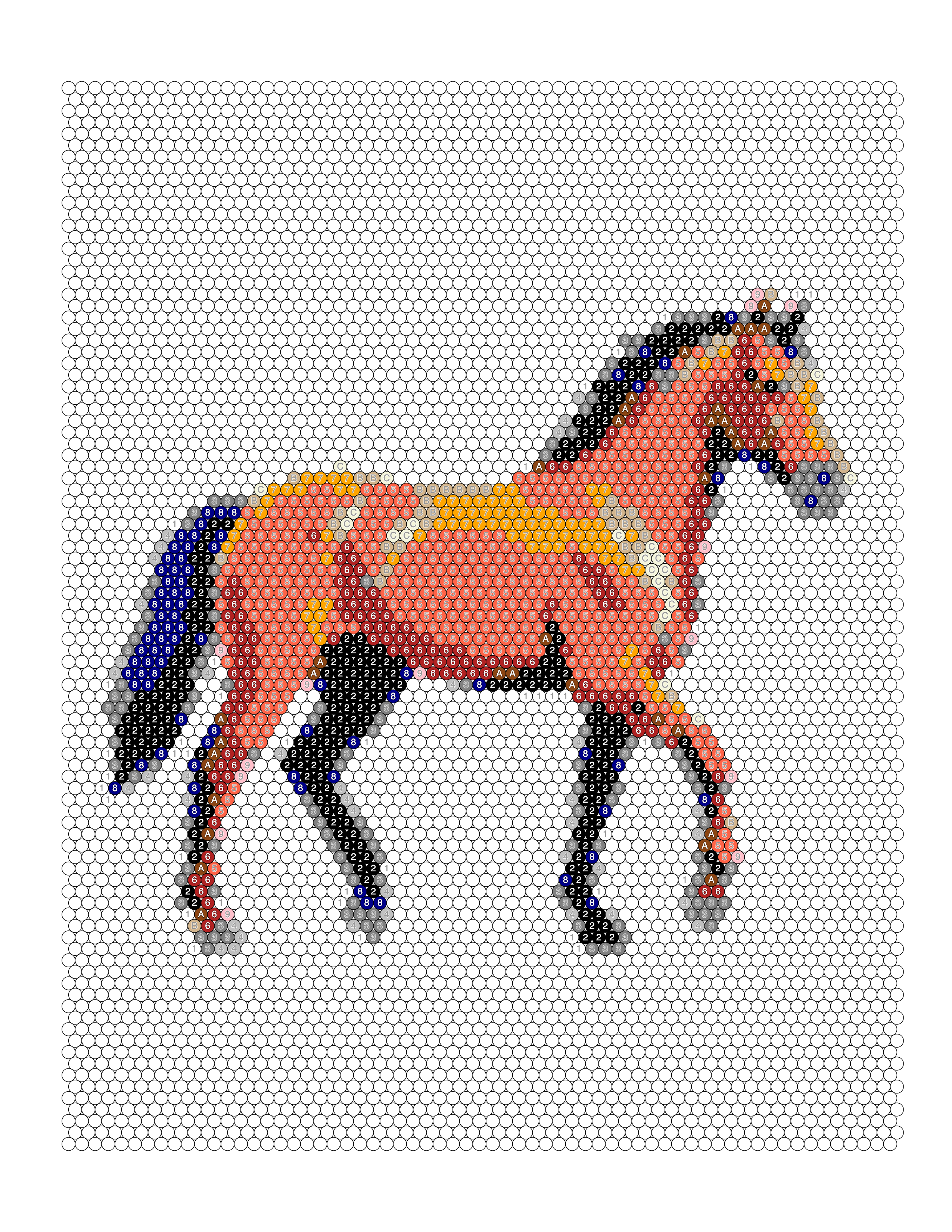
Pattern Comparison
| Pattern | How the cells are laid out | What you see on the page |
|---|---|---|
| Square | Square cells in straight rows and columns | A classic grid; horizontal and vertical edges stay straight |
| Hexagon | Hexagonal cells in staggered rows, tiled without gaps | A honeycomb texture with no long straight seams |
| Circle | Round cells in staggered rows, touching but not filling the page | Small gaps between cells, so edges look softer |
Which one is right depends on the look you want, not on a rule: preview the same photo in two or three patterns and keep the one that reads best. The preview updates instantly, so nothing is exported until you choose.
Best Photos for Color by Number Conversion
The single biggest factor in a great color-by-number result isn't the pattern or the tool — it's the photo you start with. Here's what to look for.
Lighting Even, directional lighting — natural daylight or golden hour — creates the contrast a conversion engine needs to separate the subject from its surroundings. Harsh flash washes out detail; deep shade flattens it.
Contrast Strong tonal contrast between the subject and its background produces crisp, well-defined cell boundaries. Low-contrast photos (foggy, overcast, or same-tone-throughout) tend to produce muddy, indistinct grids.
Composition A single, clearly framed subject converts far better than a busy scene with multiple competing points of interest. If a person looking at the photo for two seconds knows exactly what the subject is, the algorithm will too.
Resolution Aim for at least 1000px on the shortest side. Most phone photos from the last several years easily clear this bar. Low-resolution or heavily compressed images produce blurry, pixelated grids no matter how good the pattern settings are.
Background A plain, blurred, or simple background keeps detail concentrated on the subject. A cluttered background — a crowded room, a busy street, dense foliage — spreads detail across the entire grid and makes coloring exhausting rather than relaxing.
Subject Isolation Photos where the subject is clearly separated from its surroundings (via depth of field, framing, or a plain backdrop) convert dramatically better than photos where the subject blends into its environment.
Image Complexity Simpler subjects — a single flower, a pet's face, a clean architectural line — hold up well even at high color counts and small cell sizes. Highly complex scenes benefit from fewer colors and larger cells to avoid visual overload.
For a deeper breakdown of what makes a photo convert well — including a scoring framework you can apply to any image — see our full guide: Best Photos for Coloring Page Conversion.
Common Mistakes
Even with a great tool, these mistakes consistently produce disappointing results.
Low-resolution images The problem: Grainy, pixelated grids with no fine detail. The fix: Use the highest-resolution version of your photo available — ideally 1000px+ on the shortest side.
Busy backgrounds The problem: The background competes with the subject for detail, making the piece exhausting to color and hard to read once finished. The fix: Use a photo with a naturally simple background, or crop tightly around the subject before uploading.
Wrong pattern selection The problem: A geometric subject converted in the Circle pattern loses its clean lines; an organic subject converted in Square can look unnecessarily blocky. The fix: Match the pattern to the subject — see the pattern comparison above.
Poor lighting The problem: Flat or harsh lighting removes the contrast the algorithm needs, producing indistinct cell boundaries. The fix: Choose photos taken in natural, even light whenever possible.
Too much detail (over-complicating the settings) The problem: Maxing out color count and minimizing cell size on a already-complex photo produces an overwhelming, hard-to-color result. The fix: Match color count and cell size to subject complexity and your audience's skill level — simpler is often better.
Incorrect expectations The problem: Expecting a photorealistic result identical to the source photo. Color by number is a stylized, simplified interpretation — not a photo filter. The fix: Preview before exporting, and think of the output as "inspired by" the photo rather than a 1:1 reproduction.
For a full mistake-by-mistake breakdown with more visual examples, see Photo to Coloring Page: Common Mistakes.
Real Examples
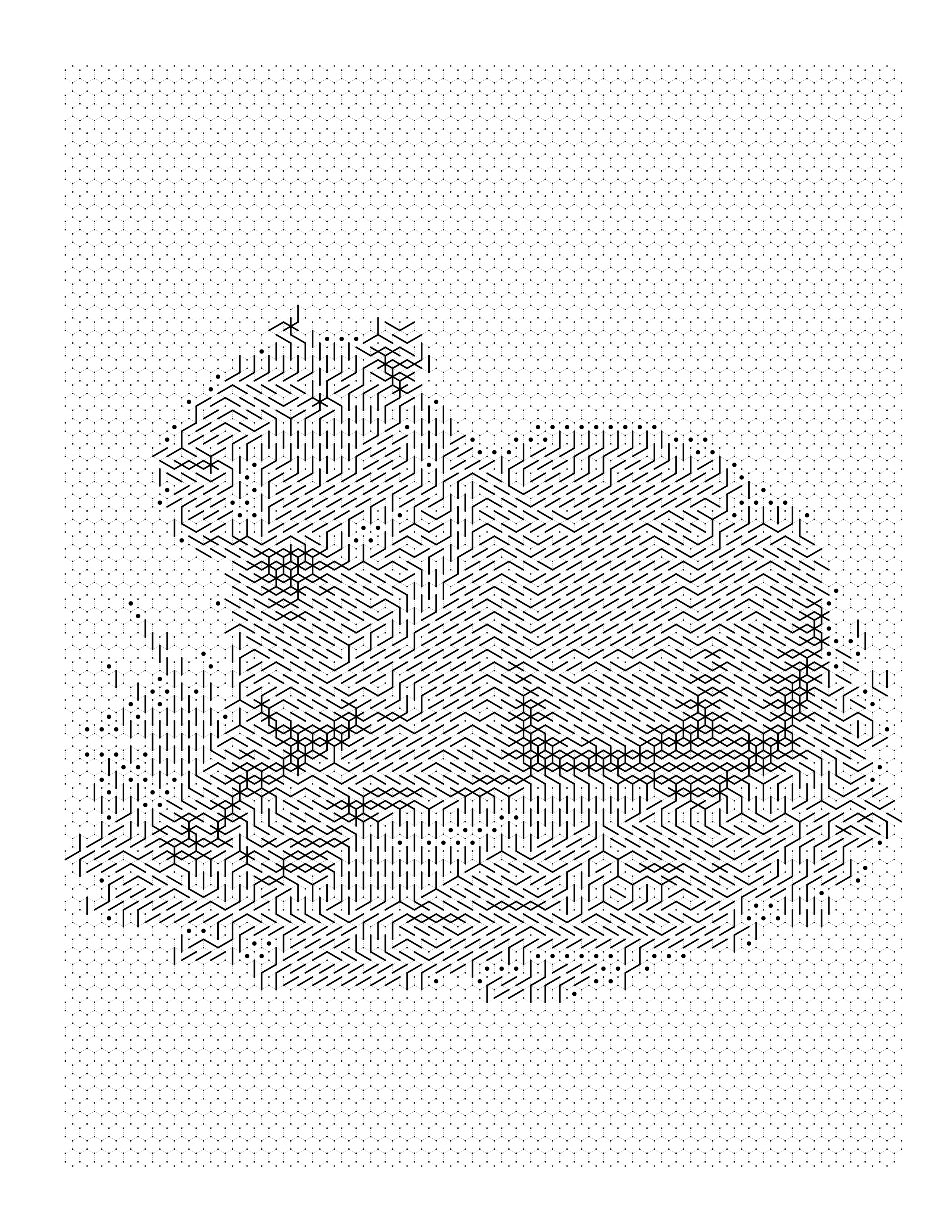
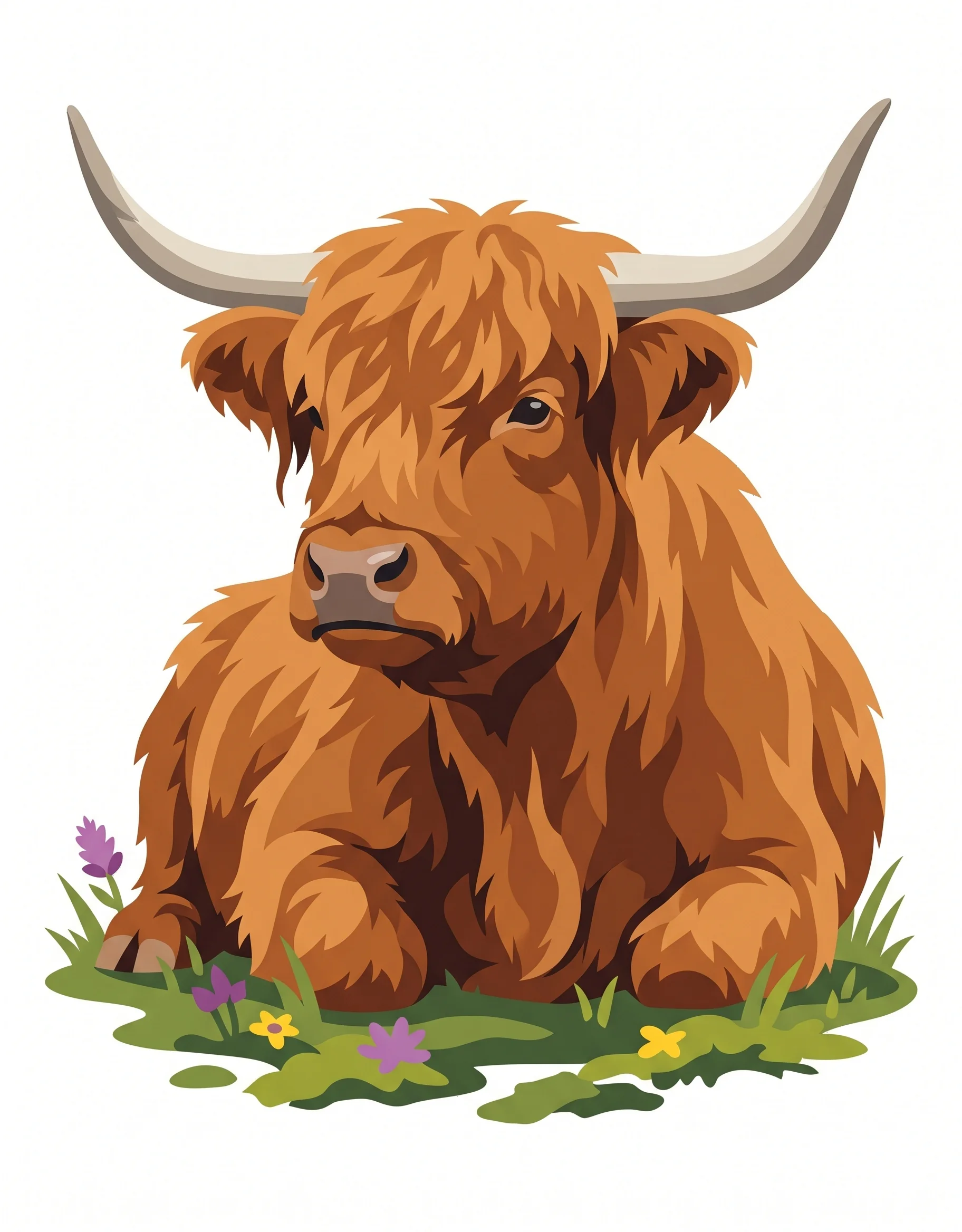
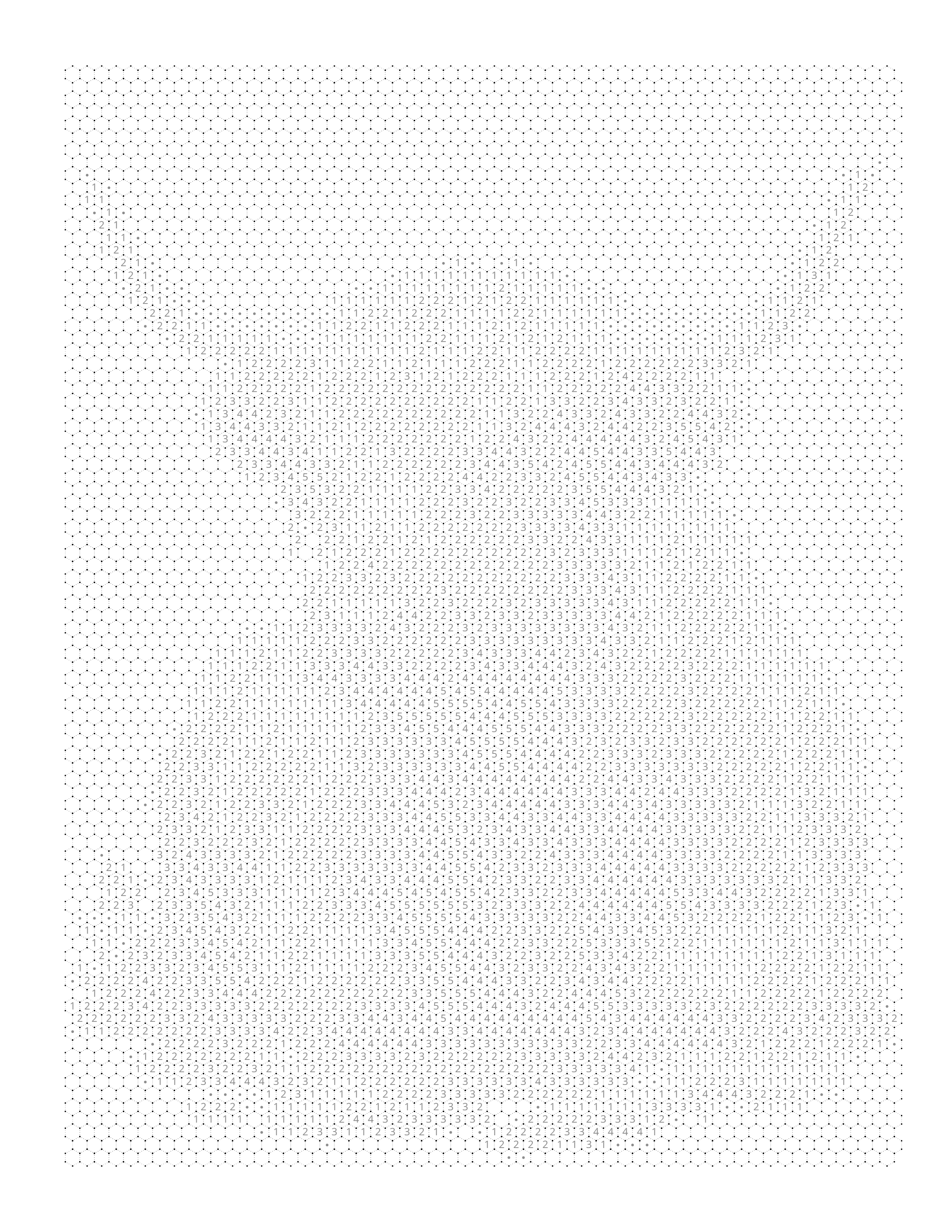
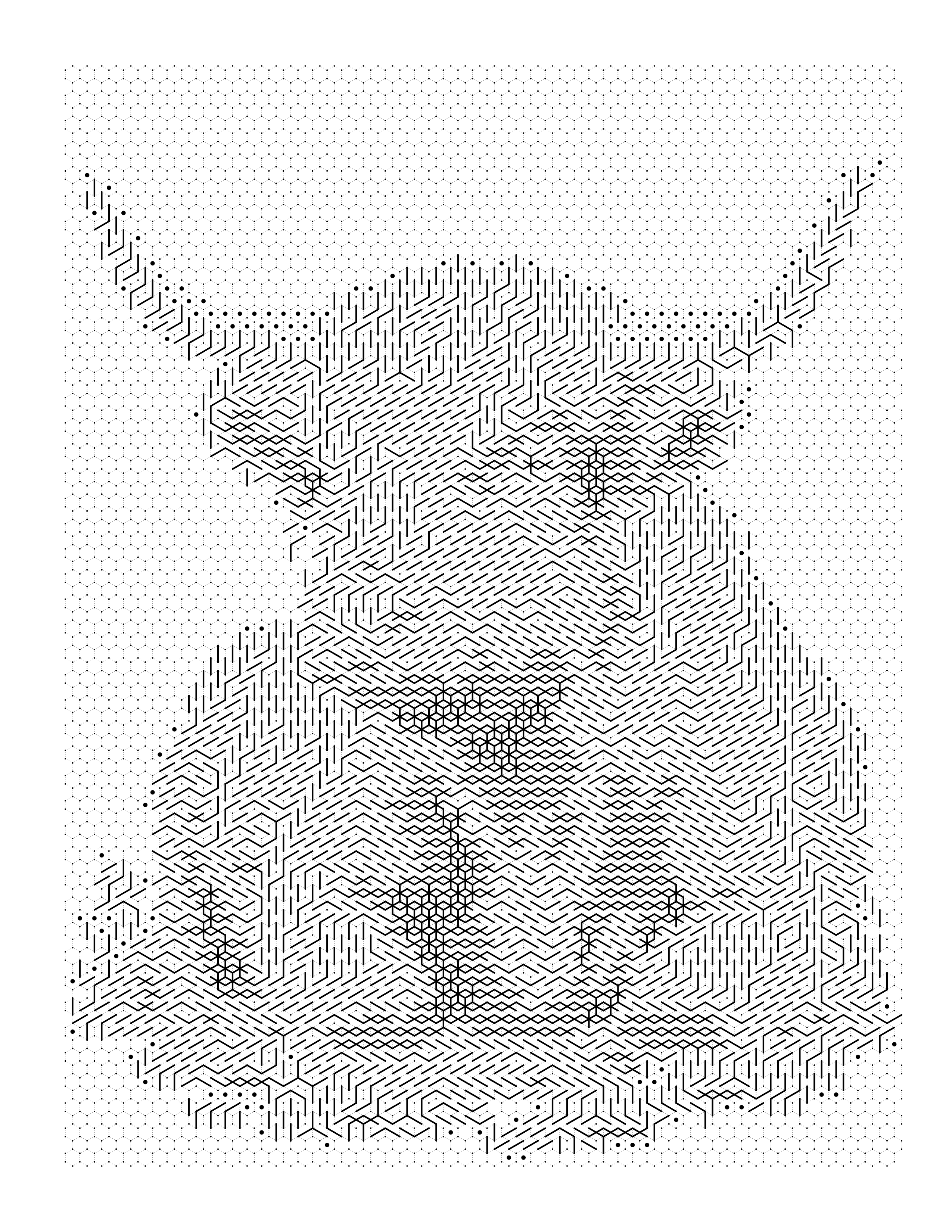
Example 1 — Portrait Subject
 →
→  →
→  →
→ 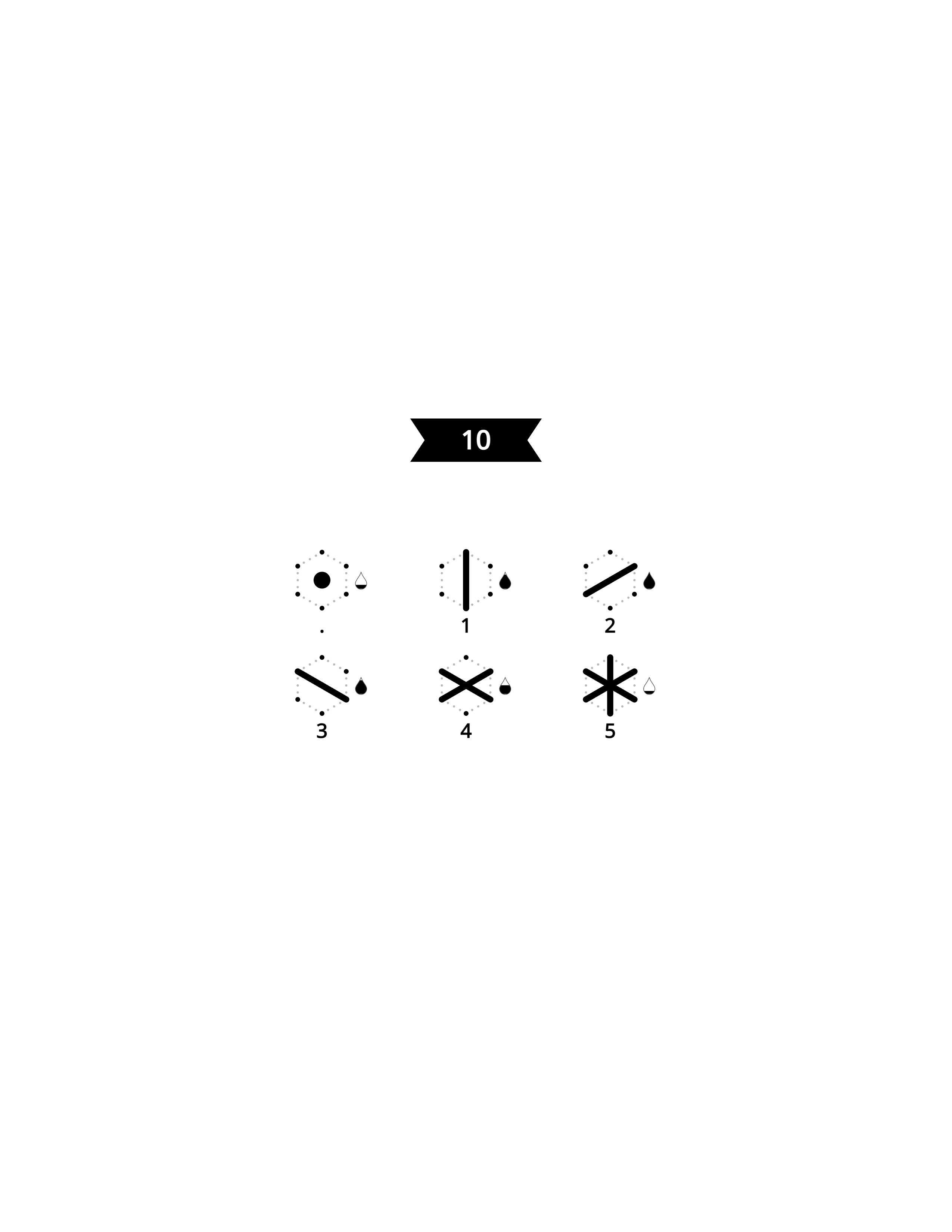
A well-lit, close-cropped portrait with a softly blurred background converts cleanly in the Square, Hexagon and Circle patterns. Preview all three and keep the one that holds skin-tone and hair detail best.
Lesson learned: Depth of field does a lot of the "background simplification" work for you before the photo even reaches the converter.
Example 2 — Pet Photo
→ → →
A close-up of a pet's face, shot in natural light against a plain wall, produces one of the most reliable conversion outcomes across all pattern types — pets remain the most popular personal color-by-number subject for exactly this reason.
Lesson learned: A tight crop on the face, rather than a full-body shot with background clutter, consistently outperforms in both color count and pattern flexibility.
Example 3 — Botanical / Flower Subject
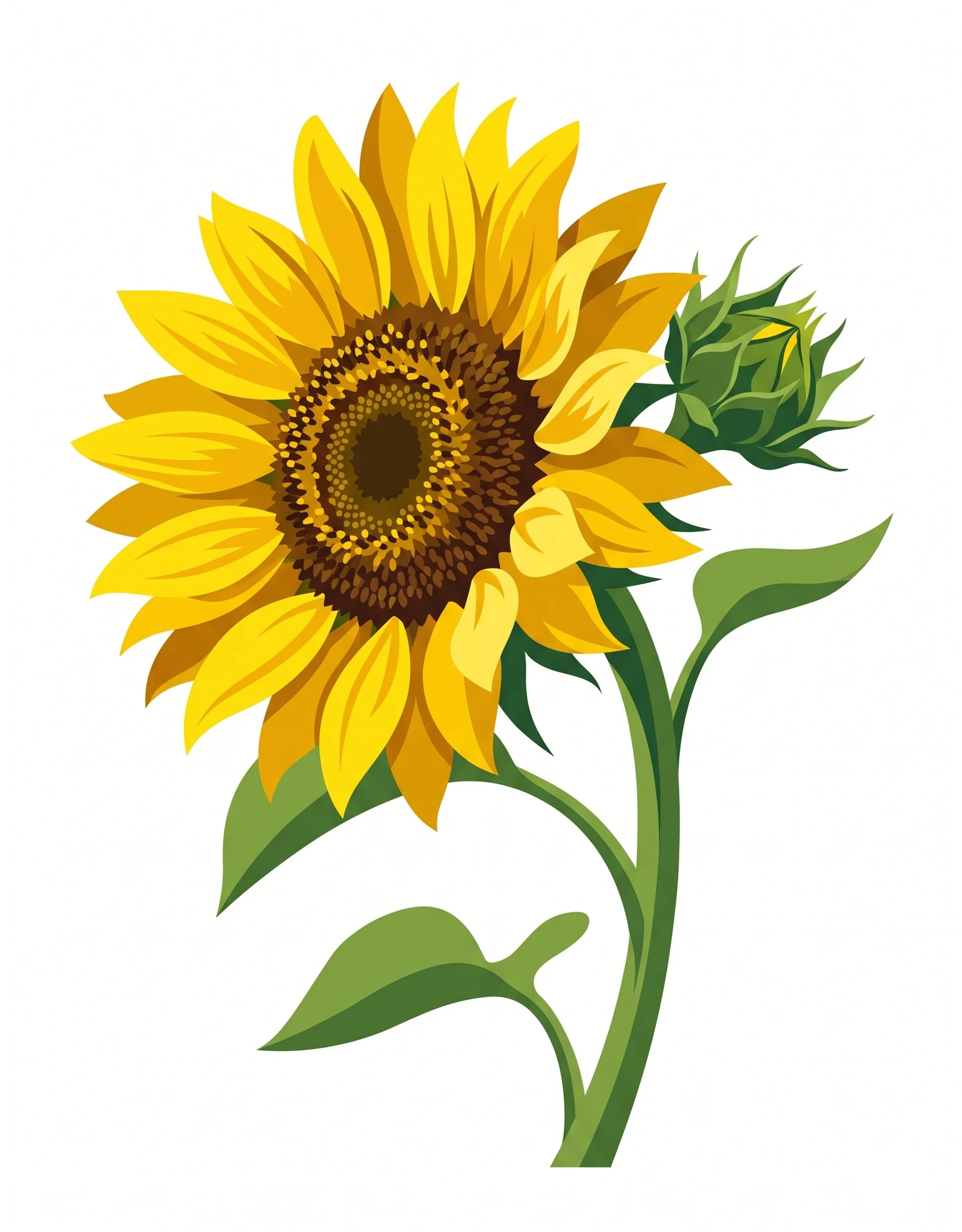 →
→ 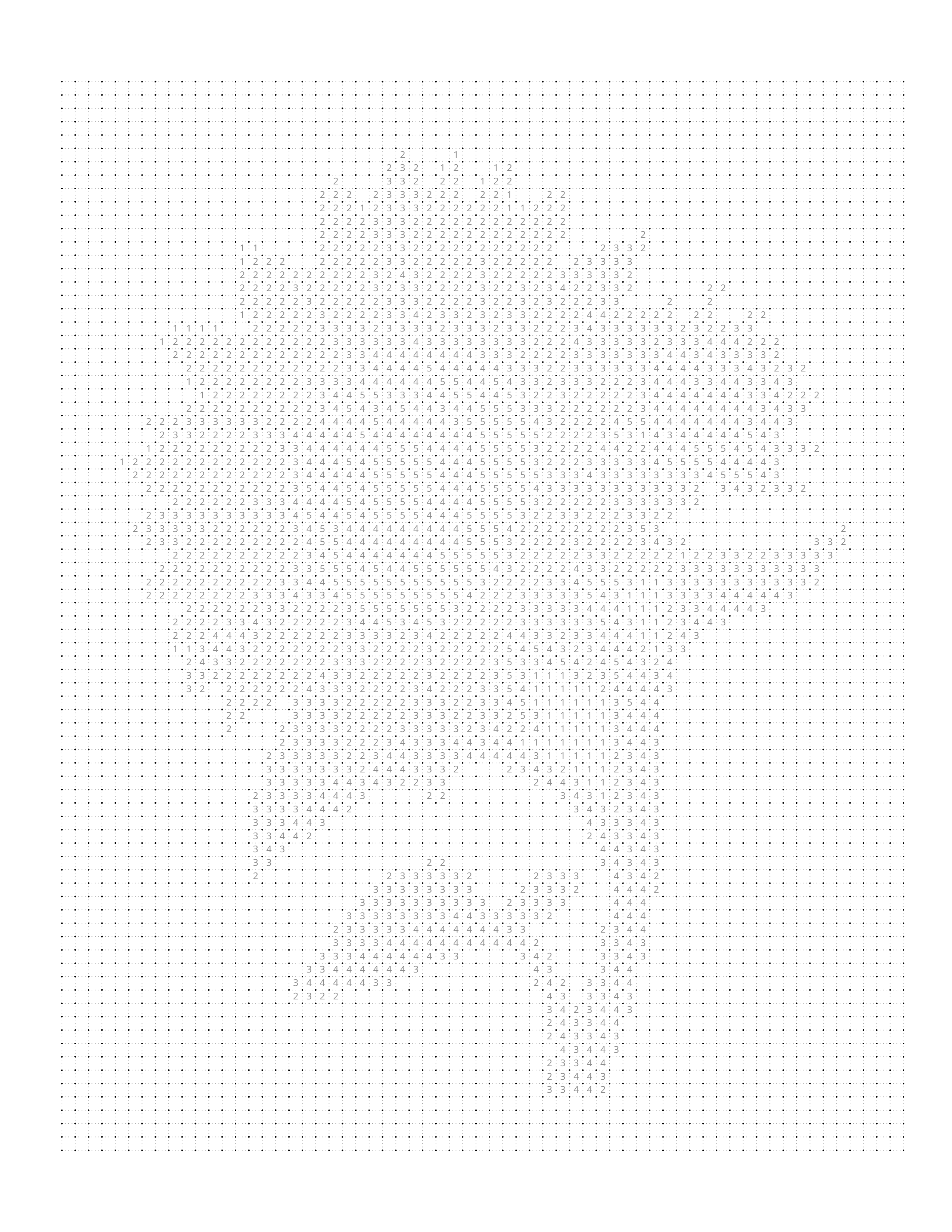 → →
→ → 
A single bloom, photographed against a plain or naturally blurred background, has built-in contrast and color separation that converts especially well in Square and Hexagon.
Lesson learned: Flowers are close to foolproof subjects — natural contrast and simple backgrounds do most of the heavy lifting.
Example 4 — Landscape Subject
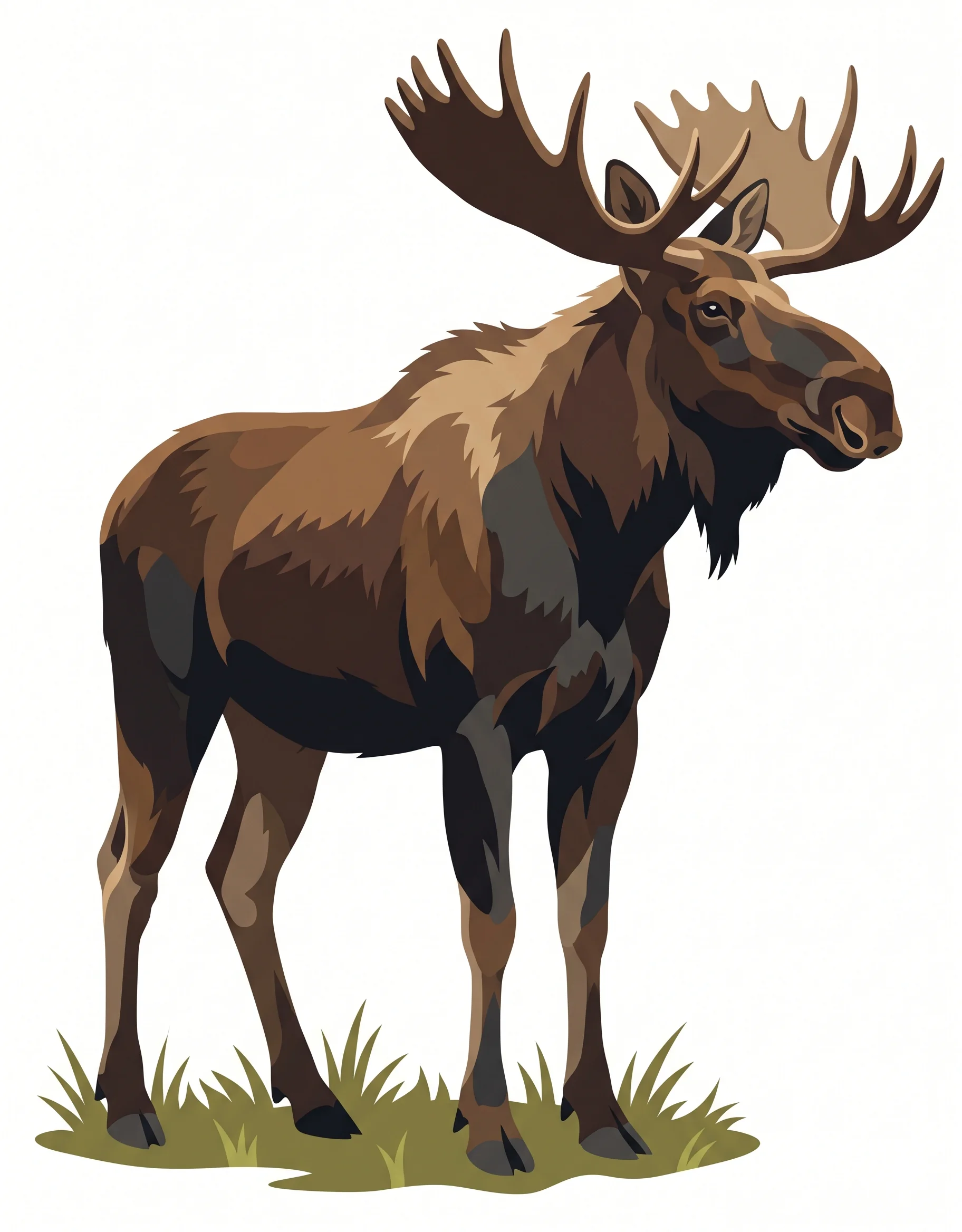 →
→  →
→  →
→ 
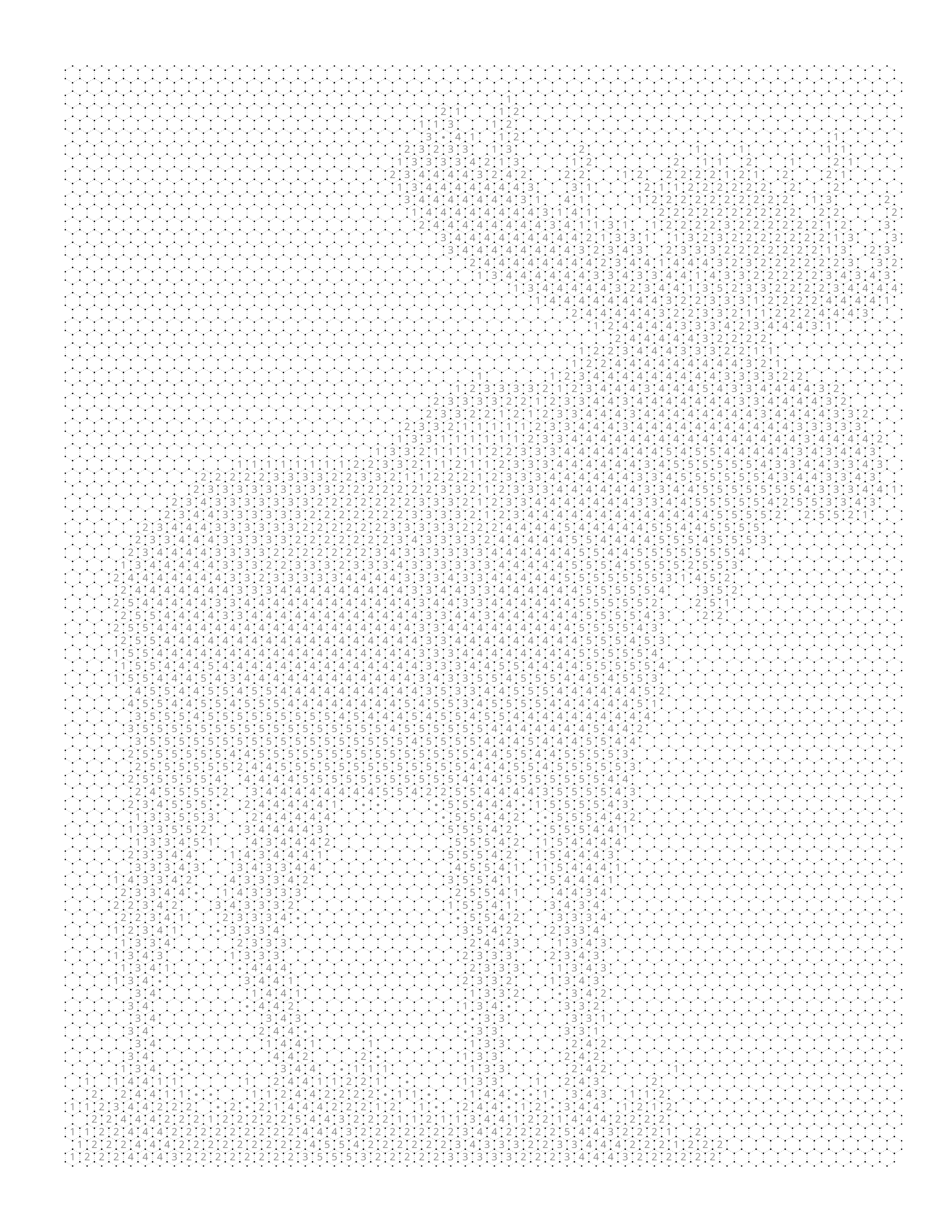
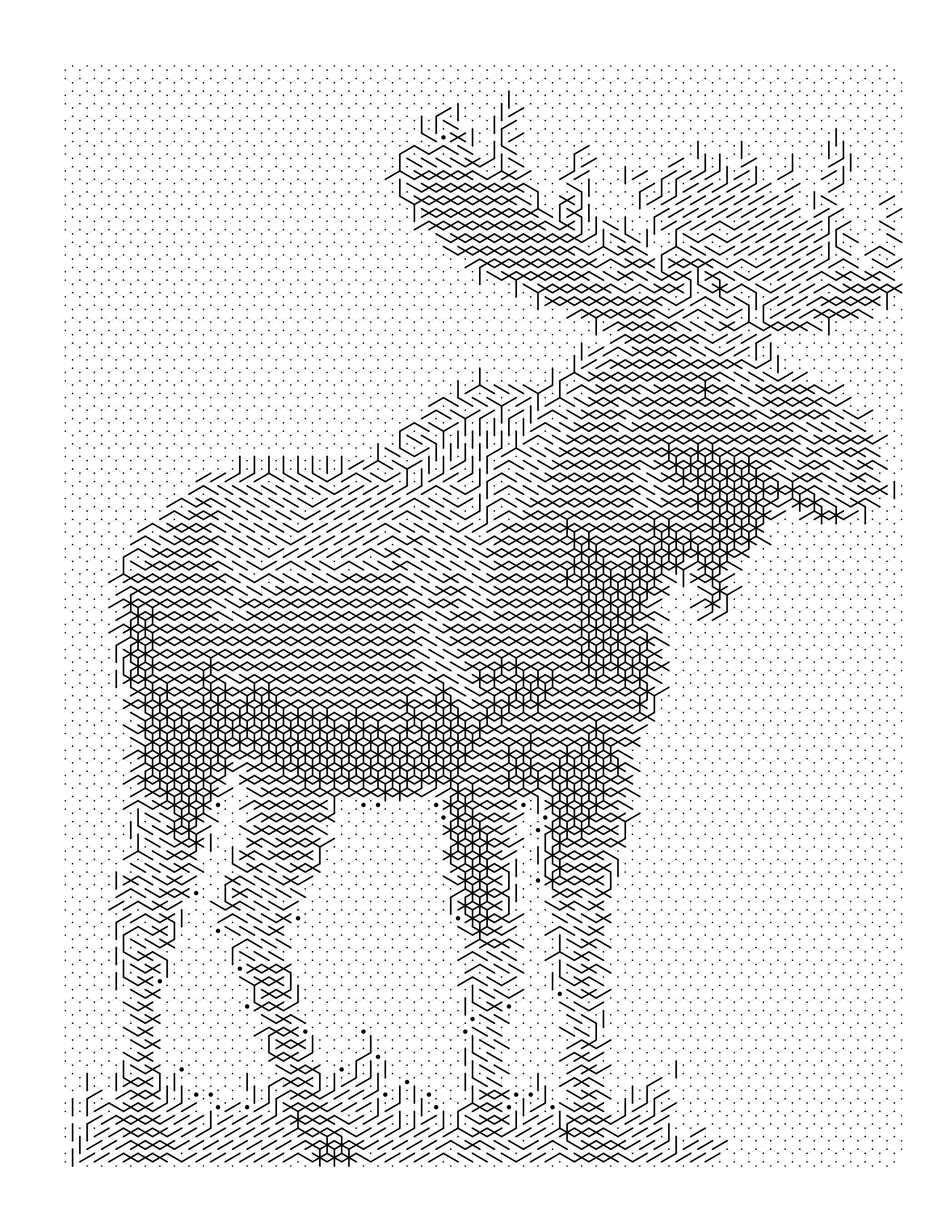
A landscape with one dominant foreground element (a lighthouse, a lone tree, a mountain peak) and a simple sky converts far more cleanly than a busy, texture-heavy scene like a dense forest floor.
Lesson learned: Landscapes need a clear focal point — treat the "clear subject" rule the same way you would for a portrait.
How to Create Your Own Photo to Color by Number
The full workflow, start to finish, using Mosaci:
- Upload Photo — Drag and drop a JPG or PNG. Sign in free (no credit card needed) — your photo never leaves your browser.
- Choose Pattern — Pick one of the 11 pattern options based on the look you want (see the comparison table).
- Generate — The engine builds your outline, palette, and numbered grid automatically.
- Preview — Adjust cell size and color count and watch the finished piece update live before committing to anything.
- Download PDF — Export a print-ready, KDP-safe PDF at 300 DPI.
- Print — Print at home, at a local shop, or upload the interior directly to Amazon KDP.
- Color — Fill in each numbered cell with its matching color and watch your photo reappear.
Most people go from upload to finished PDF in about 5 seconds. Try Mosaci free — no credit card required →
Who Should Use Photo to Color by Number?
Amazon KDP Publishers
Color-by-number books are one of the most consistent-performing categories in low-content publishing — no text required, low production complexity, and genuine, sustained search demand. Converting your own or licensed photos means every page in your book is unique rather than pulled from a stock clip-art set. Mosaci exports at KDP's exact interior spec (8.5" × 11", 300 DPI, safe margins), so there's no reformatting step between export and upload.
Teachers
Classroom photos, field-trip pictures, or curriculum-relevant images become custom activity sheets that are far more engaging to students than generic worksheets. Color by number also reinforces number recognition and matching for younger students, doubling as a light educational tool.
Parents
A photo of your child's favorite pet, a family vacation, or a milestone moment becomes a weekend project rather than just a printed photo on a shelf. It's an activity you can do together, and the finished piece becomes a keepsake in its own right.
Puzzle Creators
The mystery-mosaic variant of color by number is built for exactly this audience — a numbered grid with no visual preview, so the image is a genuine surprise as it's completed. Puzzle and brain-teaser publishers use this format to add a "reveal" mechanic that flat coloring pages can't replicate.
Etsy Sellers
Personalized color-by-number kits — built from a customer's own pet or family photo — are a strong fit for Etsy's custom/personalized product category. Because the entire conversion happens in minutes, sellers can offer fast turnaround without outsourcing illustration work.
Gift Creators
A completed (or blank, ready-to-color) piece made from a meaningful photo — a pet, a home, a couple's photo — is a genuinely personal gift in a way a printed photo alone isn't. It invites the recipient to participate in finishing the piece themselves.
Frequently Asked Questions
What is photo to color by number? Photo to color by number is the process of converting a photograph into a numbered grid, where each number corresponds to a specific color. Filling in each cell with its matching color reveals the original photo.
How does photo to color by number work? A conversion engine reduces your photo's colors to a limited palette, maps the image onto a grid of shapes (square, hexagon, circle, or another pattern), and assigns each cell a number tied to its matching color. The result is a numbered outline plus a color key.
What's the difference between color by number and a regular coloring page? A regular coloring page is a plain black-and-white outline with no guidance — you choose all the colors yourself. Color by number includes numbered cells and a color key, so the final result closely matches the original photo.
What's the difference between color by number and mystery mosaic? They use the same underlying grid technology, but a mystery mosaic hides the preview of the finished image, turning the coloring process into a puzzle-style reveal. Color by number typically shows a preview so you know what you're building.
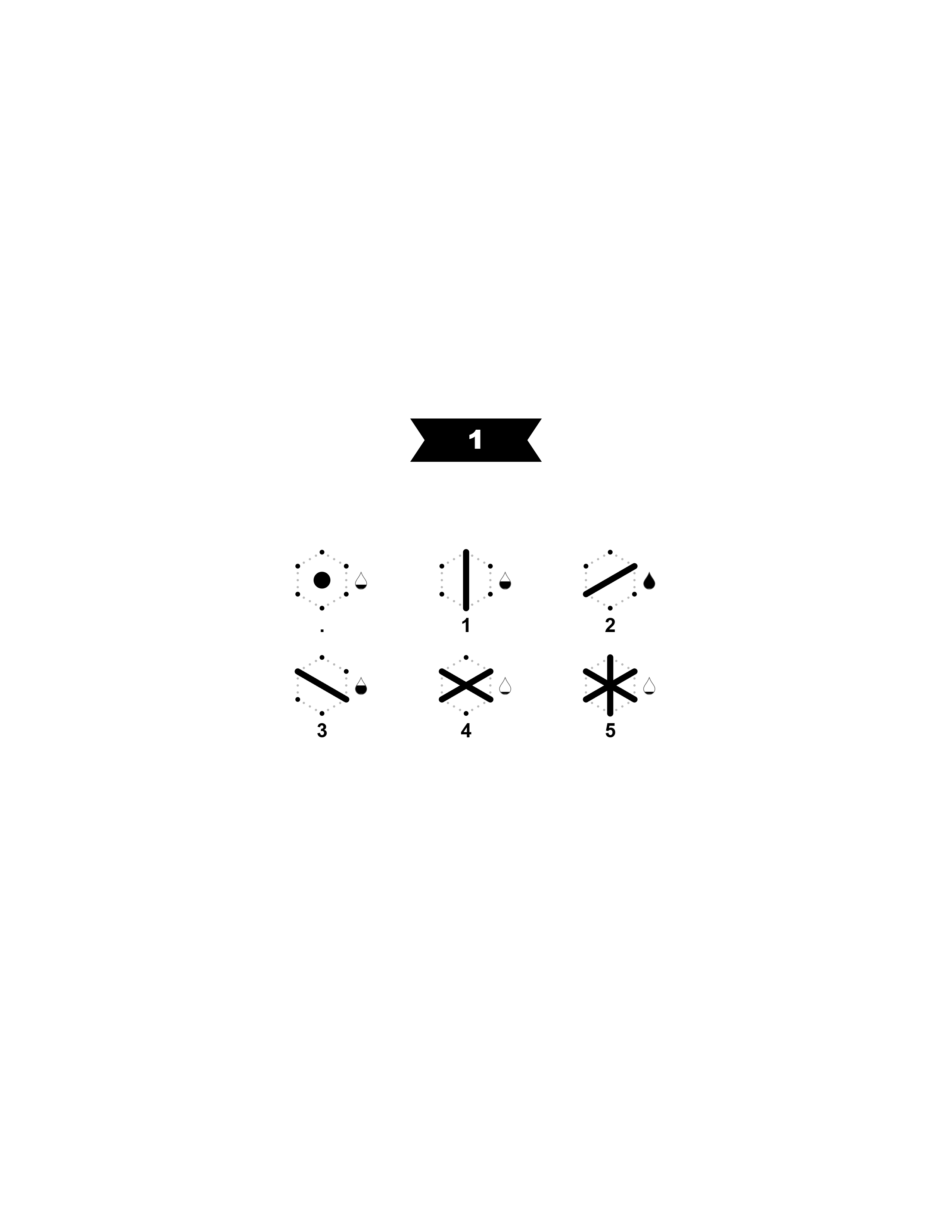
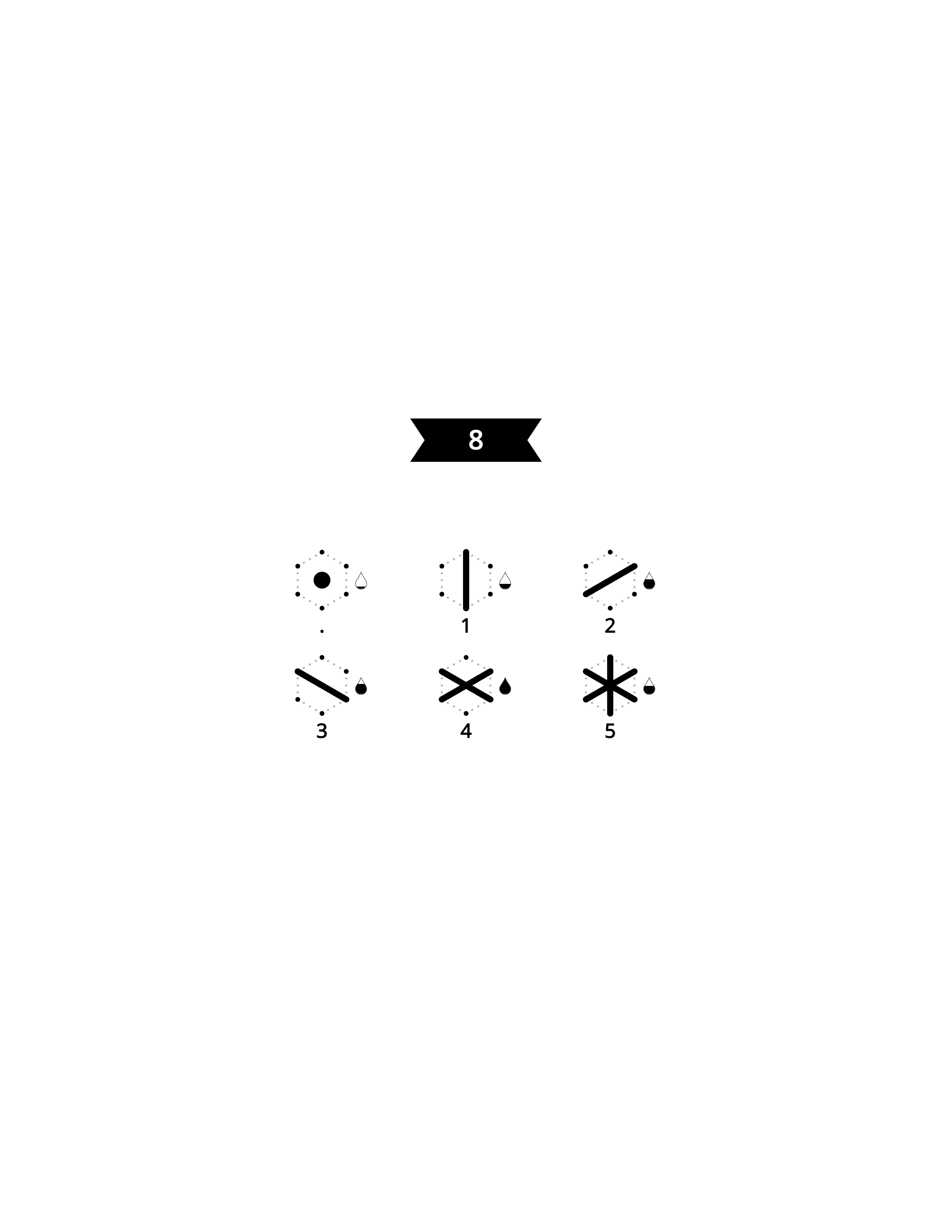
What is monochrome color by number? Monochrome color by number replaces color numbers with ink symbols (like diagonal lines, crosses, or dots), so the entire piece can be completed with a single pen or pencil — no colored pencils required. It's popular for black-and-white KDP publishing. Read more in What Is Monochrome Color by Number?
Which pattern should I choose? It depends on the look you want. Square gives straight rows and columns, Hexagon staggers hexagonal cells that tile without gaps, and Circle staggers round cells with small gaps between them. Mosaci Studio offers 8 color mosaic patterns and 3 monochrome mark styles — see the pattern comparison above.
What photos work best for color by number? Photos with a clear subject, strong contrast, good lighting, a simple background, and at least 1000px resolution convert best. See the best photos section for a full breakdown.
Can I use any photo? Most photos can be converted, but results vary. Blurry, low-resolution, or extremely cluttered photos will produce muddy, hard-to-color grids. Choosing a well-lit photo with a clear subject makes the biggest difference.
Do I need design skills or software like Photoshop? No. Tools like Mosaci handle the entire conversion automatically in your browser — no design software, no manual grid drawing.
How many colors should I use? 8–12 colors for simple subjects or younger colorists, 16–24 for detailed, realistic results aimed at adult colorists. Fewer colors means simpler, bolder cells; more colors means finer, more accurate detail.
Can I sell color-by-number books made from my own photos on Amazon KDP? Yes. As long as you own the rights to the source photos, PDFs exported from Mosaci are watermark-free and formatted to KDP's interior specifications, so you can publish and sell them commercially.
What size and resolution does the exported PDF use? The standard export is 8.5" × 11" at 300 DPI with KDP-safe margins — matching Amazon KDP's paperback interior requirements exactly, with no additional resizing needed.
Is my photo uploaded to a server? In Mosaci, no — all processing happens locally in your browser using Web Workers. Your photo is never uploaded to or stored on any server.
Can I make a multi-page color-by-number book? Yes. Every account can combine multiple converted photos into a single multi-page PDF, ready to upload as a complete book interior.
How long does it take to convert a photo? About 5 seconds per photo. From upload to a downloaded, print-ready PDF, most users finish in well under a minute.
Can children complete color-by-number pages made from photos? Yes — using larger cell sizes and fewer colors makes photo-based color-by-number pages accessible to children, while smaller cells and more colors suit adult colorists looking for more detail.
What's the best pattern for a mystery-mosaic-style hidden image? Grid size matters more than tile shape: the number of columns decides how long the image stays unrecognizable while you color. Monochrome mark styles also hide the subject until the page is mostly filled in. See the mystery mosaic grid size guide for the numbers.
Can I convert the same photo into multiple formats? Yes. The same source photo can be converted into a plain coloring page, a numbered color by number, a mystery mosaic, or a monochrome symbol-based page — all from the same upload.
Do I need a subscription to try this? No. Mosaci is pay-per-use, not a subscription. Every account gets 10 free credits every month, no credit card required — buy a one-time credit pack when you need more. All pattern styles and multi-page export are available on every account.
What makes a good photo to color by number tool? Look for accurate color quantization, clean edge detection, consistent grid alignment, live preview so you can adjust before exporting, and print-ready export at the correct resolution and margins for your intended use (home printing or KDP publishing).
Conclusion
Photo to color by number sits at the intersection of a few things people genuinely want: a creative outlet that doesn't demand artistic skill, a personal keepsake made from a photo that already means something, and — for publishers and sellers — a scalable product format with real, sustained demand.
The workflow is simple once you know what to look for: start with a well-lit photo that has a clear subject and a simple background, choose a pattern whose look suits your subject and audience, and let the conversion tool handle the rest.
Don't be afraid to experiment. Run the same photo through two or three patterns, try a few color counts, and compare the live previews side by side before you commit to an export. The best way to learn what works is to see your own photos come through the process.
Whether you're publishing your fiftieth KDP coloring book or turning your dog's photo into a weekend project for the first time, the tools to do it well are now a few clicks away.
Create your own photo to color by number in Mosaci — free, no credit card required →
Printable quality checklist
- Choose a photo with a clear subject, good lighting, and a simple background
- Upload to Mosaci Studio (free account, no credit card needed)
- Choose a pattern — 11 pattern options to pick from
- Adjust cell size to match your audience's skill level
- Set the color count (4 to 20, default 12) based on subject complexity
- Preview the finished result before exporting
- Export a 300 DPI, KDP-safe PDF
- Print at home, at a local shop, or upload directly to Amazon KDP
Key takeaways
- Photo to color by number converts any photo into a numbered grid with a matching color key — no artistic skill required.
- Mosaci Studio offers 8 color mosaic patterns and 3 monochrome mark styles, so the same photo can be tiled many different ways.
- Photo choice matters more than tool settings: clear subject, good lighting, strong contrast, and a simple background produce the best results.
- The same source photo can become a plain coloring page, a numbered color by number, a mystery mosaic, or a monochrome symbol-based page.
- Exports are KDP-ready at 8.5" x 11", 300 DPI, with safe margins — no reformatting needed before publishing.
Frequently asked questions
What is photo to color by number?
Photo to color by number is the process of converting a photograph into a numbered grid, where each number corresponds to a specific color. Filling in each cell with its matching color reveals the original photo.
How does photo to color by number work?
A conversion engine reduces your photo's colors to a limited palette, maps the image onto a grid of shapes (square, hexagon, circle, or another pattern), and assigns each cell a number tied to its matching color. The result is a numbered outline plus a color key.
What's the difference between color by number and a regular coloring page?
A regular coloring page is a plain black-and-white outline with no guidance — you choose all the colors yourself. Color by number includes numbered cells and a color key, so the final result closely matches the original photo.
What's the difference between color by number and mystery mosaic?
They use the same underlying grid technology, but a mystery mosaic hides the preview of the finished image, turning the coloring process into a puzzle-style reveal. Color by number typically shows a preview so you know what you're building.
What is monochrome color by number?
Monochrome color by number replaces color numbers with ink symbols (like diagonal lines, crosses, or dots), so the entire piece can be completed with a single pen or pencil — no colored pencils required. It's popular for black-and-white KDP publishing.
Which pattern should I choose?
It depends on the look you want. Square gives straight rows and columns, Hexagon staggers hexagonal cells that tile without gaps, and Circle staggers round cells with small gaps between them. Mosaci Studio offers 8 color mosaic patterns and 3 monochrome mark styles — the mosaic pattern guide on this site covers all of them.
What photos work best for color by number?
Photos with a clear subject, strong contrast, good lighting, a simple background, and at least 1000px resolution convert best.
Can I use any photo?
Most photos can be converted, but results vary. Blurry, low-resolution, or extremely cluttered photos will produce muddy, hard-to-color grids. Choosing a well-lit photo with a clear subject makes the biggest difference.
Do I need design skills or software like Photoshop?
No. Tools like Mosaci Studio handle the entire conversion automatically in your browser — no design software, no manual grid drawing.
How many colors should I use?
In Mosaci Studio the range is 4 to 20 colors and the default is 12. Use fewer colors for simple subjects or younger colorists, and more for detailed, realistic results aimed at adult colorists.
Can I sell color-by-number books made from my own photos on Amazon KDP?
Yes. As long as you own the rights to the source photos, PDFs exported from Mosaci Studio are watermark-free and formatted to KDP's interior specifications, so you can publish and sell them commercially.
What size and resolution does the exported PDF use?
The standard export is 8.5" x 11" at 300 DPI with KDP-safe margins — matching Amazon KDP's paperback interior requirements exactly, with no additional resizing needed.
Is my photo uploaded to a server?
In Mosaci Studio, no — all processing happens locally in your browser using Web Workers. Your photo is never uploaded to or stored on any server.
Can I make a multi-page color-by-number book?
Yes. Every account can combine multiple converted photos into a single multi-page PDF, ready to upload as a complete book interior.
How long does it take to convert a photo?
About 5 seconds per photo. From upload to a downloaded, print-ready PDF, most users finish in well under a minute.
Can children complete color-by-number pages made from photos?
Yes — using larger cell sizes and fewer colors makes photo-based color-by-number pages accessible to children, while smaller cells and more colors suit adult colorists looking for more detail.
What's the best pattern for a mystery-mosaic-style hidden image?
Grid size matters more than tile shape: the number of columns decides how long the image stays unrecognizable while you color. Monochrome mark styles also hide the subject until the page is mostly filled in. See the mystery mosaic grid size guide for the numbers.
Can I convert the same photo into multiple formats?
Yes. The same source photo can be converted into a plain coloring page, a numbered color by number, a mystery mosaic, or a monochrome symbol-based page — all from the same upload.
Do I need a subscription to try this?
No. Mosaci is pay-per-use, not a subscription. Every account gets 10 free credits every month, no credit card required. Buy a one-time credit pack when you need more — purchased credits never expire.
What makes a good photo to color by number tool?
Look for accurate color quantization, clean edge detection, consistent grid alignment, live preview so you can adjust before exporting, and print-ready export at the correct resolution and margins for your intended use.
Related tools
Written by
Mosaci Studio TeamThe team behind Mosaci Studio
Mosaci Studio is built to help KDP publishers, Etsy sellers, and hobby artists turn photos into print-ready coloring pages without any design experience.
Published Jul 6, 2026