
Quick answer
This guide compares the two formats as Mosaci offers them, based on Mosaci's public pages and a real conversion example. It does not claim either format is more relaxing or better for everyone. For the coloring itself — reading codes, choosing colors, working through the cells — see how to color a color-by-number page.
Four things that are easy to mix up
Before comparing, it helps to separate four things that look alike:
- An online coloring board is interactive: you pick a color and fill cells on screen.
- A PDF is a document. You can view it or print it, but it has no coloring controls.
- A generator preview shows what a converted page will look like — the numbered page, its key and a completed reference — but you cannot color in it.
- A completed reference is generated by the converter to show the intended colors. It is not a page someone colored by hand.
Most confusion about "online vs printable" comes from treating two of these as the same thing.
The short comparison
- Before you start. Online: a browser on a phone, tablet or computer. Printable: a printer, paper and coloring supplies.
- Filling cells. Online: pick a color, then tap or drag over its cells. Printable: color by hand.
- Small cells. Online: zoom in on screen. Printable: a fixed printed size, so print at 100%.
- Saving progress. Online: depends on the kind of page (see below). Printable: the paper is the record.
- What you end up with. Online: a completed page on screen. Printable: a physical page you colored.
- Cost on Mosaci. Online: free pages cost nothing; other pages use 1 credit. Printable: free printables cost nothing; your own image uses 1 credit.
One detail in the last row is worth knowing early: for your own image, the same single credit covers coloring it online and downloading its print-ready file, according to Mosaci's pricing page. You do not pay twice to have both.
What you need before starting
Online. Mosaci's coloring board runs in the browser on phones, tablets and computers, with nothing to install. The pages in the Free tab need no account and no credits. Coloring a picture of your own requires signing in and uses one credit for that image.
Printable. You need the file, a printer and something to color with. Mosaci's free printables need no account or email address. Each PDF holds three US Letter (8.5 × 11 in) pages: the numbered page, its color key and a finished example to check against. Mark-based pages come with a mark key instead of a color palette. A page made from your own image is exported from the Studio as a 300 DPI print-ready PDF at the page size you choose.
A free download is not a free session: paper, ink, printer access and coloring supplies are part of the setup.
A checklist before you begin
For an online page
- The device you will use has a screen size you are comfortable working on for a while.
- You know where this page's progress will be kept (see "Saving progress" below).
- You have tried a few cells to check the controls feel comfortable.
For a printable
- The PDF opens, and you know which pages to print: the numbered page and the key at minimum.
- The printer is set to actual size (100%), not "fit to page".
- You have looked at the printed codes at your normal working distance.
- Your colors are gathered, and you have a scrap sheet to test them on.
What a preview tells you before you choose
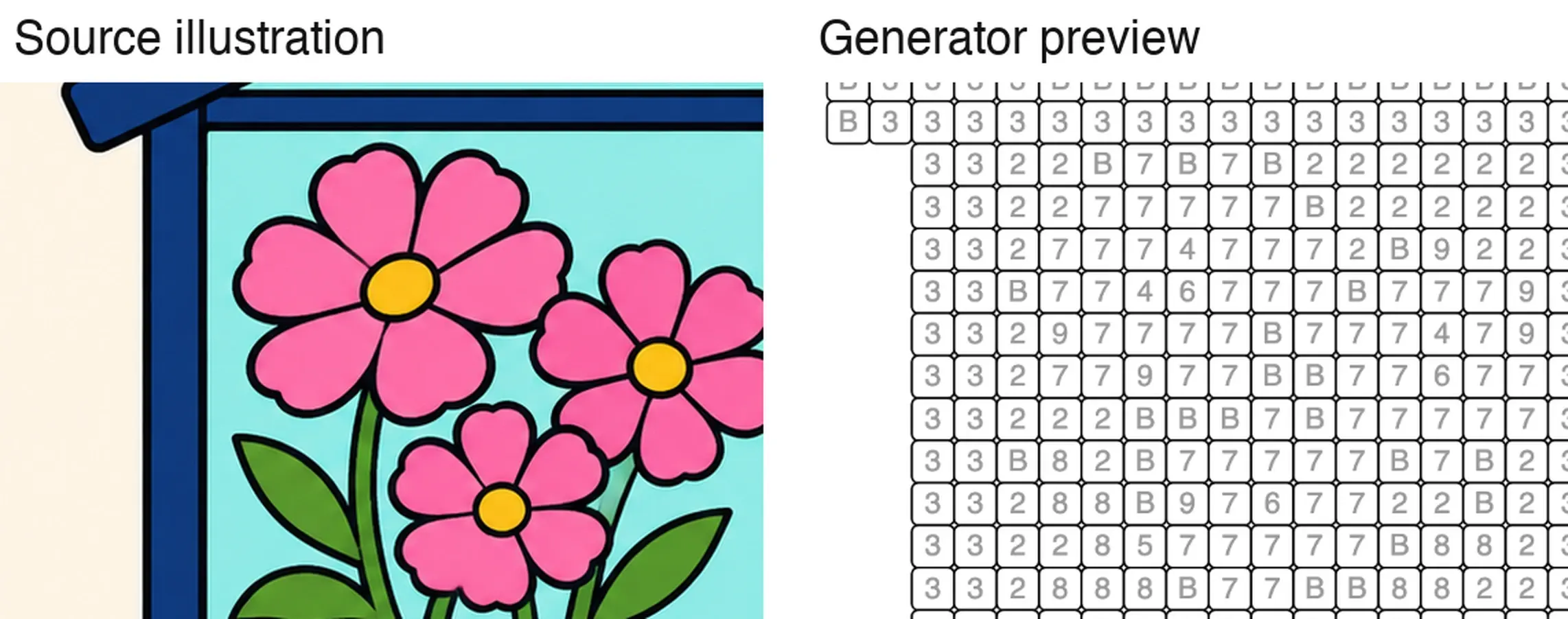
A preview is the cheapest way to judge a page, whichever format you pick. We converted an illustration of a greenhouse corner with Mosaci's free color-by-number generator — Square cells, a landscape 8.25 × 6 in page so the picture stays upright, the largest cell size the generator offers and the default color count — and looked at the result in the on-screen preview.
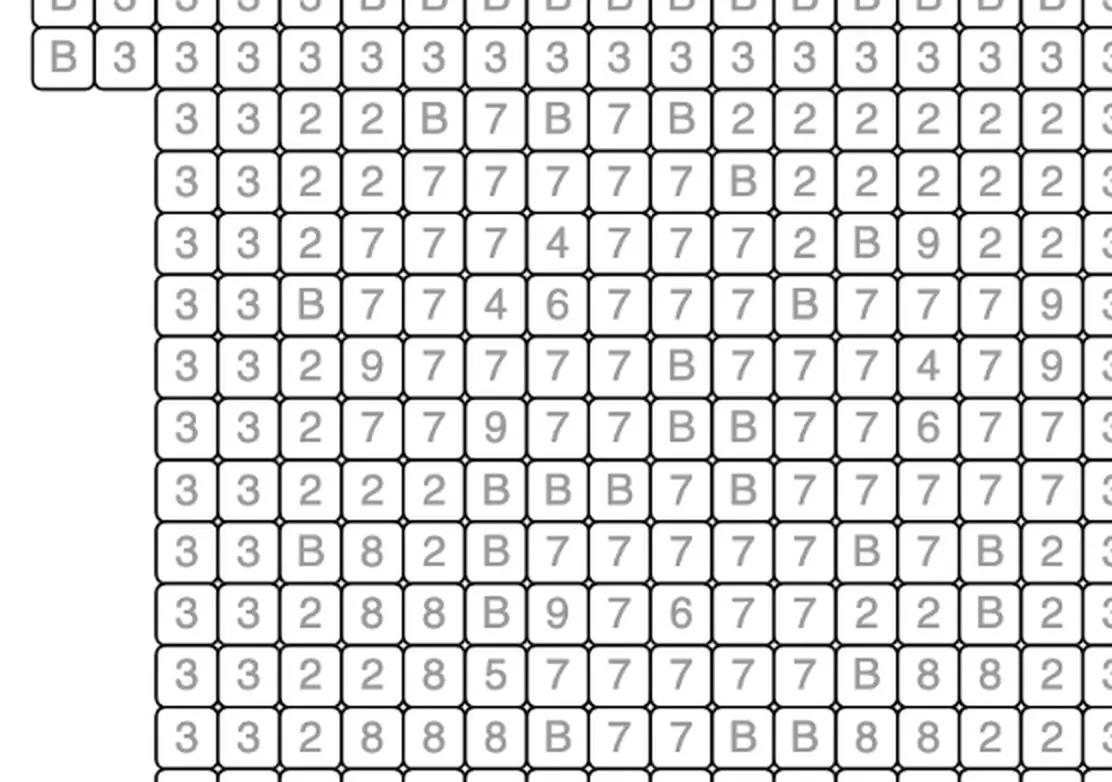
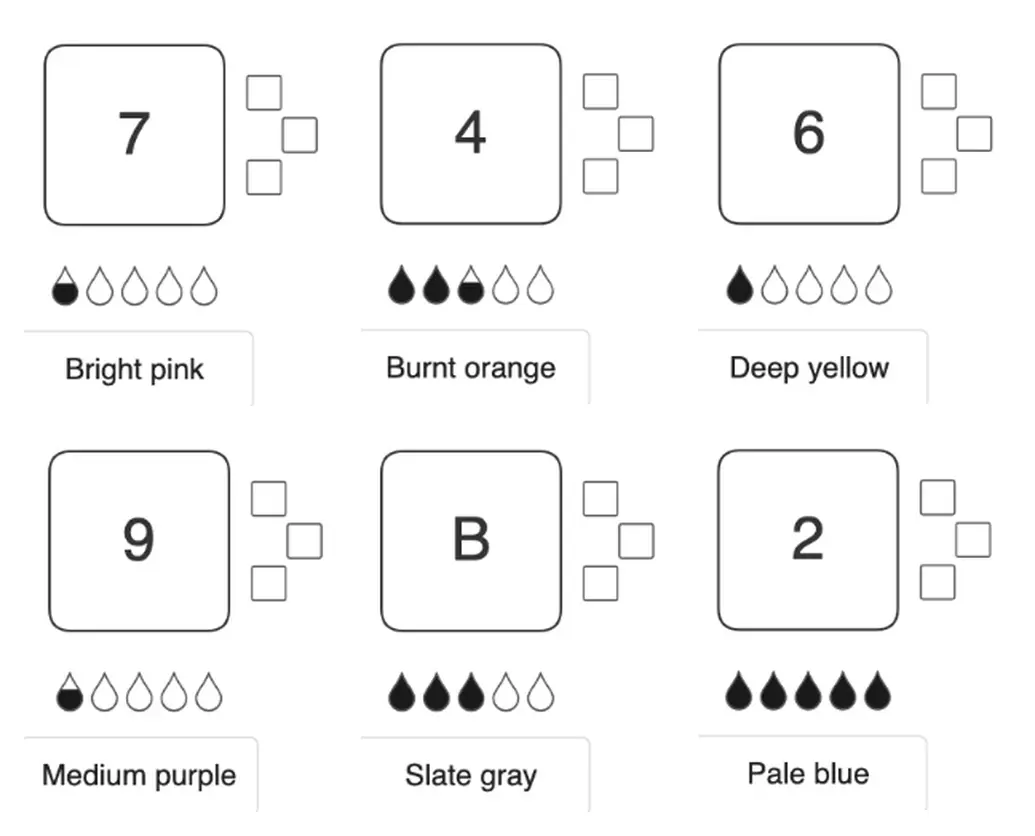
Open the full numbered preview · Open the full color key
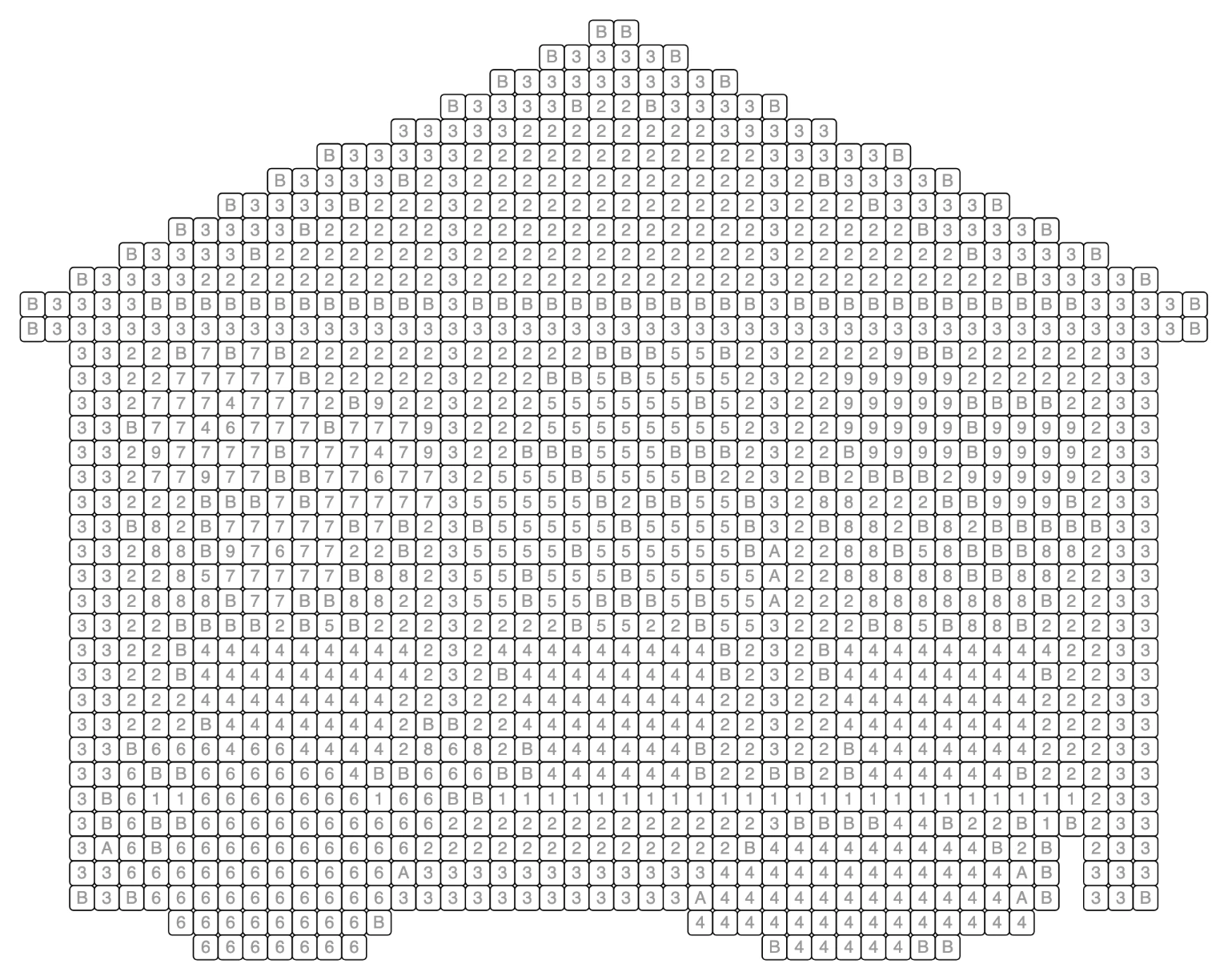
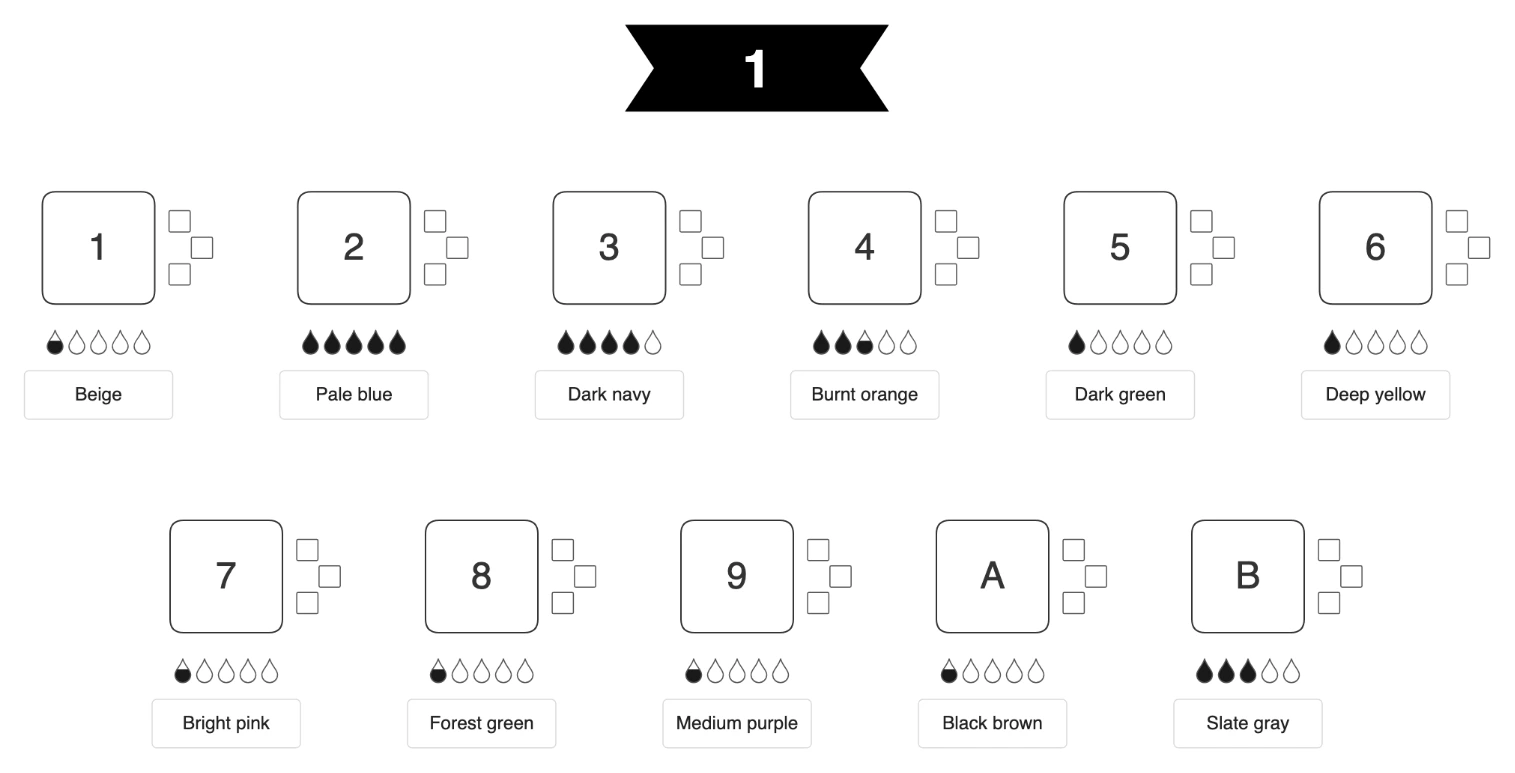
Two things in this preview bear directly on the format choice.
Small details become single cells. Each yellow flower center in the source survives as one or two isolated cells — a 4 or a 6 among the 7s. Single cells are easy to miss. On a screen you can enlarge the area while you work; on paper, those cells stay at whatever size they are printed, so check the codes on a printed page before committing to it.
Different colors can share one code. In this conversion, the red towel and the orange flower pots both came out as code 4, which the key names "Burnt orange". That happens before you choose a format: both the board and the PDF would show the same merged code if they came from the same conversion settings. A preview lets you notice it, and decide whether a different color count would suit you better, before you start.
The preview also shows the completed reference, which is a converter-generated image of the intended colors — useful as a map, but not a picture of a hand-colored page.
Controls and zoom on screen
On Mosaci's board you choose a color from the palette, then tap or drag over the cells marked with that color's number, and zoom in for small cells. That is the main practical difference from paper: on screen, a dense page can be enlarged as far as you need.
The trade-off is navigation. When you zoom in, you see only part of the picture at a time, and moving around becomes part of the activity, more so on a phone than on a large screen. Try a few cells on the device you will actually use before choosing a dense page. How a mistaken cell is corrected depends on the board's controls, so check what the page offers before starting a long session rather than assuming every coloring tool works the same way.
Page size and codes on paper
A printed page has one fixed scale. Mosaci's free printables are US Letter; a page exported from your own image uses the trim size you pick. The printed size of each cell, and of the code inside it, follows from the page width and the number of columns — our grid size guide explains the arithmetic. Printing at "fit to page" can shrink the codes, which is why the free printables ask for actual size.
Paper also brings decisions a screen does not: how firmly to press, whether a marker shows through, whether light colors cover the printed codes. Those depend on your materials. This guide does not test them; a spare copy is the place to find out.
Saving progress
Saving is where the two formats differ most, and on Mosaci it depends on the kind of online page:
- Free online pages: progress is saved in the browser you use, as you color.
- Gallery pages unlocked with a credit: tied to your account, so you can continue them on other devices.
- Your own image on the board: kept in the browser; Mosaci provides Export / Import to continue on another device.
- A printable: the colored sheet is your progress. Keep it with its key.
"Saved in this browser" is not the same as "synced to your account". Browser-saved work belongs to that browser, so clearing site data or switching browsers can leave it behind. Do not use a page you care about to test that.
Continuing on another device
Whether you can pick up elsewhere depends on the page type, not on "online" in general. A free page started on a phone stays in that phone's browser. A page unlocked with a credit follows your account. Your own image needs an export and import to move.
A printable has no syncing question, but the colored sheet is the only copy of your work: printing the PDF again gives you a fresh page, not your progress. Moving between formats is not automatic either. Printing a page does not bring along what you colored on screen, and coloring a sheet does not update the board.
What you end up with
An online page ends as a completed picture on screen. A printable ends as a physical page you colored — something to keep in a folder, frame or give to someone. The printable PDF includes a finished example to check against; on the board, the picture appears as you fill the cells.
Cost and permitted use
On Mosaci, as stated on its pricing, coloring and printables pages:
- Free online pages and free printables cost nothing and need no account.
- Other gallery pages unlock for one credit each, once for your account.
- Your own image uses one credit, once, the first time you color it online or download its print-ready file. The same credit covers both, and other patterns of that image download free afterwards.
- Credits: every account gets 10 free credits each month, which reset on the first of the month; purchased credit packs do not expire.
Permitted use is a separate question from cost. The free printables are for personal use, such as printing at home, for a class or as a gift. For pages you want to use in a product, Mosaci points to making your own from an image you own, under the terms on its license page.
Which to choose, by situation
- Ten minutes on a phone while waiting: a free online page with large cells. Nothing to prepare, and progress stays in that browser.
- An evening away from screens: a free printable, printed in advance at 100%, with the key beside it and your colors gathered.
- A page to give someone: a printable — the colored sheet is the gift.
- A classroom or group: free printables are permitted for class use; each person gets their own sheet and nothing depends on devices.
- A dense page with very small cells: online, where zoom helps; on paper, check the printed codes first.
- Coloring across a phone and a laptop: pick a page type whose progress follows you — a credit-unlocked page, or your own image with Export / Import — rather than a free page saved in one browser.
- Your own picture in both formats: one credit covers coloring it online and downloading the PDF, so you can do both.
Frequently asked questions
Is coloring online the same as opening the PDF on a screen?
No. A PDF is a document you view or print; it has no coloring controls. The online board is an interactive page where you select a color and fill cells.
Is the generator preview a coloring board?
No. The preview shows the numbered page, its key and a completed reference so you can judge a conversion. Coloring happens on the board or on paper.
Do I need to install an app to color online?
Not on Mosaci. The board runs in the browser on phones, tablets and computers.
Can I color online without an internet connection?
We have not tested offline use, so do not rely on it. A printed page works without a connection once you have printed it and its key.
Is a free printable completely free?
The PDF is free to download for personal use. Paper, ink, printer access and coloring supplies are not included.
Can I start online and finish on paper?
Not with your progress. Printing gives you a blank page; what you colored on screen stays on the board.
Which is better for beginners?
Neither in general. Choose readable codes, a manageable number of cells, and controls or materials you are comfortable with. You can try a free online page and a free printable and compare them yourself.
Related tools
Written by
Mosaci Studio TeamThe team behind Mosaci Studio
Mosaci Studio is built to help KDP publishers, Etsy sellers, and hobby artists turn photos into print-ready coloring pages without any design experience.
Published Nov 20, 2026