
Quick answer
Searching for how to turn a picture into a coloring page online usually means something specific: you have an image on your phone or laptop, you do not want to install software, and you want a printable page soon. This guide covers that browser workflow in Mosaci, and the diagnostic we use to work out which step is responsible when a result disappoints.
One thing to know first: Mosaci does not draw outlines of your picture. It turns the picture into a numbered color-by-number page, a grid of empty cells where each cell holds the number of its color, plus a color key. Traditional outline coloring pages exist and are made differently; if that is what you want, the general overview in How to Turn a Photo Into a Coloring Page and the comparison in Color by Number vs Traditional Coloring Pages explain the difference.
Why the Online Route Is Its Own Job
In a desktop editor you build a page yourself, step by step. Online, the page is produced in one pass from your picture and a few settings. Your job is not to draw but to judge what came back and decide what to change upstream: the picture, the crop, or the settings.
That matters because the instinct from editors is wrong here. A mediocre result almost never improves by generating again with the same file. The fix usually lives earlier, in the picture itself.
The preview updates as you change settings, which makes testing cheap. Used well, that turns picture choice into an experiment: try two candidates, compare the previews, keep the better one.
What Actually Happens After You Upload
Knowing roughly what the tool does makes the preview easier to read.

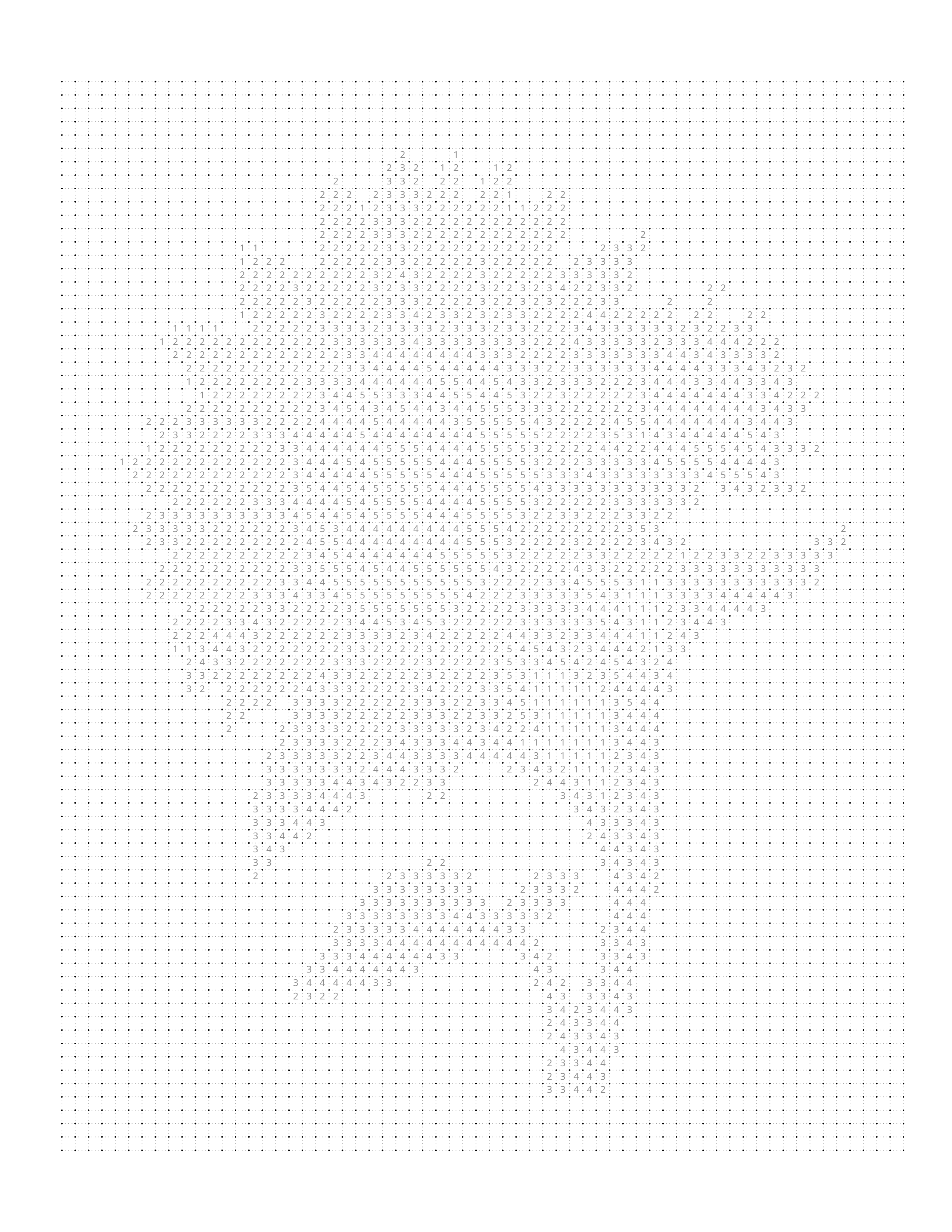
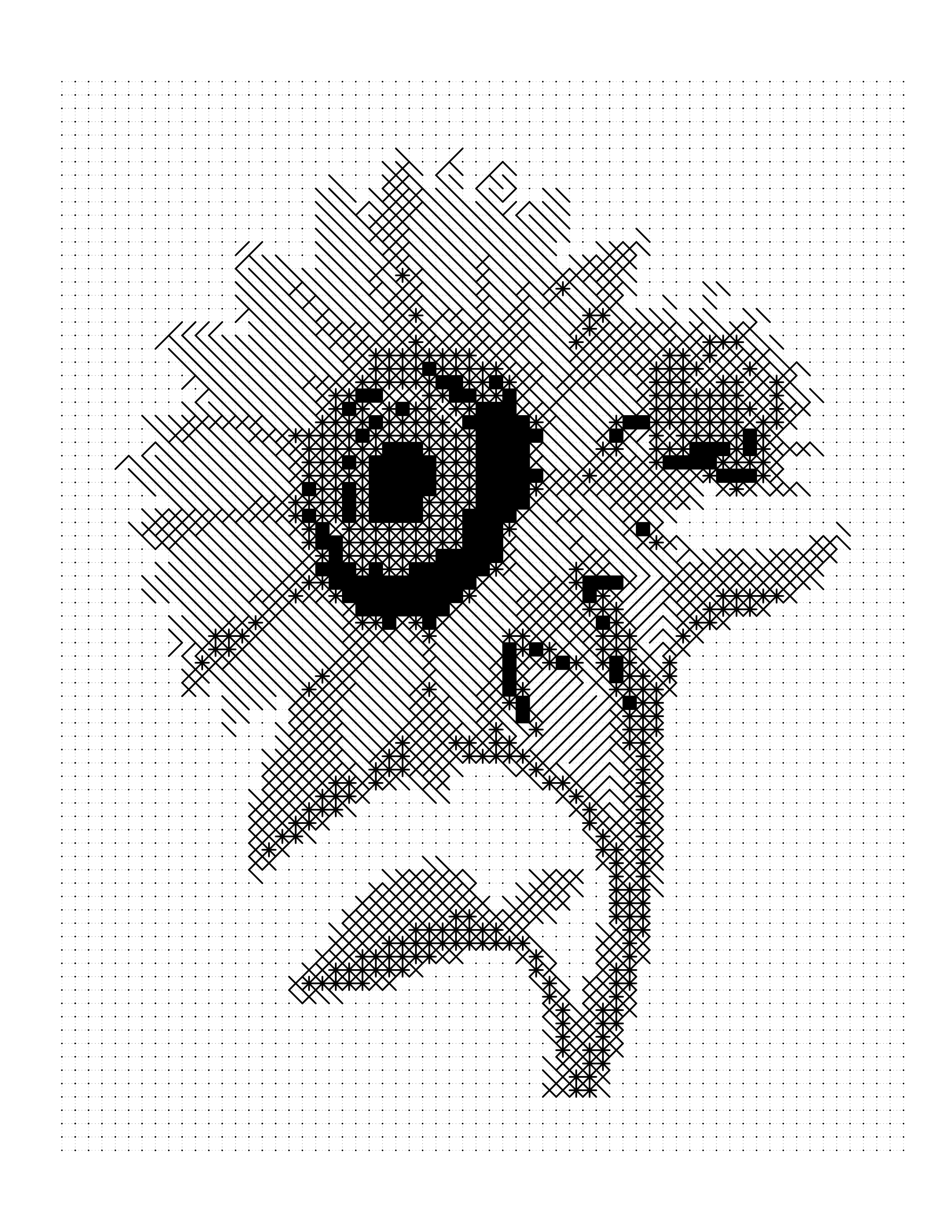

The tool reads the color of every pixel and reduces the picture to a limited palette by color quantization, from 4 to 23 colors with 12 as the default. It then divides the image into cells of your chosen pattern and size (12 to 36) and gives each cell the number of its palette color. Nothing is traced, redrawn, or AI-generated, and the processing runs in your browser.
You get three things: the blank numbered page you print and color, a filled preview of the finished result, and a palette page that maps numbers to colors.
This explains which pictures work. A subject that stands apart from its background in color keeps its own numbers and reappears clearly when colored. A subject that depends on subtle tone, like mist, a white cat on a white blanket, or a dark dog on a dark sofa, shares palette colors with its surroundings and blurs into them. When choosing between candidates, ask which one has a subject that differs clearly in color from what is around it.
Practical Questions the Online Route Raises
Where the picture is processed. Some online tools send your file to a server; others process it on your device. Mosaci's converter runs locally in your browser and does not upload your images; the specifics are in our privacy policy.
File size and format. JPG and PNG cover almost every source. A printed grid needs far less resolution than a modern camera produces; the resolution requirements are lower than most people assume. Screenshots work when the subject is clear, though interface elements are better cropped out first.
Working on a phone. Converting on a phone is convenient, but the small screen makes Gate 2 harder to judge: a preview that looks recognizable at phone size can be ambiguous on paper. If the page matters, check the preview on a larger screen.
Choosing a Picture That Survives the Upload
What an Online Converter Can and Cannot Work With
Weak source
Strong source
Contrast and background can often be improved before uploading. A subject that is unclear in the original cannot be recovered by any conversion setting.
Three properties predict most of the outcome.
Subject size in the frame. The grid covers the whole picture, so a small subject gets a small share of the cells. Cropping tighter is the highest-leverage change available, and it costs nothing.
Color contrast with the background. The palette groups similar colors. If the subject and background are similar, they get the same numbers and the subject disappears when colored. Contrast between subject and background matters more than overall brightness.
Background calm. A cluttered background spends cells and palette colors on leaves, crowds, or wallpaper, leaving fewer for the subject.
Two of these are fixable before upload: contrast responds to a quick exposure adjustment, and clutter often disappears with a tighter crop, both covered in How to Prepare a Photo for Coloring Page Conversion. Subject clarity is not fixable. For which pictures are unsuitable rather than merely awkward, see Can You Turn Any Photo Into a Coloring Page?.
The Four-Gate Online Conversion Check
The common complaint about online conversion is not that it fails, but that it is hard to tell why. People change the setting nearest to hand when the cause was two steps earlier. The Four-Gate Online Conversion Check is the Mosaci method for finding the real cause. Each gate answers one question and only means something once the previous gate has passed.
Gate 1 — Upload: Is the source good enough to convert at all?
Check that the subject fills a meaningful share of the frame, is in focus, and differs in color from its background. A picture that fails here fails every later gate, so this is the gate worth being strict about.
Failure looks like: you find yourself explaining what the picture shows.
Gate 2 — Preview: Is the subject recognizable when filled?
Look at the filled color-by-number preview and stop comparing it to the original. You know what the picture shows; the person coloring the page does not.
Failure looks like: the colors are roughly right but the subject only makes sense once you glance back at the source. That is a Gate 1 problem surfacing late; return with a tighter crop or a different picture.
Gate 3 — Settings: Are the cells and palette colorable?
This is where people over-correct. More colors and smaller cells make the preview look closer to the picture, but the blank page also has to be colorable. Twenty colors in tiny cells is a long, demanding page; six colors in large cells is quick but may lose the subject.
Failure looks like: a blank page with cells too small for a colored pencil, or so many colors that matching numbers becomes tedious. Raise the cell size or lower the color count until the page suits its audience while the preview still passes Gate 2. You can also try a different pattern; Mosaci offers 8 color mosaic patterns and 2 monochrome mark styles, and mark styles such as Square Mark let the page be done with one pen. Color-by-Number Difficulty Levels covers how cell size and color count map to audience.
Gate 4 — Export: Will it survive printing?
A page can pass three gates and still disappoint on paper. Export the print-ready PDF (300 DPI, 8.5 x 11 in) and print one page.
Failure looks like: numbers too small to read comfortably, or two palette colors that look the same once printed. Larger cells or fewer, more distinct colors fix both. How to Turn a Photo Into a Printable Coloring Page covers the printing side.
The rule that makes the gates useful
Fix at the earliest failing gate, not the most recent one. Most wasted attempts come from breaking this: changing settings on a page whose subject was never readable, or re-exporting a file whose problem was the crop.
Working the Gates in Practice
Take a picture of a dog lying on a patterned rug, photographed from across a room in evening light.
Run it as-is and the preview comes back as a field of rug-colored cells with a dog-shaped patch somewhere inside. The instinct is to raise the color count. That gives the rug more colors too, and the dog, which was already marginal, stays hard to find.
Working the gates instead: Gate 2 fails, because the subject is not recognizable in the filled preview. Gate 2 failures point back to Gate 1. The dog fills perhaps a fifth of the frame and the rug takes most of the cells. Crop to the dog's head and shoulders, lift the exposure slightly, and re-upload. Now the dog gets most of the grid, and Gate 2 passes. Only then are color count and cell size worth tuning.
The settings never solved this problem. The crop did.
When the Online Route Is the Wrong Tool
| Situation | Best approach | Why |
|---|---|---|
| Everyday picture, clear subject | Mosaci online | The filled preview is quick to judge |
| Batch of pictures for a book | Mosaci online, fixed settings | Consistency across pages matters more than per-page perfection |
| Damaged, very low-resolution, or heavily blurred picture | Repair first, or choose another picture | No setting reconstructs detail absent from the source |
| You want a traditional outline page to color freely | A different kind of tool or hand-drawn artwork | Mosaci makes numbered grids, not outline drawings |
| You want a black-and-white page done with one pen | A Mosaci mark style | Mark styles render tone with ink marks instead of a color palette |
Getting a Result You Can Actually Print
By this point the page looks finished on screen, which is why the last step gets rushed. Two checks are worth the extra minute.
First, print one test page before making copies. Check that the numbers are legible and the cell lines are visible.
Second, print the palette page too. The numbered page is only usable with its key, and on paper you can see whether any two colors are too close to tell apart.
If the page is going into a book rather than a single print, consistency becomes the main concern; How to Create a Coloring Book From Photos covers standardizing settings across a set, and the Coloring Book Generator combines pages into one PDF.
Common Mistakes
- Converting before cropping. The crop is the highest-leverage adjustment, and it takes seconds.
- Judging the preview against the original. Your familiarity with the picture makes an unclear page look clear. Judge the filled preview on its own.
- Treating color count as a quality dial. More colors is not always better; a page also has to be colorable.
- Fixing at the wrong gate. Changing settings when the real problem was the source picture wastes attempts.
- Expecting outlines. Mosaci produces a numbered grid, not a line drawing. If you need outlines, use a tool built for that.
Several of these overlap with the patterns in Photo to Coloring Page: Common Mistakes and How to Fix Them.
Frequently Asked Questions
Conclusion
Turning a picture into a coloring page online is not difficult. What separates a page worth printing from one worth discarding is judging the preview honestly and knowing which step to go back to. The Four-Gate check makes that quick: check the source, judge the filled preview on its own, set cells and palette for the person coloring, and test-print before making copies.
When you have a picture in mind, try it. Mosaci is free to start, with 10 free credits each month. Upload it to Photo to Coloring Page, or fine-tune palette and cell size in the Color-by-Number Generator.
Related Articles
Printable quality checklist
- The subject is recognizable in the filled preview without looking back at the original picture
- Cells are large enough to color with the tools the page will be colored with
- Palette colors are distinct enough to tell apart on the printed key
- Background clutter has been cropped out rather than converted as-is
- The page is exported as a PDF and test-printed before making copies
Key takeaways
- Mosaci turns a picture into a numbered grid and a color key, not a traced outline; the picture reappears as the cells are colored.
- The Four-Gate Online Conversion Check (Upload, Preview, Settings, Export) isolates where a disappointing result went wrong.
- A failure at a later gate usually has its cause at an earlier one, so re-exporting the same file rarely fixes anything.
- Color count and cell size should be judged by whether the page is colorable, not only by how closely it resembles the picture.
- Browser conversion suits most everyday pictures; if you need a traditional outline page to color freely, that is a different kind of tool.
Frequently asked questions
Do I need to install anything to turn a picture into a coloring page?
No. Mosaci runs in the browser: you choose the picture, review the preview, and download the PDF without installing software. The processing happens on your own device, so the picture is not uploaded to a server.
Will I get an outline drawing of my picture?
Not from Mosaci. It does not trace outlines. It reduces the picture to a limited palette and lays it onto a grid of cells, each numbered with its color, so you get a color-by-number page plus a color key. The picture shows up as the cells are filled in. Traditional outline coloring pages come from a different kind of tool.
Can I use a picture taken on my phone?
Yes, and phone pictures are the most common source. A modern phone photo has more resolution than a printed grid needs. The limiting factors are lighting, focus, and how much of the frame the subject occupies.
Why does my page look blocky or muddy?
Blocky usually means the cells are too large or there are too few colors for the subject; try a smaller cell size or a higher color count. Muddy usually means the subject and background share similar colors, so the palette merges them. A tighter crop or a picture with more color contrast generally fixes it.
Can I convert a picture that has several people or objects in it?
You can, but every subject shares the same grid, so each one gets fewer cells. Group pictures usually work better when cropped to two or three people.
Is the online result good enough to sell or publish?
The PDF export is 300 DPI on an 8.5 x 11 inch page, suitable for home printing or Amazon KDP. For a book, the harder requirement is consistency: use the same pattern, cell size, and color count across pages. You also need the rights to the source pictures.
What picture formats can I upload?
JPG and PNG cover nearly every case. Screenshots work when the subject is clear, though interface elements are better cropped out first.
Related tools
Photo to Coloring Page
Upload a picture in your browser and preview the numbered coloring page before downloading it.
Color-by-Number Generator
Adjust palette, cell size, and pattern for a numbered page with a matching color key.
Mosaic Coloring Page Maker
Try the same picture in a different mosaic pattern or mark style.
Written by
Mosaci Studio TeamThe team behind Mosaci Studio
Mosaci Studio is built to help KDP publishers, Etsy sellers, and hobby artists turn photos into print-ready coloring pages without any design experience.
Published Sep 9, 2026 · Updated Oct 14, 2026