
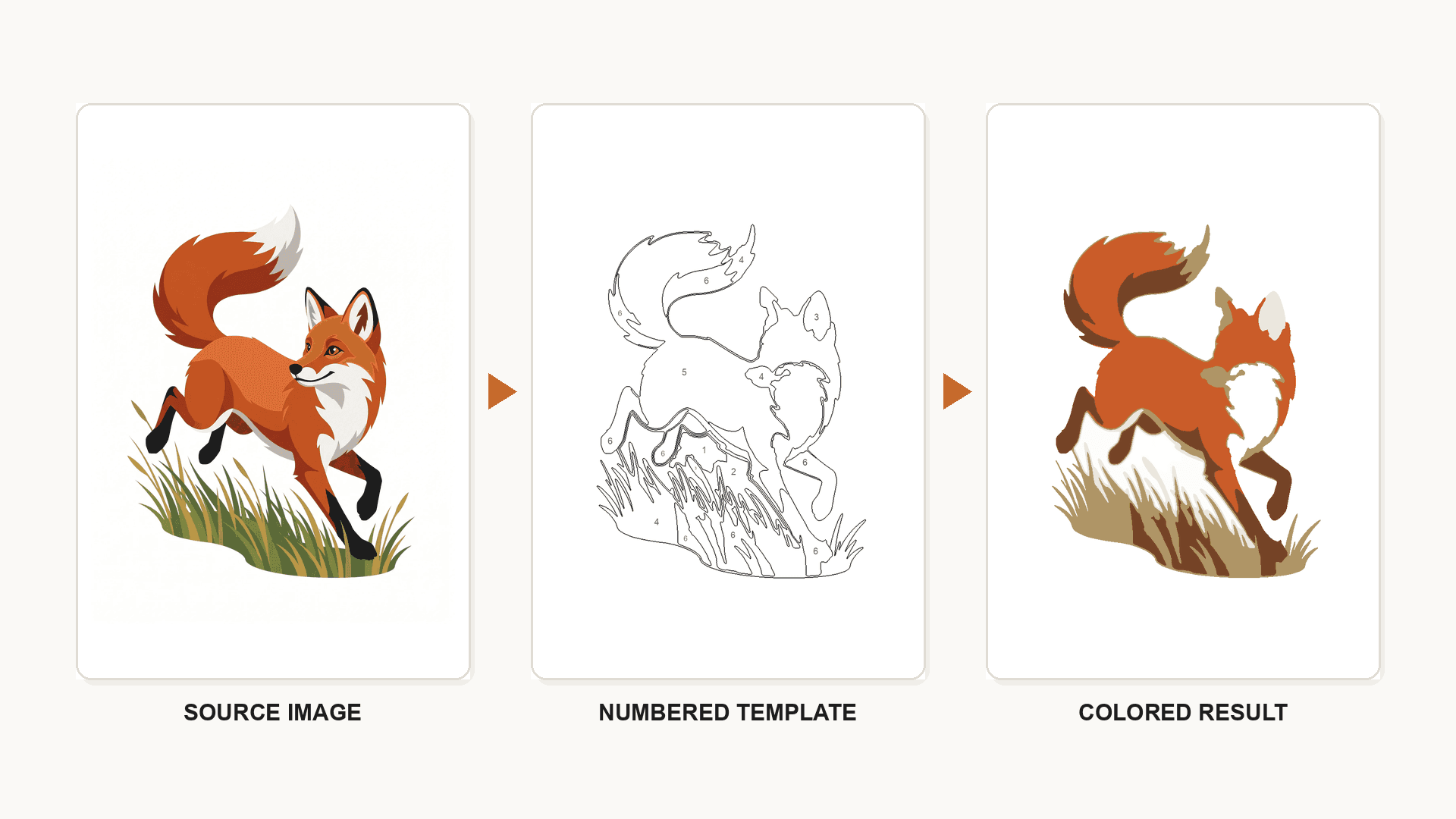
Quick answer
Reducing a photo to twelve colors is easy. Getting a page someone can actually sit down and color is not. Between those two things sit a set of decisions — how big the smallest region is allowed to be, whether a number fits inside it, whether two similar greens should merge or stay apart, whether the background survives at all — and every converter on the market resolves those decisions differently.
That is why "which tool is best" has no single answer, and why a tool that produces a stunning template of a red fox can produce an unusable mess from a group photo taken in a restaurant. The mechanics of the conversion are covered in Photo to Color by Number: The Complete Guide; this article is about the narrower, more practical question of which tool to open, and why.
Seven options are compared below: six dedicated converters and one general AI tool, included as a deliberate contrast. Everything stated about each comes from its own current product pages. Nothing here is scored, because a score would imply a controlled test across a shared photo set.
What Makes a Good Photo-to-Color-by-Number Tool?
Before comparing products, it helps to know what you are comparing them on. These are the criteria that change whether the printed page works.
Does it start from your photo? Some "color by number generators" are text-to-image tools: you describe a scene and get a template. Useful products, but they cannot produce a template of your dog. A tool only qualifies here if it accepts an upload.
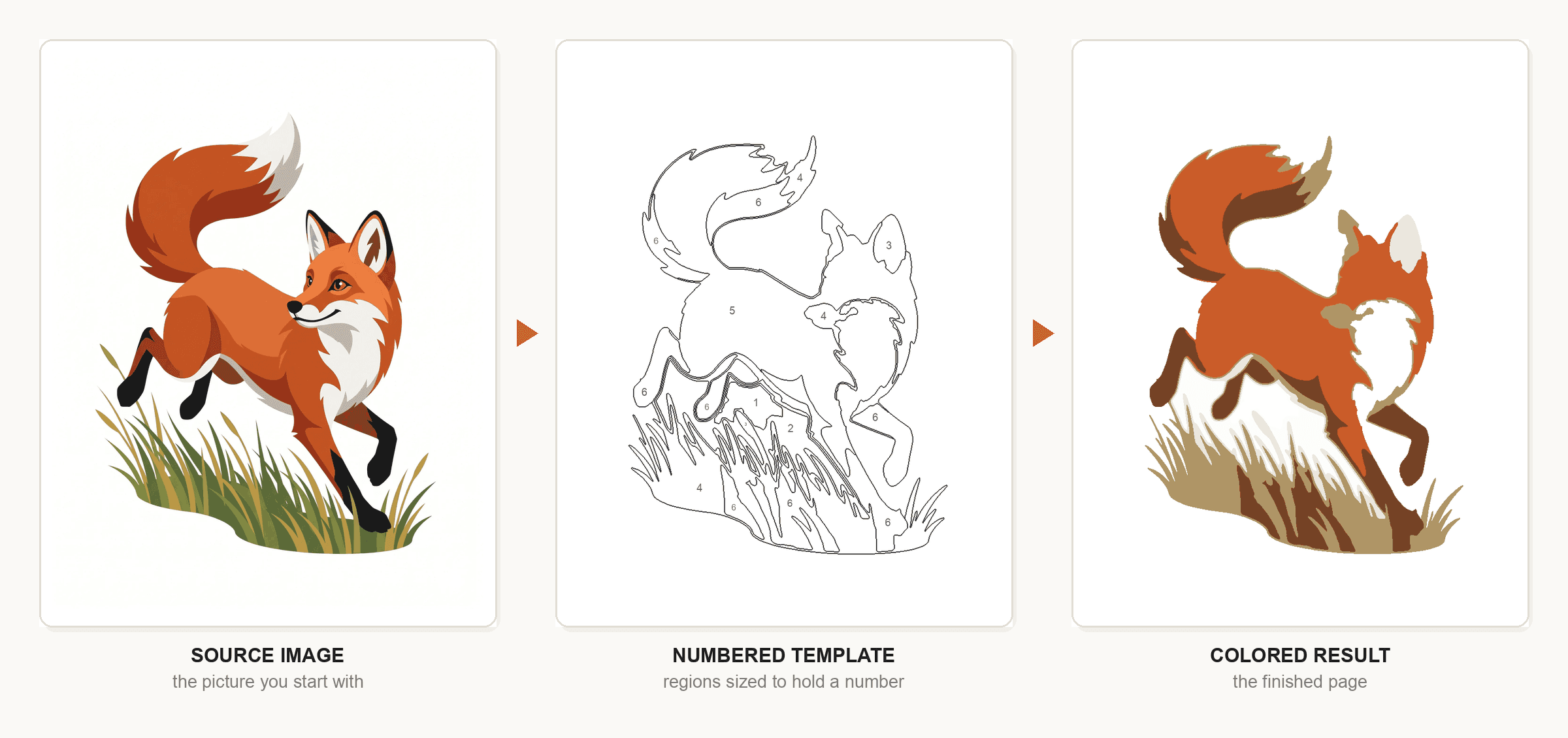
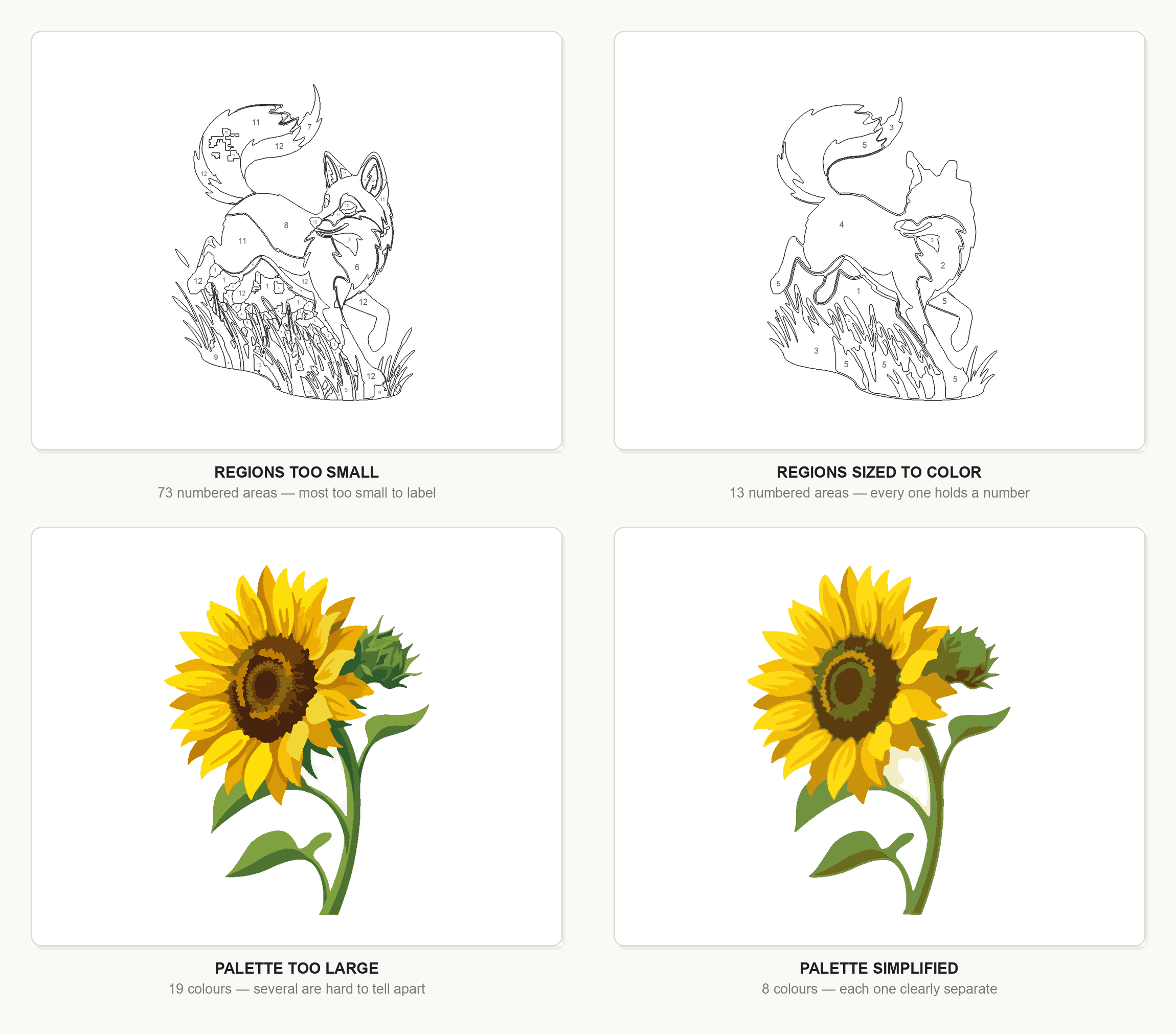
Are the regions large enough to hold a number? This separates working templates from decorative ones. Thousands of tiny cells is technically accurate and practically uncolorable; good tools set a minimum region area and merge anything below it.
Can you control the palette size? Colour count is the biggest single lever over difficulty, and a tool that fixes it has taken that lever away. How Many Colors Should a Color-by-Number Page Have? covers choosing the count once you have the control.
Can you control detail separately from color count? These are different dials — twenty-four colors in forty big regions, or twelve colors in four hundred small ones. Tools that expose only one of the two limit what you can make.
Is the subject still recognizable? Test it honestly: look at the numbered outline alone, without the original photo on screen, and see whether you know what it is.
Does it print? Line weight, page size, and file format decide this, along with whether the color key is usable on paper. A template that looks crisp on a display can print as broken grey hairlines at A4.
One criterion is deliberately absent: output beauty. A striking preview tells you very little about whether the page survives a printer and a box of pencils.
Quick Comparison of the Best Photo-to-Color-by-Number Tools
| Tool | Best for | Photo upload | Numbered regions + key | Control offered | Output | Worth knowing |
|---|---|---|---|---|---|---|
| Mimi Panda | Fine-grained control over the template | Yes | Yes | Up to 70 colors free, 5 segment-complexity levels, canvas size, line and merge settings | SVG free; PNG and PDF with a free account | Free tier is stated as personal, non-commercial use |
| Davincified | A quick print-ready PDF at a fixed paper size | Yes | Yes | 16–80 colors, three difficulty levels, A5–A2 | Multi-page PDF: reference, numbered template, clean outline, palette with hex codes | Generator is separate from its paid physical-kit business |
| PatternGrid | Painting an existing numbered paint kit | Yes | Yes | 12, 24, 36 or 48 paints; canvas size affects detail | PDF with outline, key, and a calibration square | Numbering is positional, not tied to any paint brand's codes |
| PBNify | Getting a design and a matching physical kit | Yes | Yes | Up to 60 colors, background removal toggle, crop options | Printable numbered design plus palette guide | Built around an optional kit-ordering business |
| Hello Playdate | Young children | Yes | Yes, with a full-color answer key | Two presets: 4 colors or 8 colors | Printable PDF worksheet | Deliberately minimal control — that is the design |
| Mosaci Studio | Printable and multi-page book projects | Yes | Yes | Color count, grid size, pattern style, page size | Print-ready PDF, single page or a full book | Produces mosaic-cell templates as well as region-based ones |
| Dreamina (CapCut) | Creative experimentation on one image | Yes | Yes, generated rather than measured | Prompts, style variations, interactive editing | Downloadable printable design | Generative — results vary run to run; sign-in required |
Best Tools for Turning Photos Into Color-by-Number Pages
Mimi Panda
Mimi Panda's paint-by-numbers converter accepts JPG, PNG, WEBP, and HEIC files up to 20MB and returns a numbered canvas with a color guide. It exposes more of the conversion than anything else in this list: colour count up to 70 without an account, five levels of segment complexity from detailed to minimal, canvas sizing, a details filter, colour-merge settings, a minimum number size, and thin-line merging.
Best for: tuning the template rather than accepting the first result.
Strengths. Segment complexity and colour count are separate controls, exactly the separation described above, and the minimum-number-size setting attacks the tiny-region problem directly. Two conversions every seven days run without registration, so you can judge your own photo first.
Potential limitations. The number of controls is itself a cost — there is a learning curve before you know which dial fixes which problem. Free-tier output is SVG unless you create an account, and the free version is described as intended for personal, non-commercial use.
Recommended for: hobbyists and makers working on a small number of templates they care about getting exactly right.
Davincified
Davincified's generator is the most direct route from a photo to a finished printable. Upload a JPG, PNG or HEIC, choose between 16 and 80 colours, pick easy, medium or hard, choose a paper size from A5 to A2 and an orientation, and download a PDF.
Best for: getting a printable template quickly with paper size decided up front.
Strengths. The PDF is unusually complete: a colour reference page, the numbered template, a clean outline-only version, and the palette with hex codes. Choosing output size before conversion rather than scaling afterwards avoids the most common print problem. No account, no watermark.
Potential limitations. Three named difficulty levels are less precise than a continuous control — you cannot ask for something between medium and hard.
Recommended for: anyone who knows what size they are printing and wants one good PDF without a settings session.
PatternGrid
PatternGrid's color-by-number tool is built around a specific situation: you own a paint set and want a template that matches it. Paint count is offered as 12, 24, 36 or 48 rather than as a free-form number, and canvas size controls both printed dimensions and region detail. Processing runs in the browser via a Web Worker, so the photo is not uploaded to a server.
Best for: painting a template with a physical paint kit you already own.
Strengths. Two details show real attention to how these pages get used: regions below a minimum area are merged automatically to prevent unusable specks, and the PDF includes a one-inch calibration square so you can confirm your printer scaled correctly before painting. Free, no signup, no watermark, no export limit.
Potential limitations. Fixed paint counts are a constraint if you wanted, say, eighteen colours. Numbering is positional — the most-used colour becomes 1 — so it will not match the numbers printed on a branded paint set.
Recommended for: painters converting a photo to match a kit, and anyone who would rather their photo never leave the browser.
PBNify
PBNify converts an uploaded photo — JPEG, PNG, GIF, WEBP, HEIC or AVIF up to 20MB — into a numbered design with a matching colour guide, and offers up to 60 colours. Editing features include a background-removal toggle and several crop options, with a preview before download.
Best for: subject-first conversions where the background is the problem.
Strengths. Background removal as a toggle is rarer than it should be, and cluttered backgrounds are the most common reason a portrait or pet conversion fails — handling it inside the converter removes an editing step. The preview lets you judge before downloading, and the numbered design and palette are free.
Potential limitations. The tool exists partly to sell physical kits, so the free path is not the main event on the page, and detail control is less granular than Mimi Panda's.
Recommended for: portrait and pet photos with distracting backgrounds, where isolating the subject matters more than fine detail tuning.
Hello Playdate
Hello Playdate's color-by-number generator makes an unusual choice: it removes almost all control. You upload a photo and pick one of two presets — four colours for "little ones" or eight for "big kids" — and get a printable PDF worksheet plus a full-colour answer key. No account is needed to try it.
Best for: young children.
Strengths. Four- and eight-colour presets sit at the bottom of the difficulty range, where pages for small children belong and where general-purpose converters rarely default. The answer key alongside the worksheet is the right format for a classroom or a party table.
Potential limitations. The absence of detail and palette control is the whole design, so it is the wrong tool for an adult template or anything you intend to publish.
Recommended for: parents, teachers, and party planners making pages for children.
Mosaci
Mosaci takes an uploaded JPG, PNG or WebP and produces a numbered template with a matching colour key, with control over colour count, grid size, and page size. It differs from the others in this list in two respects: it exports print-ready PDFs at Amazon KDP page sizes, and it can export a whole book of pages rather than one at a time. For a closer look at how it lines up against the best-known alternative, see Mosaci vs ColorBliss.
It also offers a second conversion family. Alongside region-based templates, it converts photos into mosaic-cell grids — square, hexagon and other tile shapes — where the image is rebuilt from uniform numbered cells rather than from irregular colour regions. How to Turn a Photo Into a Mosaic Coloring Page covers when that interpretation suits a photo better than region tracing does.
Best for: projects made of many pages rather than one, and mosaic-style templates.
Strengths. Multi-page export with consistent settings is what separates a book project from thirty individual conversions, and most of this category does not offer it. Page sizes are chosen for print rather than screen. The mosaic patterns give a second way to handle photos that region tracing struggles with — busy textures, foliage, crowds — by imposing structure instead of following it. It runs in the browser, pay-per-use with ten free credits monthly rather than a subscription.
Potential limitations. For one page on one afternoon, a no-signup converter is quicker. The mosaic formats are a different aesthetic from classic paint-by-numbers regions and will not suit everyone.
Recommended for: people making coloring books, classroom sets, or product listings — anywhere consistency across pages matters as much as the quality of any one page.
Dreamina (CapCut)
Dreamina's color-by-number generator is included as the contrast case. It works both ways: generate a template from a text prompt, or upload a photo and have it converted into numbered colour regions. It offers interactive editing and multiple variations, and requires sign-in.
Best for: exploring interpretations rather than reproducing a photo.
Strengths. Prompt-driven variation is a capability the dedicated converters do not have — a stylized reading of a scene rather than a faithful reduction of it.
Potential limitations. It is generative: regions and numbers are produced as part of an image rather than measured from your photo, so the same photo twice gives two different results. That is a feature for exploration and a liability for likeness or consistency. The broader case is in Best AI Tools to Turn Photos Into Coloring Pages.
Recommended for: creative experimentation on a single image, not for reproducible or personalized output.
Best Tool for Different Types of Projects
The right tool follows from the project, not the other way round.
Personal photos, one page at a time
Davincified is the shortest path: no account, size chosen up front, a complete PDF at the end. PatternGrid is the alternative if you would rather the photo never left your browser.
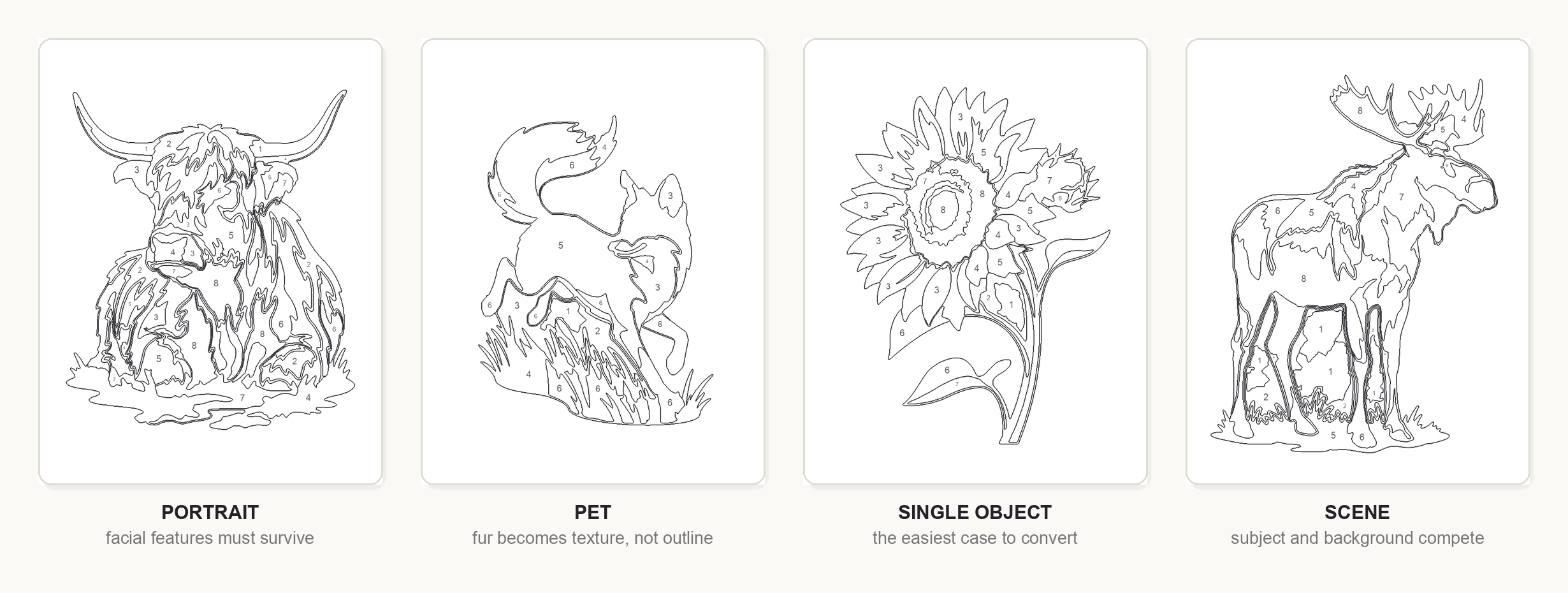
Portraits and pets
Background handling decides these. PBNify's removal toggle addresses it directly; Mimi Panda's colour-merge and minimum-number-size settings stop a face fragmenting into dozens of near-identical skin tones. Either way the source photo does more work than the tool — read What Makes a Good Photo for Color-by-Number Conversion? before converting anything with a face in it.
Detailed adult templates
Mimi Panda's five complexity levels and high colour ceiling give the most room, with Davincified's "hard" setting as the faster alternative. How to Make a Color-by-Number Page More Detailed explains which dial to raise first.
Coloring books and multi-page sets
Consistency is the requirement, which rules out generative tools immediately. Mosaci's multi-page export and KDP page sizes are aimed at this case; any deterministic converter can work too, if you are disciplined about not changing settings between pages.
Children's pages
Hello Playdate's presets, or any converter set to its lowest colour count and largest regions. Color-by-Number Difficulty Levels has the ranges by age and experience.
Mosaic-style projects
Mosaci is the option here, because uniform tiled cells are a different conversion approach rather than a setting on a region-based one.
Dedicated Converter or General AI Tool?
The distinction that matters is not AI versus not-AI. It is measured versus generated.
A dedicated converter analyses your photo, groups pixels into colour regions, and labels them. The output is derived from the image, so it is repeatable, controls behave predictably, and export tends to be aimed at a printer.
A generative tool produces an image that looks like a color-by-number template. Regions and numbers come out of the model rather than from measurement, so results vary between runs and the numbering is not guaranteed to be internally consistent. In exchange you get reinterpretation no converter offers.
Neither is better. If the value of the page is that it is your photograph, measured conversion delivers that. If the photo was only a starting point, generation gives you more to work with. This is a tendency rather than a rule — products increasingly mix both — but knowing which way a tool leans tells you how it will disappoint you.
How Much Detail Should Your Page Have?
Detail control matters when choosing a tool because it is the setting you will change most often, and the one whose effects are least intuitive.
Larger regions are easier to color and faster to finish, but past a point the subject stops resolving and the page becomes an abstract pattern. Smaller regions preserve likeness, but each has to hold a legible number, and five hundred tiny cells is a chore rather than a pastime. Colour count interacts with both: more colours means more boundaries, which means smaller regions even if you never touched the detail setting.
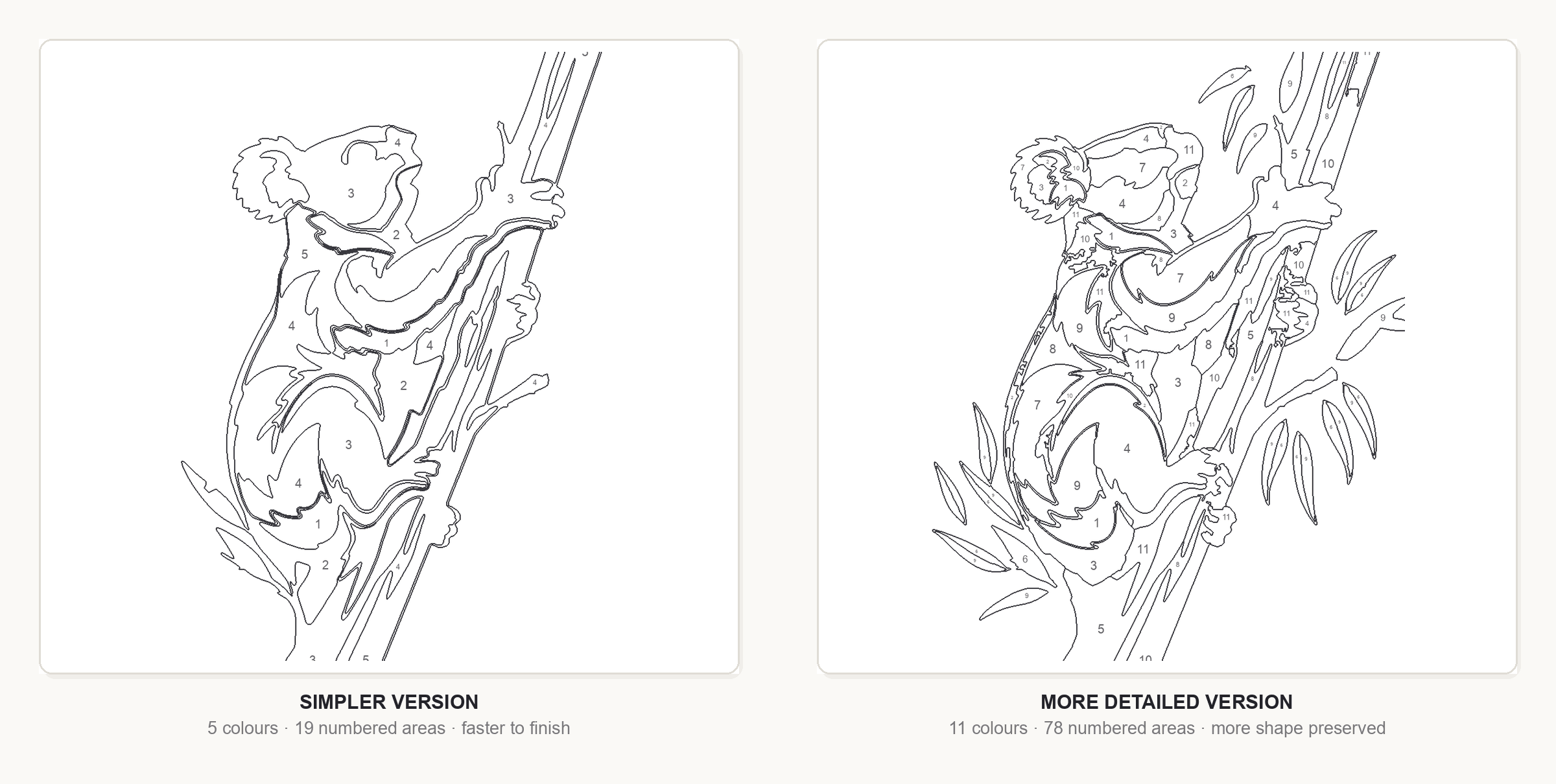
So a tool with one combined "difficulty" control hands you a curve someone else chose, while separate colour and complexity controls let you find your own point on it. The first is faster, the second more precise. How Does Color by Number Work? explains why region size and palette size are linked.
Common Problems, and What They Tell You About a Tool
Each failure below is diagnostic: it tells you whether to change the setting, the photo, or the tool.
Hundreds of tiny regions. No minimum region size, or yours is set too low. If the tool offers a minimum-size or merge control this is fixable; if not, it is a reason to switch.
Numbers that do not fit. Related but distinct: regions big enough to color, too small to label. Watch the edges of the subject, where regions are thinnest.
The subject is unrecognizable. Usually over-simplification, occasionally the opposite. If raising detail does not fix it, the source photo probably lacks the contrast the converter needs — a photo problem, not a tool problem, and Best Photos for Color-by-Number & Mark-Based Conversion shows which images hold up.
Too many near-identical colours. The palette is larger than the photo justifies, and you get four greens nobody can tell apart with pencils in hand. Lower the colour count, or use a merge control.
A background that competes with the subject. The converter treated everything as equally important. Background removal handles it; otherwise, crop before uploading.
Looks good on screen, prints badly. Thin lines and small numbers — the failure usually found after printing thirty pages, which is why the first thing to do with any tool is print one page at final size.
How to Choose
Four questions settle it in most cases.
How many pages? One or two, and the fastest no-account converter wins. More than a handful, and consistency and multi-page export matter more than any single-page result.
How much do you want to tune? If the answer is "as little as possible", pick a tool with presets. If you expect to iterate, pick one with separate colour and complexity controls.
Does it need to look like the photo? If yes, use a measured converter, not a generative one.
Where does it end up? Screen, home printer, paint kit, or a published book — each implies a different export, and it is worth deciding before you convert rather than after.
Our Scenario-Based Recommendation
No overall winner, because the projects are not the same project.
- Best for a fast personal page: Davincified — the least friction between a photo and a printable PDF.
- Best for control over the template: Mimi Panda — the deepest set of conversion settings here.
- Best for painting with a physical kit: PatternGrid — fixed paint counts and a print calibration square.
- Best for difficult backgrounds: PBNify — background removal built into the conversion.
- Best for young children: Hello Playdate — four- and eight-colour presets and an answer key.
- Best for printable, multi-page and mosaic-style projects: Mosaci — consistent multi-page export at print sizes, plus mosaic conversion.
- Best for creative experimentation: Dreamina — variation and reinterpretation rather than reproduction.
Anything you intend to sell needs its own check: licensing terms differ by tool, by plan, and over time. Read the tool's current terms rather than any article's summary of them, this one included.
Conclusion
The best photo-to-color-by-number tool is not the one with the most settings. It is the one whose defaults and controls line up with the page you are making — something a four-year-old can finish, something that matches a 24-colour paint set, or forty pages that belong in the same book.
Two things hold across all seven. The photo sets the ceiling: a well-lit subject with clear separation from its background converts better in a mediocre tool than a dim, cluttered snapshot does in a good one. And the only test that settles anything is a printed page at final size, judged on the table rather than on the screen.
If your project runs to more than a page or two, you can create a color-by-number page in Mosaci and export it as a print-ready PDF, one page or a whole book at a time.
Printable quality checklist
- The tool accepts an uploaded photo rather than only a text prompt
- Colour count and detail level can be controlled separately
- Regions are large enough to hold a legible number
- A usable colour key is included with the numbered page
- Export format and page size match how you intend to print
- Commercial terms have been checked on the tool's own current terms page
Key takeaways
- Tools in this category differ mostly in how much control they give over two separate dials: colour count and region complexity.
- Region size decides usability — if a number does not fit inside a region, the template is decorative rather than colorable.
- Measured converters produce repeatable output; generative tools reinterpret the photo and vary between runs.
- Background handling is the most common failure point for portraits and pets, and only some tools address it inside the converter.
- Print one page at final size before committing to a tool: thin lines and small numbers look fine on screen and fail on paper.
Frequently asked questions
What is the best tool to turn a photo into a color-by-number page?
It depends on the project. Davincified is the fastest route to a printable PDF with no account and a paper size chosen up front. Mimi Panda offers the deepest control, with separate colour-count and segment-complexity settings. PatternGrid suits painters matching an existing 12, 24, 36 or 48-paint kit. PBNify helps when the background is the problem. Hello Playdate is built for young children. Mosaci Studio is aimed at multi-page and print-oriented projects. Pick by what you are making rather than by which tool is best known.
Can any photo be converted into a color-by-number page?
Technically yes — every converter will produce something from any image. Whether the result is worth coloring is a different question. Photos with a clear subject, good separation from the background and reasonable contrast convert reliably. Dim, cluttered or very low-contrast images tend to produce either an unrecognizable page or a mass of tiny regions. Changing the photo usually improves the outcome more than changing the tool.
How many colors should a photo-based color-by-number page use?
Most converters land somewhere between 12 and 24 colours for a page an adult will enjoy, and 4 to 8 for young children. The count interacts with detail: more colours creates more boundaries, and therefore smaller regions, even if you never touched the complexity setting. Our guide on how many colors a color-by-number page should have covers the ranges by subject and audience.
Can I print a photo-to-color-by-number page at home?
Yes, and most of the tools compared here export PDFs intended for home printers. The two things that decide whether it prints well are line weight and the size of the numbers. Print one page at final size before producing a batch — templates that look crisp on a display can print with broken grey outlines and numbers too small to read.
Are photo-to-color-by-number generators suitable for coloring books?
Some are. A book needs consistency across pages and page sizes intended for print, which favours deterministic converters with fixed settings and multi-page export over generative tools that vary between runs. If you plan to sell the result, check the current licensing terms of whichever tool you use — they differ by product and by plan tier, and they change over time.
What is the difference between a color-by-number converter and a paint-by-number generator?
In practice, very little. Both reduce a photo to a limited palette, outline the resulting regions and number them against a colour key. The naming usually reflects the intended medium: paint-by-number tools often size output to canvas dimensions and paint-set counts, while color-by-number tools tend to target paper and pencils. Several of the tools compared here are marketed as paint-by-number generators and work equally well for printed coloring pages.
Related tools
Color-by-Number Generator
Turn a photo into numbered regions with a matching color key and export a print-ready PDF.
Mosaic Coloring Page Maker
Convert the same photo into a numbered mosaic grid instead of traced regions.
Example Gallery
See finished conversions across a range of subjects, palettes, and detail levels.
Written by
Mosaci Studio TeamThe team behind Mosaci Studio
Mosaci Studio is built to help KDP publishers, Etsy sellers, and hobby artists turn photos into print-ready coloring pages without any design experience.
Published Sep 6, 2026